Liferay Knowledge Base: Build a Smarter Support Portal

Introduction
Most teams don't struggle because documentation doesn't exist. It does because of not being in any one place. It's placed across email threads, outdated wiki pages, and tribal knowledge that walks out the door when someone leaves. Liferay's Knowledge Base module addresses this directly. It gives your portal a structured, maintainable space where content is organized, governed, and accessible to the right people without pulling in a separate tool to do it.
Prerequisites
- Liferay
Why use Liferay's knowledge base?
- Most teams reaching for a documentation tool end up with Confluence or Notion, which works fine until you realize your users now need to jump between two completely different platforms just to find an answer.
- Liferay's Knowledge Base doesn't have that problem. It lives inside your portal, which means your customers, partners, or internal staff find help content right where they already are.
- It's wired directly into Liferay's search, permission framework, and workflow engine, all of which you've already configured.
- No extra licensing, no separate user management, no integration headaches.
Key features overview
The Knowledge Base module covers everything you'd expect from a dedicated documentation tool:
- Rich text editor for article creation
- Folder-based organization with nesting support
- Article templates for content consistency
- User ratings and a built-in suggestions feature
- Email subscriptions to folders or individual articles
- Workflow support for draft and pending review states
No separate tool, no extra overhead, just documentation that works where your users already are.
Architecture & structure
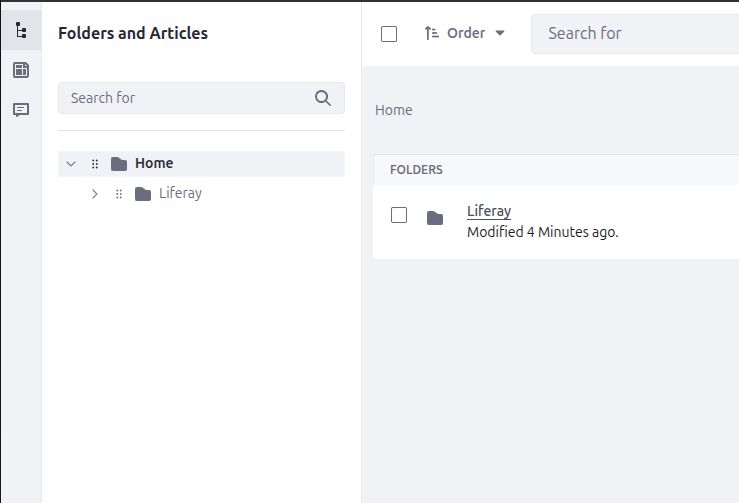
- The way the Knowledge Base is organized in Liferay will feel pretty familiar. Think of it like folders on your computer. You put articles inside folders, nest those folders inside bigger ones, and before long, you've got a structure that actually matches the way your users look for things.
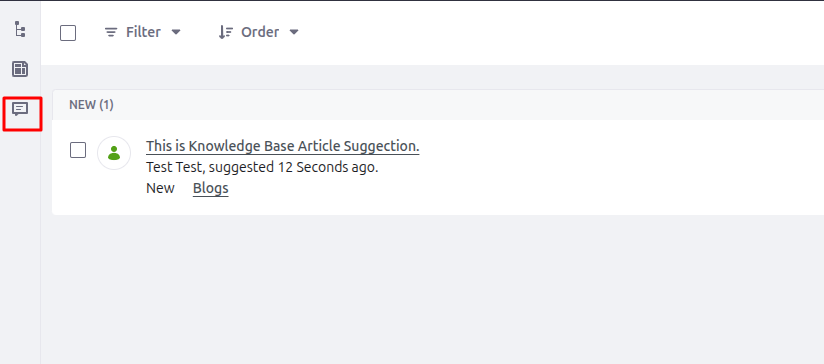
- Over on the left sidebar, you've got three things within easy reach: your articles, the templates you use to keep content looking consistent, and any suggestions readers have sent in, as you can see in the image below.
- A support portal, for instance, might start with broad sections like Getting Started, Billing, and Troubleshooting. It can then break each of those down into more specific topics underneath.
- The KB Article portlet lays out the Knowledge Base in browsable sections, while the KB Display portlet adds a sidebar so readers can jump around without losing track of where they are. One thing worth keeping in mind is not to go too deep with your folder levels. Once you're past two or three layers, most people give up trying to find what they came for.
Creating and managing Knowledge Base articles
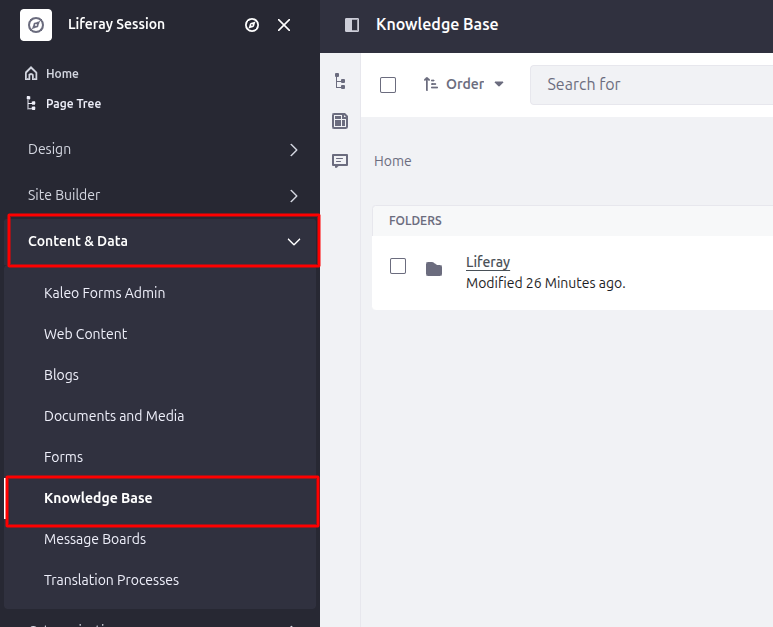
Step 1: Go to the Knowledge Base Article Page.
- Site Menu → Content & Data → Knowledge Base
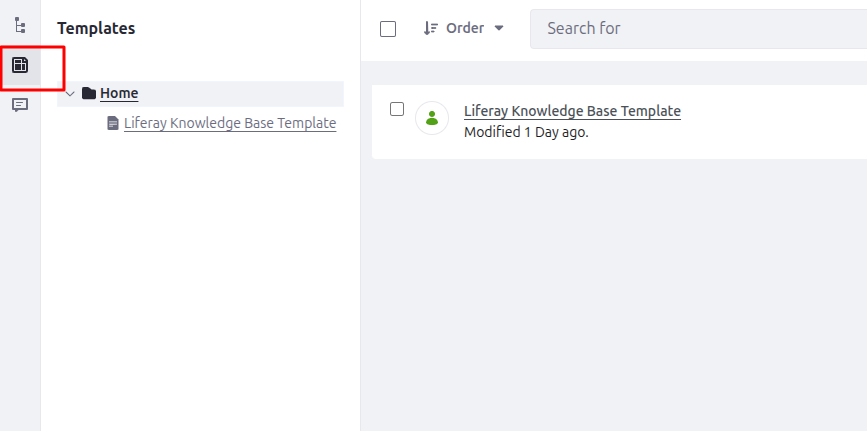
Step 2: Manage Templates.
- If your team publishes articles regularly, templates are worth setting up early.
- An admin can build a template with a fixed structure, including headings, placeholder text, and standard sections, so every author starts from the same foundation instead of a blank page.
- You'll find templates under Knowledge Base → Templates in the same menu.
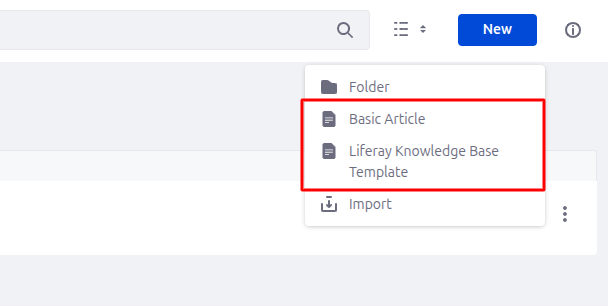
Step 3: Create a New Knowledge Base Article.
- You can select any template for creating your Knowledge Base Article.
- Also, from this dropdown, you can create a folder with the folder option.
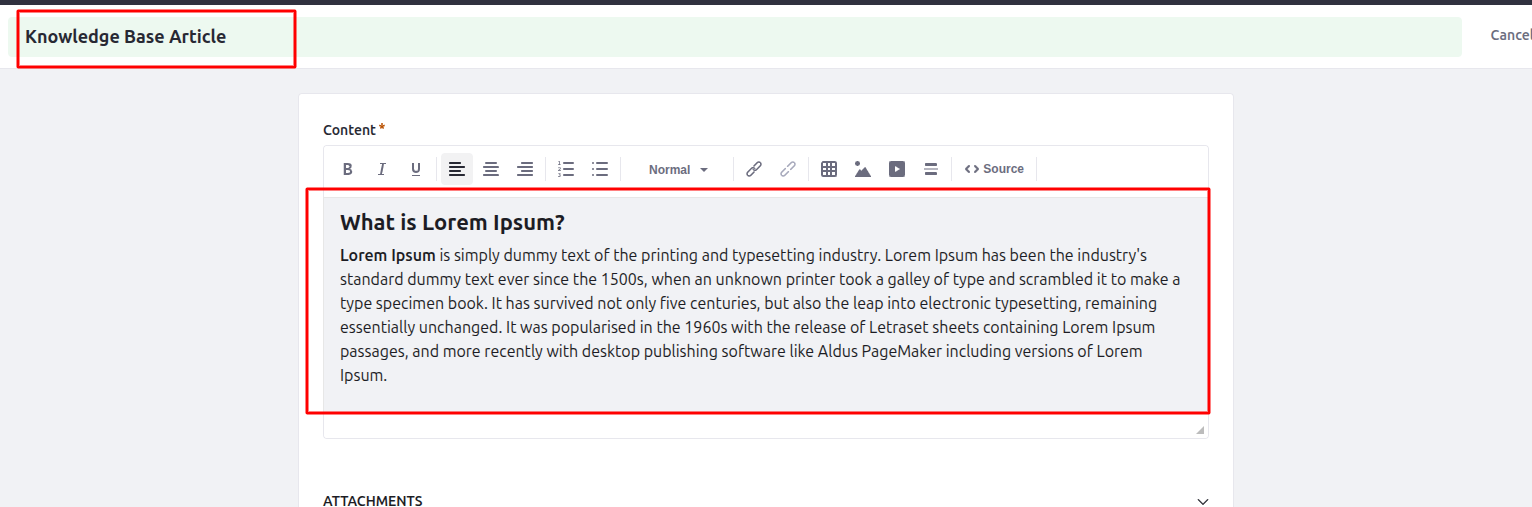
Step 4: Add Title and Content for Knowledge Base Article.
- Write a title that clearly tells the reader what the article covers, as this is what they'll see in search and navigation.
- Below that, use the rich text editor to write your content. You can add headings, tables, images, code blocks, and inline formatting without touching any HTML.
Step 5: Add Attachments(if requires)
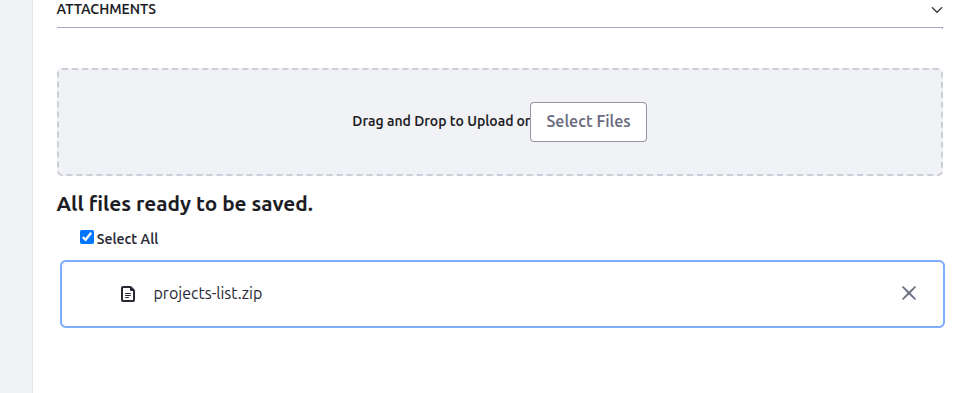
- If your article needs supporting files, scroll down to the Attachments section in the same editor.
- PDFs, spreadsheets, or any relevant files can be uploaded directly. Readers will see a download link when they open the article.
Step 6: Publish or save as a draft.
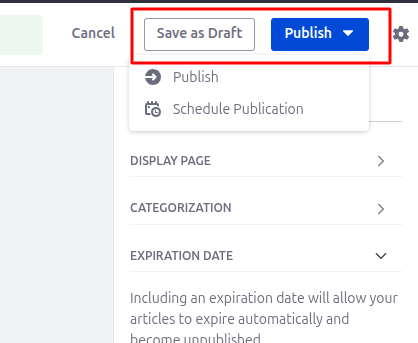
- Not every article needs to go live the moment you finish typing.
- Park it as a draft, sleep on it, come back with fresh eyes, nobody else can see it until you decide it's ready. When you feel good about it, hit Publish and that's that.
Knowledge Base Suggestions
The suggestions feature gets ignored more than it should. Readers can flag anything that seems off, whether it's a wrong step, outdated information, or something that just doesn't make sense, without having to track down anyone or file a ticket. All of that feedback shows up in one place for your admin team to review, act on, and clear out. It's not flashy, but it's probably one of the better ways to stop your documentation from quietly becoming useless over time.
Roles & permissions
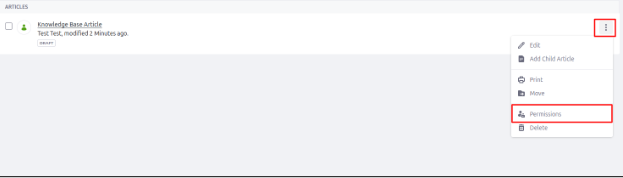
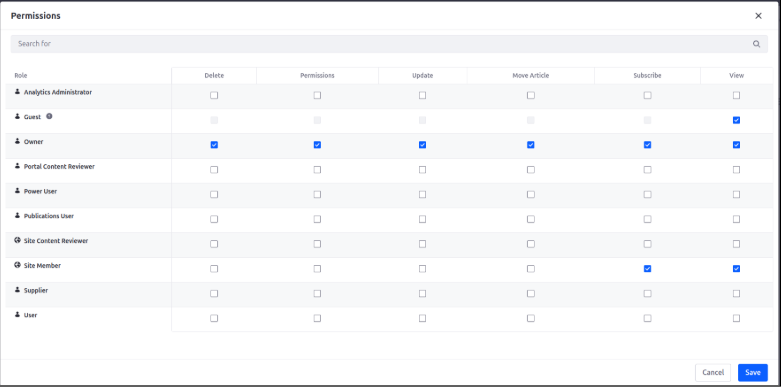
- You can create roles for the Knowledge Base Articles and assign permissions to articles as shown in the image.
Use cases & real-world examples
The KB module fits more use cases than you'd expect. Here are three common ones:
- Internal HR / IT Hub: Nobody enjoys digging through old email chains or outdated PDFs just to find a leave form. With everything in one place, including HR policies, onboarding guides, and IT procedures, staff actually know where to look. And when something changes, one update is all it takes.
- Product Manual for Intranet Teams: Keep your feature guides, release notes, and known workarounds right inside the platform your team uses daily, so there's no switching tabs or trying to remember where things were saved last time.
Best practices & tips
Getting set up is easy, but keeping it useful is the hard part. A few things that actually help:
- Keep the folder structure shallow - Two levels deep is usually enough. Go three or four levels in, and people stop browsing and start relying entirely on search. Design for browsing first and search second.
- Set a review schedule - Articles go stale. Do a quarterly check on the lowest-rated articles and anything older than six months. Assign ownership because if nobody is responsible, nobody will update it.
- Use Related Assets to connect articles - Link KB articles to other articles, web content, or portal pages. A troubleshooting guide that links to a setup guide, which then links to release notes, gives users a connected path through your content. That's much better than making them track down three separate articles on their own.
- Start with templates - Before anyone on your team writes their first article, put a basic problem/solution template and a step-by-step template in place.
Conclusion
Liferay's Knowledge Base doesn't get talked about much, but if you're managing a support portal, an intranet, or a partner site, it's one of those features that starts earning its keep pretty quickly. Getting your documentation structured, searchable, and properly gated all inside the platform your users are already in is genuinely hard to pull off when you're stitching together separate tools. And once everything's sitting in one place, keeping it up to date turns out to be far less painful than most teams expect going in.


