Website branding using themes in Liferay

Introduction:
A Liferay theme defines the overall appearance and user interface design of a website or web application.
Themes in Liferay are crafted using a combination of CSS (Cascading Style Sheets), JavaScript for interactive elements, HTML for structuring content, and FreeMarker templates for dynamic content rendering. With a theme, you can define both the structure of your page (header, footer, content area, etc.) and its styling.
We have the flexibility to customize the theme, altering the appearance and user experience of our website.
Prerequisites:
- Liferay 7.4
- NPM
Installation of Liferay theme generator:
The Liferay Theme Generator is a tool that helps you make themes for your website. It’s part of a set of tools called the Liferay JS Theme Toolkit. To use the generator, you need to have NodeJS installed on your computer.
These dependencies are configured to utilize particular versions of Node.js and NPM (Node Package Manager). Please refer to the below Liferay compatibility with Node version image.
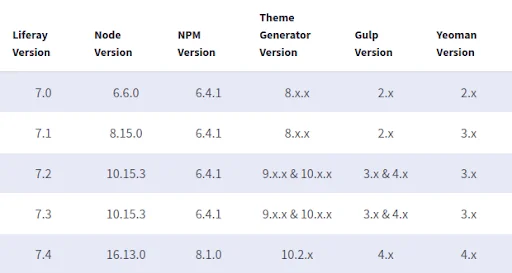
Follow the below steps to install the Liferay Theme Generator and generate a theme:
1. Install Node.js: This is a tool that helps run JavaScript code outside of a web browser. We suggest a specific version, 16.13.0, which works well with Liferay Portal 7.4. We can check node (16.13.0) and npm (8.1.0) version by using command:-
1node -v
1npm -v
2. Install Yeoman and Gulp: These are other tools we need to help generate our theme. You can install them using npm like this:
Note: the version for yeoman and gulp should be 4.x.x
1npm install -g yo1npm install gulpCheck the versions for both using the below commands:-
1yo –version
1gulp –version
Use the below command if the Yeoman and Gulp versions are not the same:-
1npm install -g yo@4.0.01npm install -g gulp@4.0.23. Install the Liferay Theme Generator: This is the main tool we’ll use to create our theme. The version you need depends on the version of Liferay you’re working with. You can install it using npm with a specific command based on your Liferay version. For example, for Liferay 7.4, you’d use:
1npm install -g generator-liferay-theme@^10.2.x- For Windows only: If you’re using Windows, there are some extra steps. You need to install something called Sass. Additionally, if you’re on Windows, you also need to install node-gyp and Python.
- Generate your theme: Now that everything is set up, you can create your theme. Just run this command:
1yo liferay-theme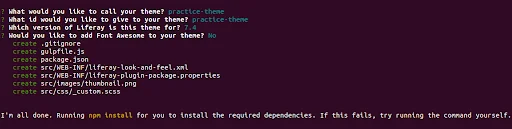
4. Deploy Your Theme: Once your theme is generated, navigate to the folder where it’s located and run the below command to generate the base files for your theme:
1gulp buildTo work on your theme, you need to copy the built files into your source folder. For example, if you want to edit the portal_normal.ftl theme template, do the following:
- Create a templates folder inside your src folder.
- Copy the portal_normal.ftl file from the build/templates folder.
- Paste it into the src/templates folder.
Whenever we change anything in the theme (HTML/CSS/JS), it needs to run the below command to see changes on the website.
1gulp deployNote: If we have different versions for nodes already, then before the gulp deploy, we need to run the below command first for the very first time, followed by gulp deploy, or we can make 16.13.0 the default version to prevent build error:-
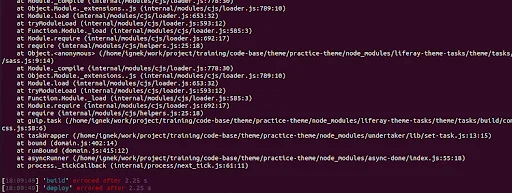
1nvm i 16.13.0Or to make it default, run the below command
1nvm alias default <version>


