How to Share JavaScript Code and Libraries Using JS Import Maps in Liferay

Introduction
You create a custom element and bring in your usual tools. A router, a forms helper, and an HTTP client. Code your feature, deploy it, and it runs. Then you build the widget. The next. Same tools, added again each time. Everything is okay until the day you have to update a version or create an API client, and suddenly you are searching through a dozen projects trying to remember which ones included their own copy.
Duplicated dependencies can be really sneaky. They do not cause any problems when you are building something. You do not get any warnings. These duplicated dependencies just keep adding up in your client extensions without you noticing. Then one day you have a version of Liferay that's out of sync, and it causes a bug. You will spend a lot of time trying to figure out what is going on with Liferay. When you are working with Liferay and you have a lot of JavaScript widgets, it is very important to think about how you share your code for Liferay. The way you share your code is just as important as the JavaScript widgets themselves. Duplicated dependencies in your JavaScript widgets can cause a lot of problems.
In this blog, we will break down:
- What JS Import Maps actually are and the problem they solve.
- How Liferay turns them into a shareable Client Extension (jsImportMapsEntry).
- How to share both third-party libraries and your own custom code with real snippets.
- The advantages, the trade-offs, and when you're better off not using them.
What Is a JS Import Map, Really?
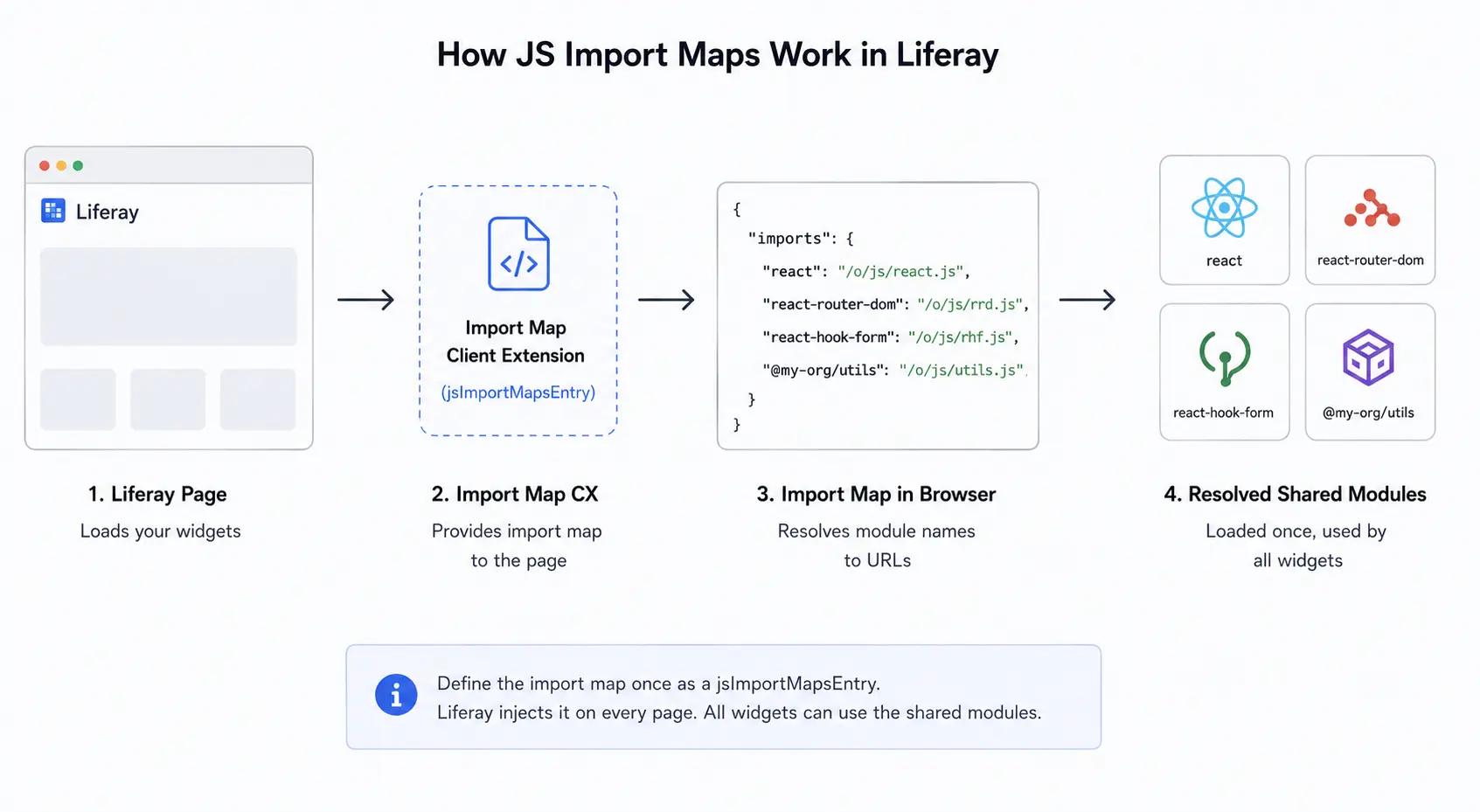
An import map is something that browsers have; it is not something that Liferay came up with. It is like a piece of information that is written in JSON. This information tells the browser how to find a module when you use a simple name. The import map helps the browser figure out where to find the module by looking at the name and then finding the real address of the module on the internet. So basically the import map is, like, a list that helps the browser find what it needs when you import something.
Normally, if you write the following in a plain browser environment, it fails because the browser has no idea where the React package physically sits:
1// Without an import map, the browser can't resolve 'react'
2import React from 'react';
Historically, bundlers such as Webpack, Rollup, or Vite solved this by resolving those paths at build time and packing everything into one file. Import maps let the browser do that resolution natively, using a mapping like this:
1// A basic native import map
2<script type="importmap">
3{
4  "imports": {
5    "react": "https://esm.sh/react@18.2.0",
6    "lodash": "https://esm.sh/lodash@4.17.21"
7  }
8}
9</script>
When we talk about those URLs, there is something to remember. It is okay to use a CDN like esm.sh for examples, but it is not what you want to do when you actually use something. If you do that, every page will get the package from someone when it loads, and that will make it slower and give you a problem you cannot control. When you work on a Liferay project, you make the module yourself and use it from your own place. That is what we do in the rest of this guide.
When you have that map set up, you can just write React from 'react. 'It will work, because the browser knows where to get it. The main thing to remember is that this map is used by the page, and that is exactly why it is so useful when you have many widgets that need the same library.
In short
An import map is, like a list, that changes short names of modules into real URLs so the browser can get the modules without needing someone to put them together first.
How Liferay Fits In
Liferay has a client extension type called jsImportMapsEntry. This is used for a purpose. You do not have to write a raw import map script by hand. Instead, you tell Liferay about your shared modules in a client extension. You deploy it one time. Liferay puts the mapping into every portal page for you.
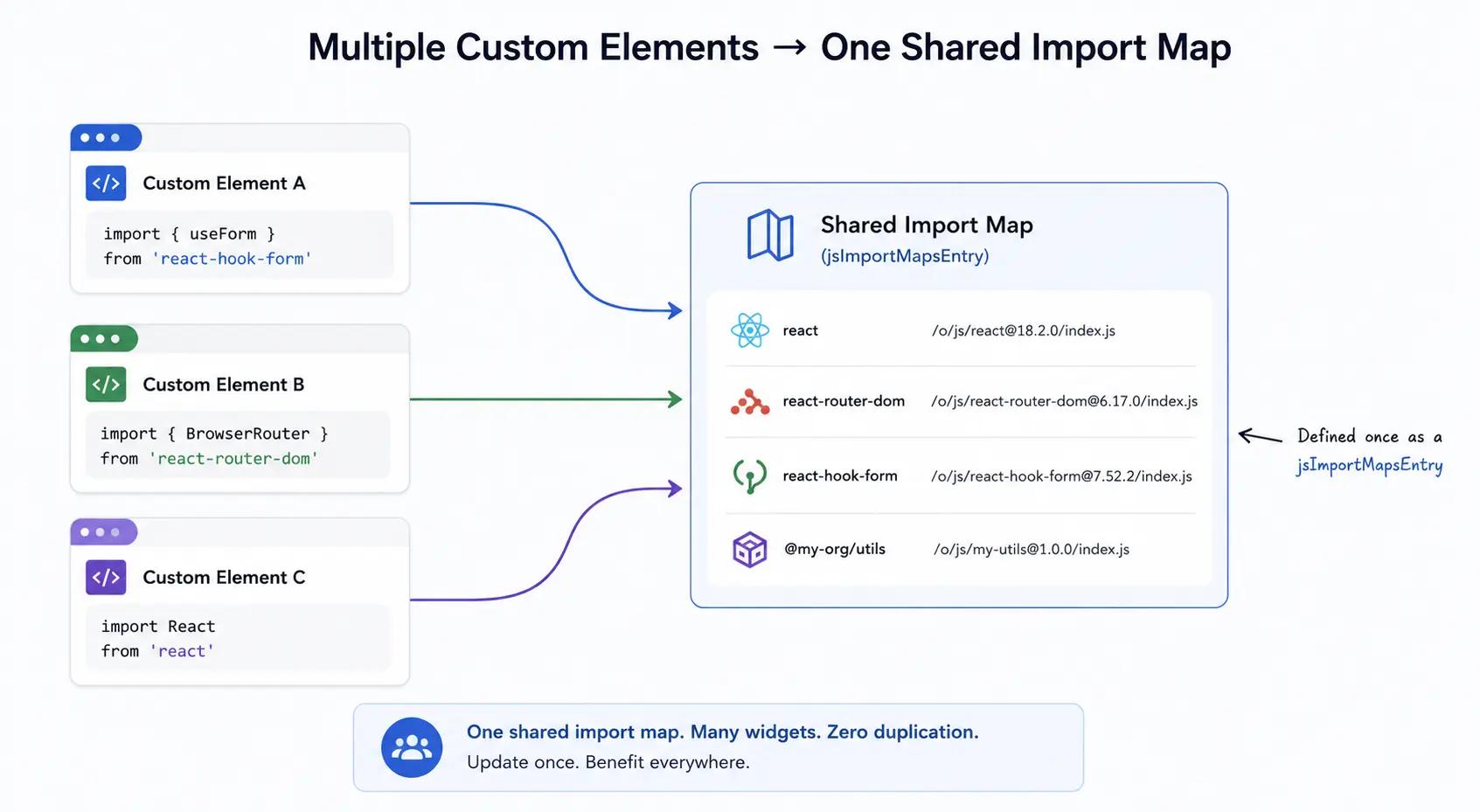
This makes sharing things easy. Liferay makes it easy to share two kinds of things. First you can share libraries from companies. This means you can use one version of a routing or forms package in all your widgets. Second, you can share your code. This is more interesting. You can share constants and utility functions. You can even share React components. All of these things are published as modules.
The good thing about a client extension is that it is not part of the Liferay upgrade cycle. This means you can update your shared module in one place. Then you redeploy it. Every widget that depends on it will get the change without having to be rebuilt one by one. This is the benefit of using Liferay Client Extensions. You update the shared module in one place. Every dependent widget gets the change. This is the payoff of using Liferay Client Extensions.
Part 1 – Sharing a Third-Party Library
We will begin with a situation: making one shared library available to every widget, which you build and host yourself instead of getting it from a Content Delivery Network. Inside your Liferay workspace, you should make a folder under client-extensions and give it a name that is easy to understand. It is a good idea to end this name with a js-import-map-entry-style suffix so it is clear what it is.
The main idea here is that this client extension works like a provider. It puts the library into one ES module file. The import map shows where this local file is. Here is the client extension. yaml:
1# client-extension.yaml
2assemble:
3  - from: build/static
4    into: static
5
6shared-common-ui:
7  bareSpecifier: shared-common-ui
8  name: Shared Common UI
9  type: jsImportMapsEntry
10  url: js/index.js      # self-hosted, served from your own instance —  no CDN
The three fields that matter: type: jsImportMaps Entry registers the map entry, bareSpecifier is the exact name consumers will import by, and url points to the file your build produces and served by Liferay, not a third party.
The provider's Vite config bundles the library into that one file but keeps React external so the provider and every consumer share Liferay's single React instance:
1// vite.config.mts (provider)
2build: {
3  lib: {
4    entry: resolve(__dirname, 'src/index.ts'),
5    formats: ['es'],
6  },
7  outDir: 'build/static',
8  rollupOptions: {
9    external: (id) => id === 'react' || id === 'react-dom',
10    output: {
11      entryFileNames: 'js/index.js',
12      format: 'es',
13      inlineDynamicImports: true,
14    },
15  },
16}
That single rule - bundle the library, externalize react is the one most people miss, and it's the difference between a stable setup and the mysterious Invalid hook call crashes that come from two copies of React fighting on the same page.
Telling a Widget to Use the Shared Copy
Deploying the provider is only half the job. A consuming widget has to be told not to bundle its own copy, so the bare import survives the build, and Liferay's import map resolves it at runtime. In the consumer's Vite config, mark the shared module and React as external:
1// vite.config.mts (consumer)
2rollupOptions: {
3  external: (id) =>
4    id === 'shared-common-ui' ||
5    id === 'react' ||
6    id === 'react-dom',
7  output: {
8    entryFileNames: 'js/main.js',
9    format: 'es',
10    inlineDynamicImports: true,
11  },
12}
Then the consumer's own client extension. YAML needs one critical flag: useESM: true, so Liferay serves it as a real ES module that can read the import map.
1# client-extension.yaml (consumer)
2my-client-extension:
3  type: customElement
4  name: My Client Extension
5  htmlElementName: my-client-extension
6  urls:
7    - js/main.js
8  useESM: true      # required so the bare import resolves through the map
With those in place, the widget's build keeps from 'shared-common-ui' untouched, and at runtime the browser loads your one self-hosted copy. One version, one React, loaded once.
Part 2 – Sharing Your Own Code
Libraries are useful, but the real convenience shows up when you publish your own code. You can expose plain data, reusable functions, and React components through the same mechanism. Here is the shape of a small shared-code project. To keep the focus on the sharing pattern itself, this part uses a plain JavaScript setup; the same principles apply in TypeScript.
The Project Skeleton
Create the project, add Vite as a dev dependency, and set up a src/index.js as the entry point that re-exports everything you want to share. Your package. JSON declares the module name that consumers will import by:
1// package.json
2{
3  "name": "@liferay/shared-code",
4  "private": true,
5  "version": "1.0.0",
6  "type": "module",
7  "exports": { ".": { "import": "./build/vite/index.js" } },
8  "scripts": {
9    "build": "vite build",
10    "dev": "vite"
11  },
12  "dependencies": { "react": "18.2.0", "react-dom": "18.2.0" }
13}
The vite.config.js sets the library build mode and keeps React external and the client extension. yaml exposes the built output as an import map entry:
1# client-extension.yaml
2assemble:
3  - from: build/vite
4    into: static
5
6shared-code-js-import-maps-entry:
7  bareSpecifier: "@liferay/shared-code"
8  name: Shared Code JS Import Maps Entry
9  type: jsImportMapsEntry
10  url: /index.js
Exposing Data, a Function, and a Component
Say you want to share a lookup object, a greeting helper, and a small input component. Each lives in its own file, and index.js re-exports them all:
1// Shared exports
2// src/data/continents.js
3export default {
4  AF: 'Africa', AS: 'Asia', EU: 'Europe',
5  NA: 'North America', SA: 'South America',
6};
7
8// src/util/sayHello.js
9export default function sayHello(name) {
10  return `Hello ${name}, glad you're here!`;
11}
12
13// src/index.js  (the single public surface)
14export { default as continents } from './data/continents';
15export { default as sayHello } from './util/sayHello';
16export { default as SimpleInput } from './components/SimpleInput';
After you deploy, any fragment or custom element can import these by the module name you set. A quick way to confirm it works is to drop a test import into a Fragment's JavaScript panel and watch the console:
1// Paste into a Fragment's JS panel to verify
2import { continents } from '@liferay/shared-code';
3
4console.log(continents);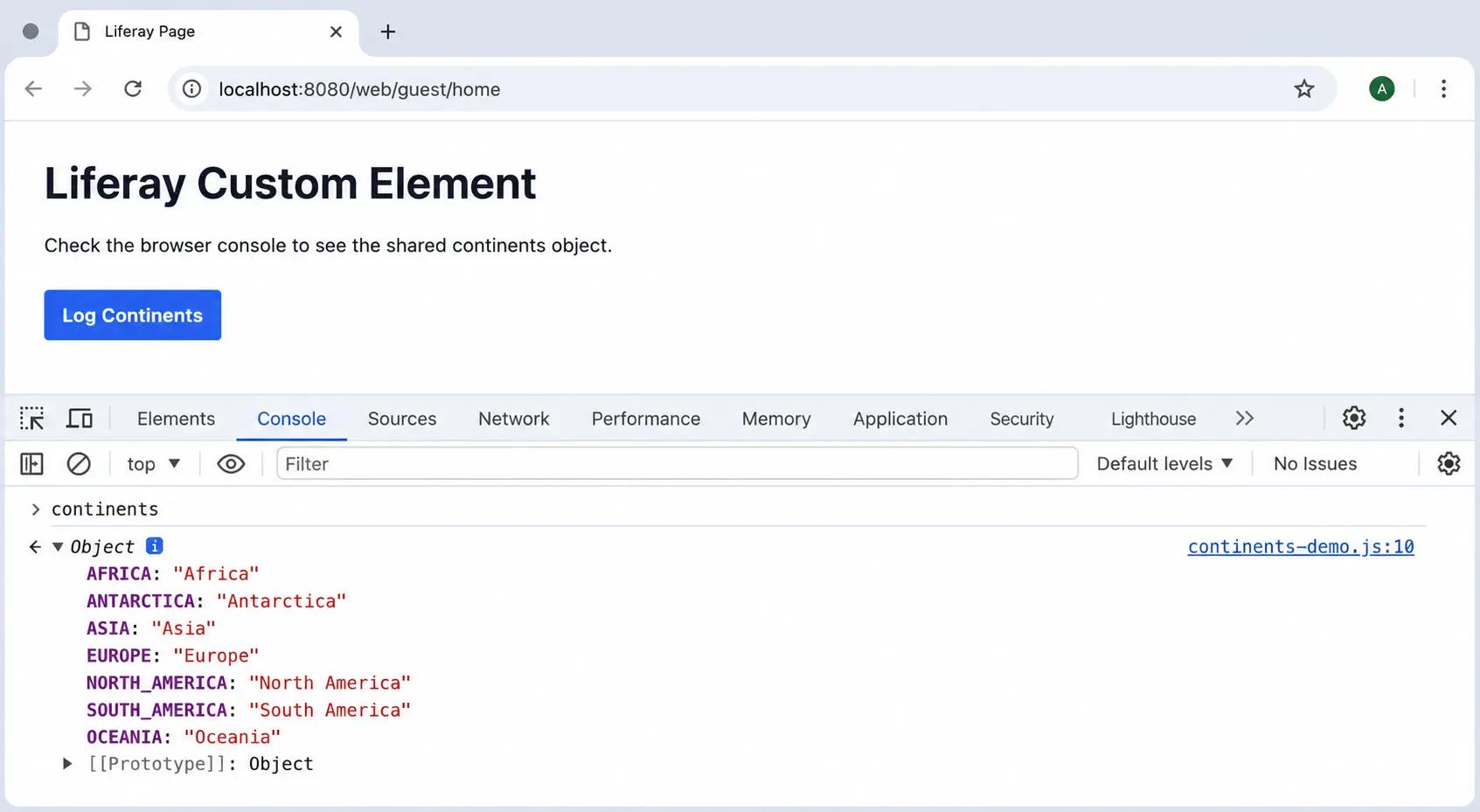
The Upside and the Downside
Import maps are a genuinely useful tool, but they are not a magic wand for every situation. It helps to weigh both sides before you commit an entire dependency tree to them.
Advantages
| Benefits | What it means in practice |
|---|---|
| Single source of truth | Update a library or shared function in one Client Extension and every widget uses the new version after redeploy. |
| Less duplication | The same module is loaded once for the whole page instead of being bundled into each widget separately. |
| Smaller widget bundles | Externalized dependencies drop out of each build, so individual widgets ship less code. |
| Enforced consistency | A single shared version prevents two widgets from silently running mismatched library versions. |
| Self-hosted and controlled | You serve one bundled file from your own instance no CDN, no external fetch, predictable load times. |
| Upgrade-cycle friendly | Client Extensions live outside the Liferay core, so shared code survives platform upgrades. |
Disadvantages and Trade-offs
| Limitation | Why it can bite you |
|---|---|
| Loaded on every page | Import map entries apply portal-wide, so a module used by only one widget still gets declared globally. |
| One version for all | Sharing forces a single version. If two widgets genuinely need different versions, the map works against you. |
| Not for complex builds | Anything needing heavy transpilation, like JSX, still relies on a bundler somewhere. |
| Coordination overhead | A breaking change to a shared module can ripple across every consumer at once. |
| Single React instance is mandatory | Provider and every consumer must externalize react/react-dom, or duplicate copies cause Invalid hook call crashes |
Rule of thumb
Share a dependency through an import map when several widgets use it and you want them on the same version. Keep a dependency bundled locally when only one widget needs it or when different widgets need different versions.
When to Use It and When to Skip It
When to use a dependency and when to skip it is a decision. It usually comes down to how places a dependency is used in your project and how much you want to have just one version of it that everyone can share. This comparison can help you figure out what to do in your situation with a dependency.
| Scenario | Good fit for an import map? | Reasoning |
|---|---|---|
| A library used by many widgets | Yes | Central version, loaded once, easy upgrades. |
| Shared utilities or components you own | Yes | Publish once, import everywhere by name. |
| A library used by exactly one widget | No | No sharing benefit; just bundle it locally. |
| Widgets that need different versions | No | A single shared version cannot satisfy both. |
| Rapid prototyping | Yes | Skip bundler setup and iterate in the browser. |
| Micro-frontend architecture | Yes | Coordinates shared dependencies cleanly across apps. |
A Few Best Practices
- Reserve the import map for dependencies that are genuinely shared. If a package lives in one widget, keep it bundled there.
- Use clear, consistent naming, and keep the js-import-map-entry suffix so the project's purpose is self-explanatory.
- Keep a single public entry point (index.js) that re-exports everything, so the module's surface is easy to reason about.
- Treat version bumps to shared modules as coordinated changes; test the widgets that depend on them before you redeploy widely.
- Remember to mark shared modules as external in each consuming widget's build config, or you will still ship duplicate copies.
- Lean on a Liferay Workspace where you can; it bundles Client extensions and resolved shared modules as workspace packages with less manual wiring.
- Self-host the shared bundle and point the import map at a local URL; avoid public CDN URLs in anything you ship.
- Externalize react and react-dom in the provider and every consumer so the whole page runs on Liferay's single React instance.
- Set useESM: true on consumers, and keep a d.ts declaration synchronized with the provider’s exports so runtime and compile-time types stay aligned.
Conclusion
When you use JavaScript with import maps, it helps to organize your dependencies in one place. This means you do not have to copy and paste things all over the place. You can make your libraries or your own code into something called a jsImportMapsEntry Client Extension. Then you tell the widgets that use these dependencies that they are external. This way you get to use the version of everything; your bundles are smaller, and you do not have to do as much work when you need to update something.
The thing about import maps is that they are useful in some situations but not everywhere. You should use them for the dependencies that a lot of widgets really need to share. For the ones that are only used once, it is better to keep them local. This way you can find a balance between being able to reuse things and still having the flexibility you need. Once you get used to using import maps, you will want to use them every time you see the same library being used in another project. You will reach for import maps because they make your life easier when you are working with JavaScript and import maps.


