TypeScript and React with Liferay

Introduction:
Building solid and user-friendly applications requires keeping up with the most recent technological advancements in the field of web development. Because they make the development process more efficient and enable the creation of dynamic, interactive user interfaces, TypeScript and React have become incredibly popular. These technologies provide web developers with a potent combo when paired with Liferay, a strong content management system. In this blog post, we'll look at how TypeScript and React may be integrated with Liferay to accelerate your web development project.
Before delving into the implementation details, let's first understand the reasons behind our choices.
-> Using TypeScript and React with Liferay provides enhanced type safety, developer experience, code maintainability, ecosystem compatibility, scalability, performance, and community support, making it an ideal choice for modern web development within the Liferay platform.
-> TypeScript promotes code maintainability by making it more self-documenting and comprehensible, which is invaluable in larger projects or when collaborating with other developers.
-> React.Js component-based architecture aligns seamlessly with Liferay's portlet development, promoting modular and reusable components.
For a more hands-on experience, check out our other blog post on developing a Liferay React Portlet to further enhance your understanding of React with Liferay environment
Create a Typescript module in Liferay
The steps for implementing a Typescript module in Liferay are as follows.
1. Open the terminal in the directory where you intend to place the Typescript module and use this npm command.
1npm install -g yo generator-liferay-js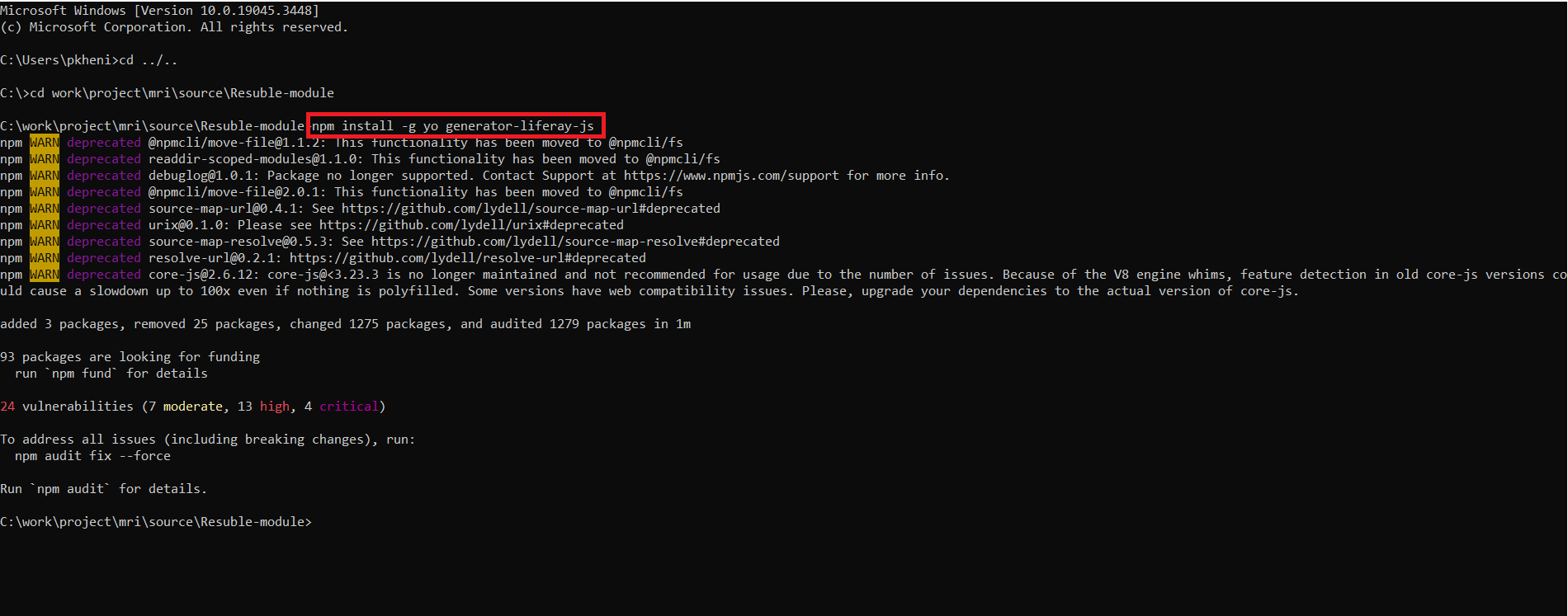
2. Create a typescript module and give the Lifeay portlet a name.
1npx create-react-app <portlet_name> --template typescript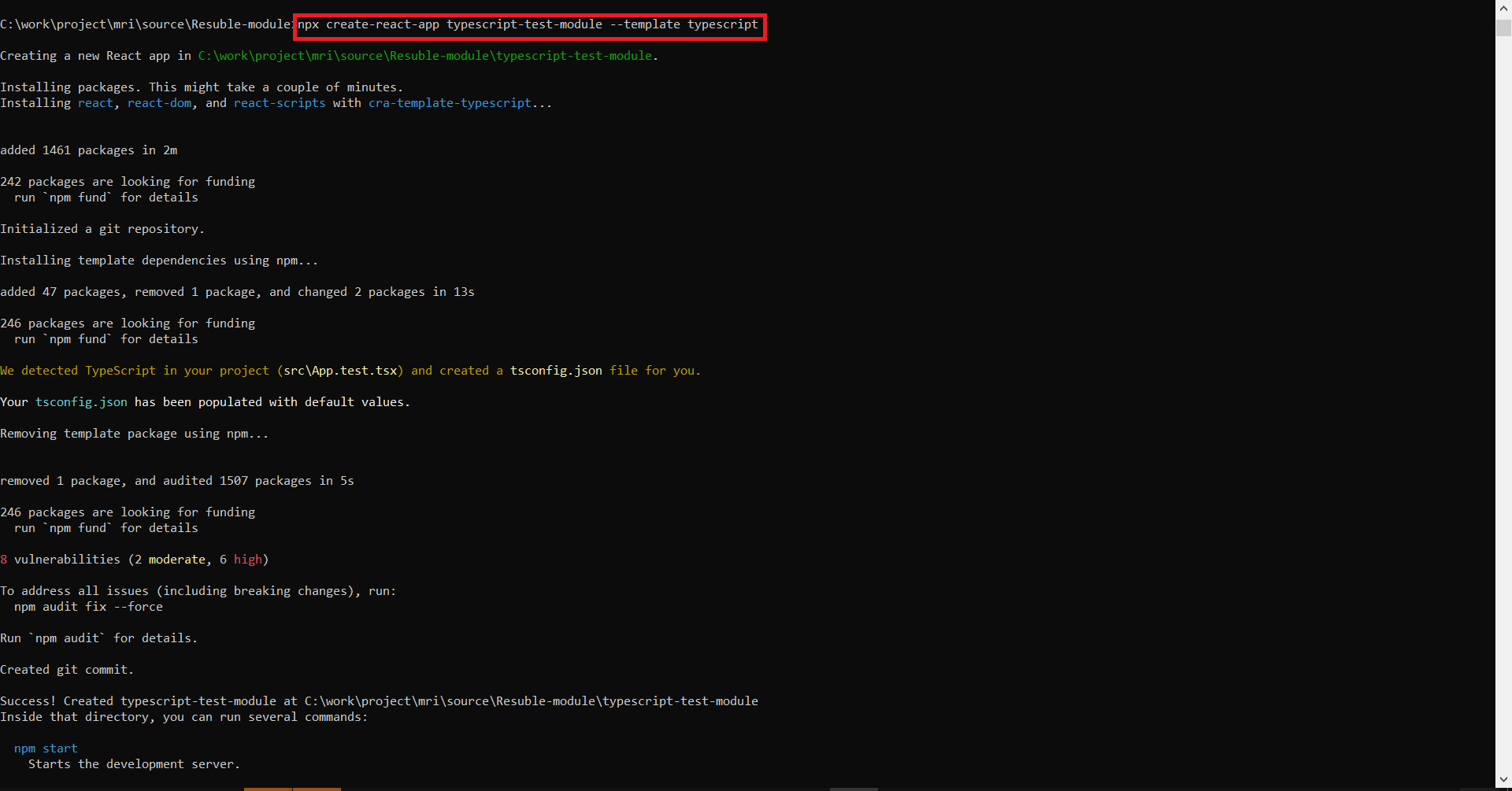
3. We have the module created, and we are going to adapt it to a Liferay project style using it
1cd <portlet_name> && yo liferay-js:adapt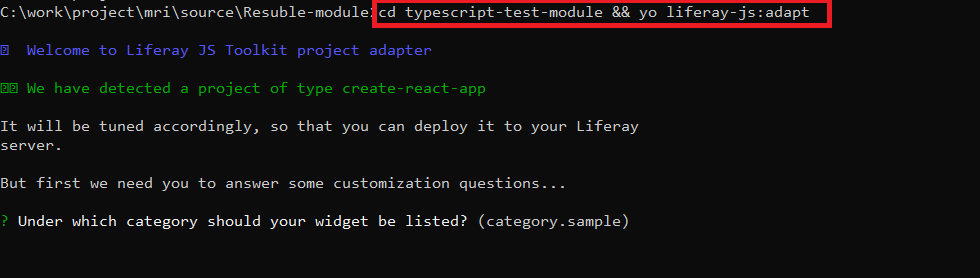
4. Next, give the name of your React with Typescript module in the widget list.
- If you want localization support, then write yes; otherwise, no.
- Add your liferay path where your liferay is placed.
- After answering all the options above, you will be confronted with a conflict. You want to change the package. json in order to add dependencies that Liferay needs.
- All you need to do is say yes because, without conflict, a file will be created, than press enter
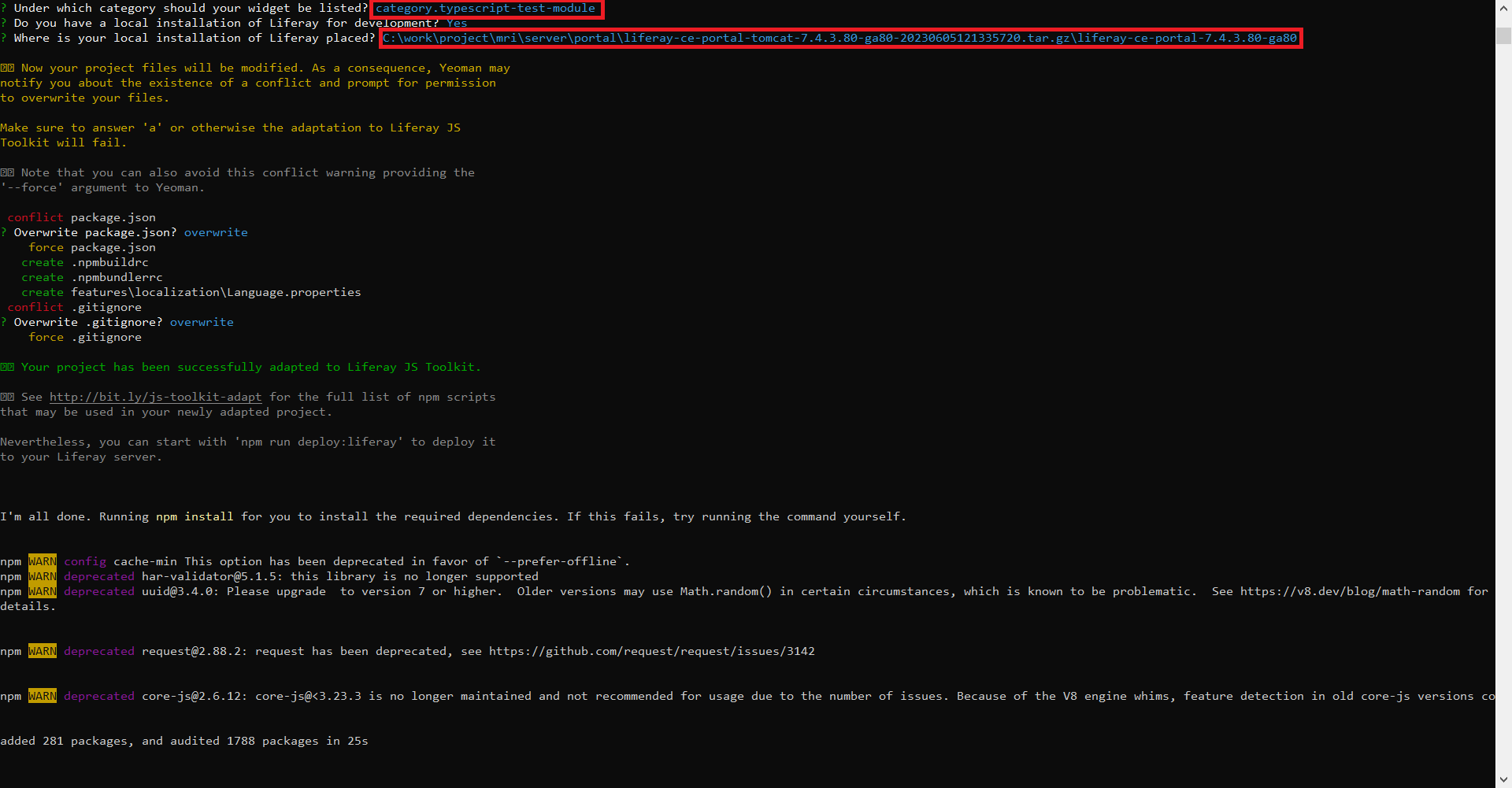
5. Now deploy the module on liferay server and generate build file following this command
1npm run deploy:liferay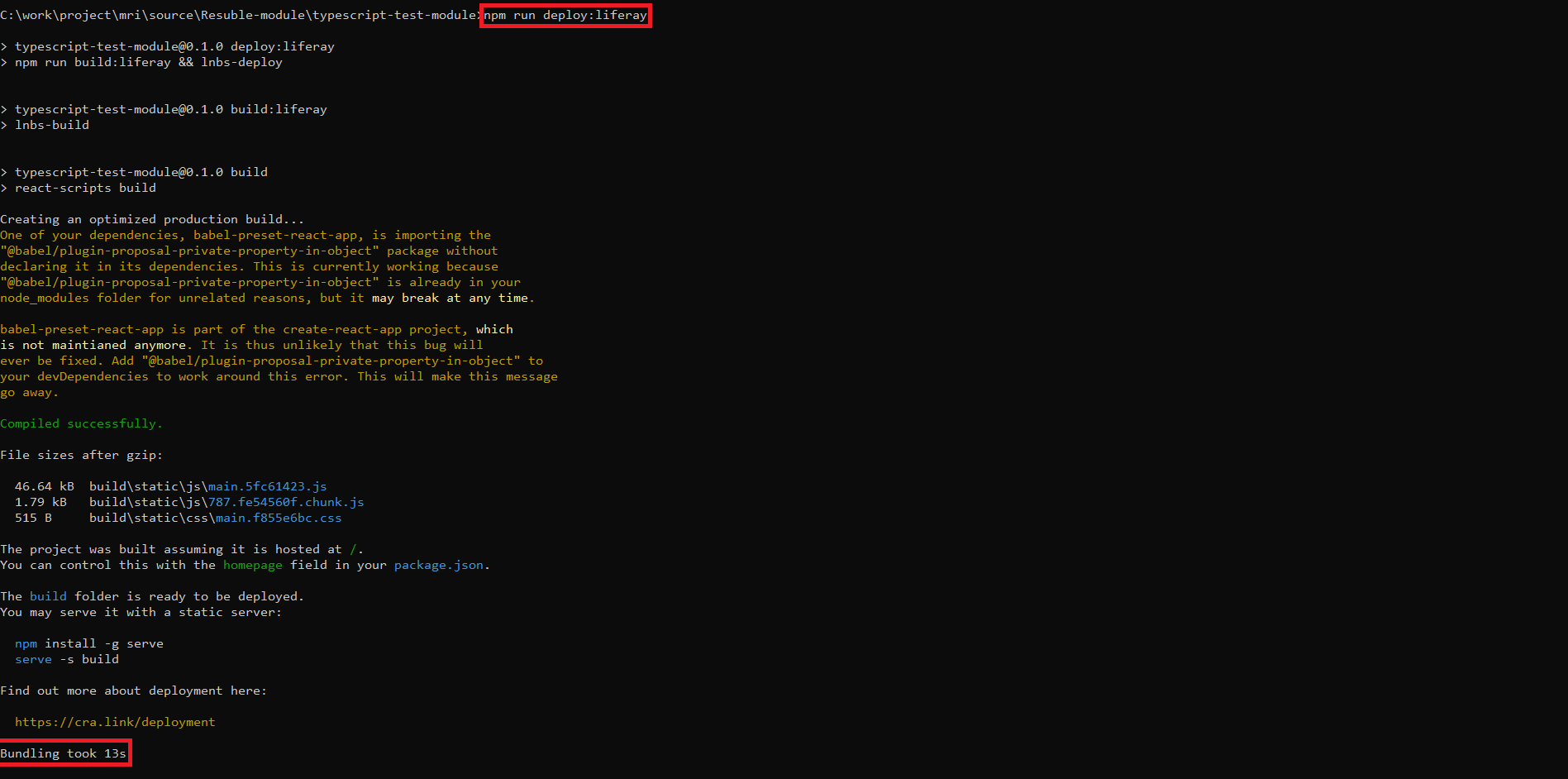
6. Add the deploy command to the package.json > "scripts" file.
1"deploy": "npm run build:liferay && lnbs-deploy"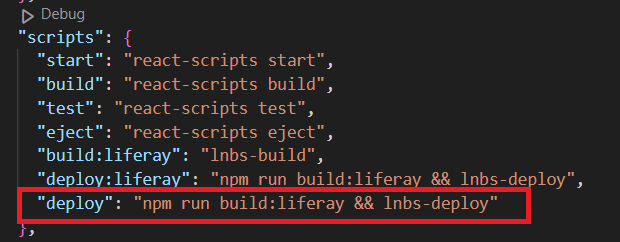
7. After that, deploy on liferay server
1npm run deploy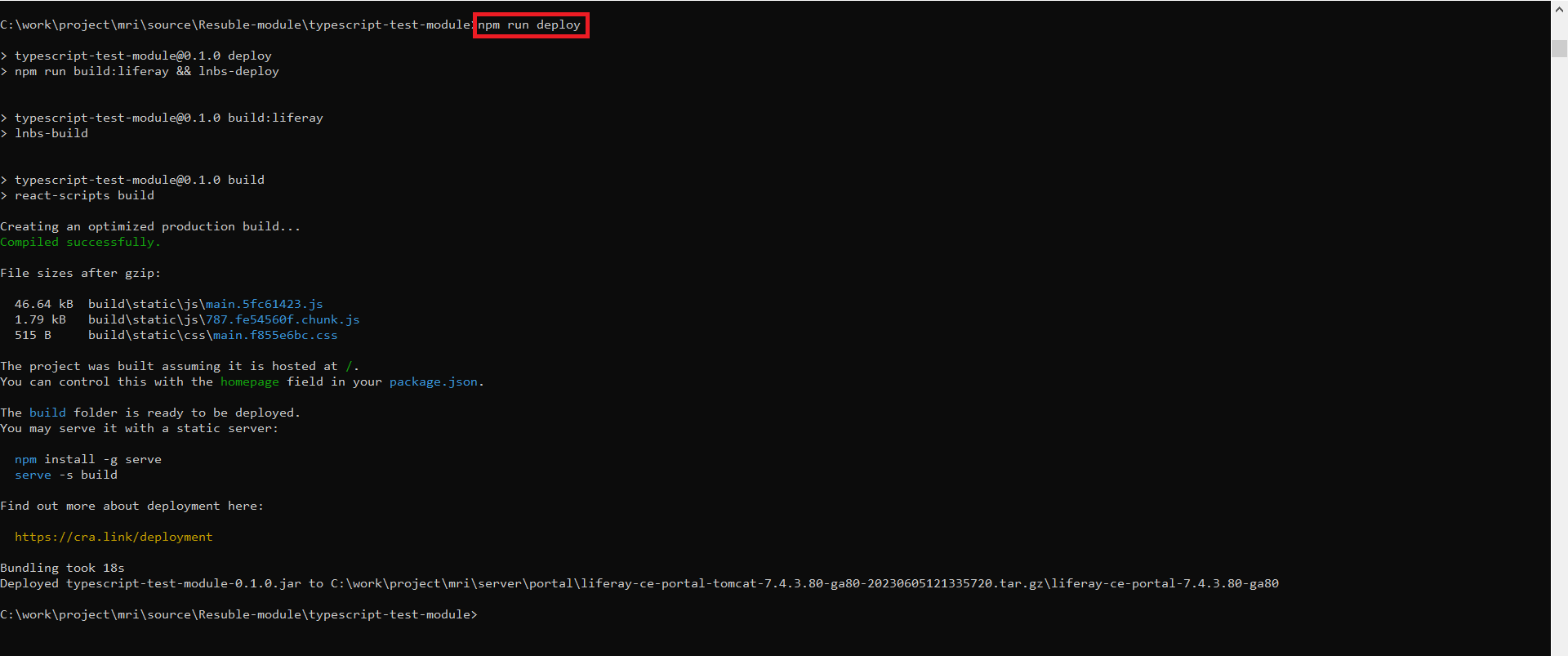
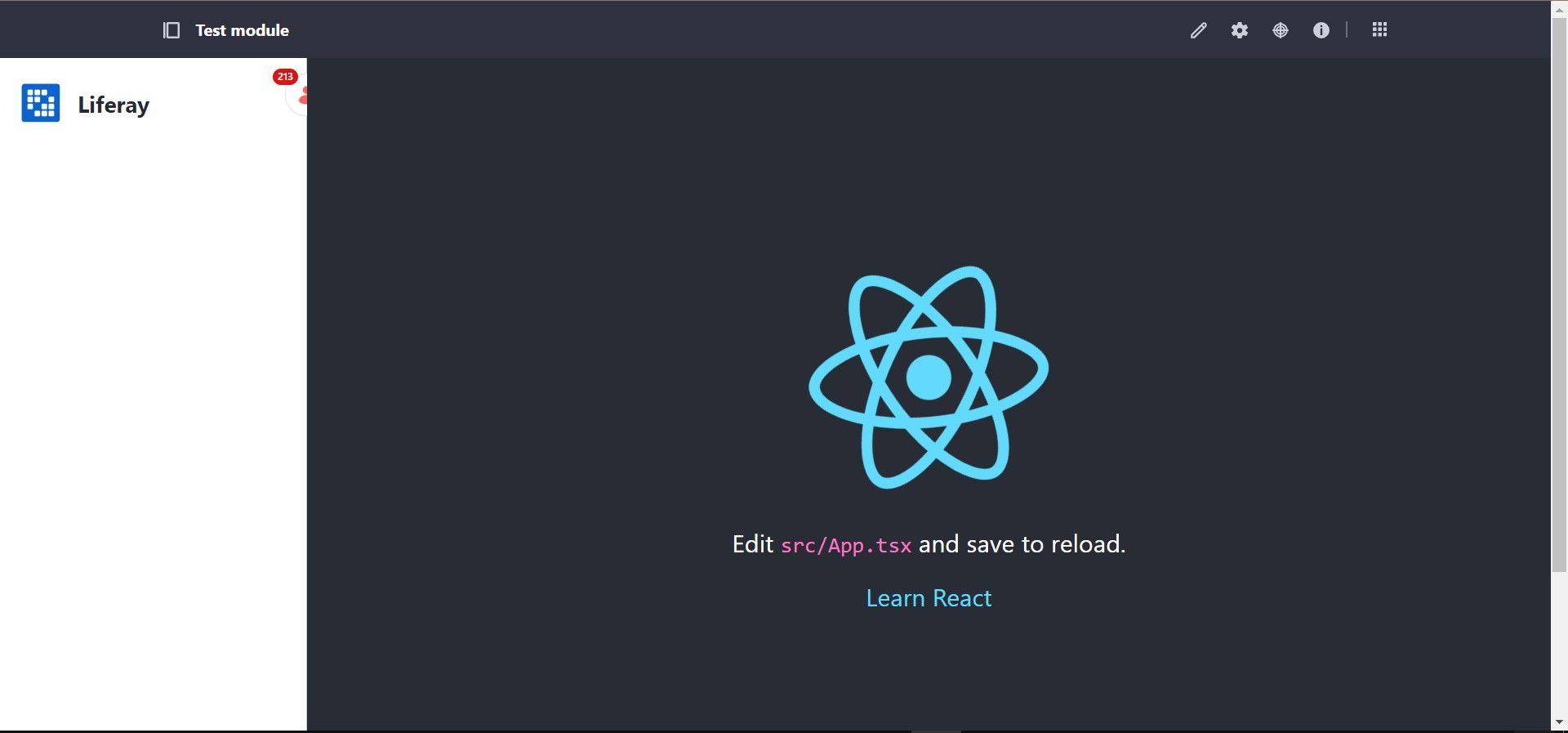
8. Your React app is deployed and now available as a widget that you can add to site pages.
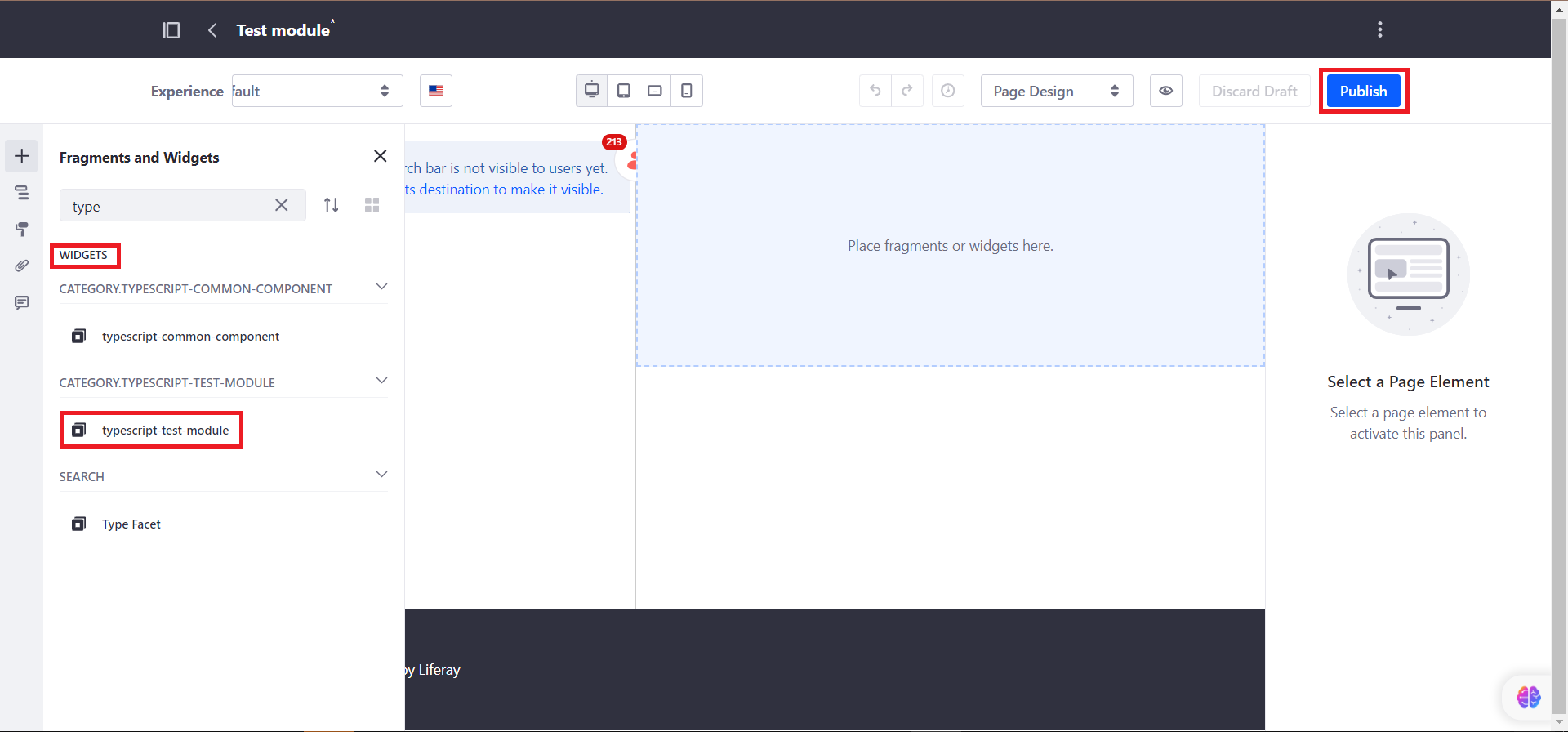
First, go to widgets tab > User Web > Drag and drop typescript-test-module > Publish.