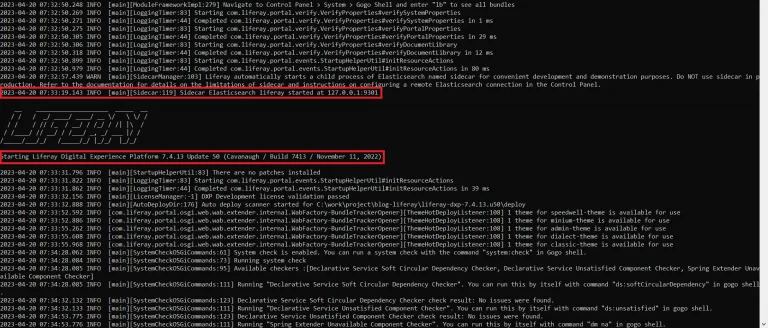
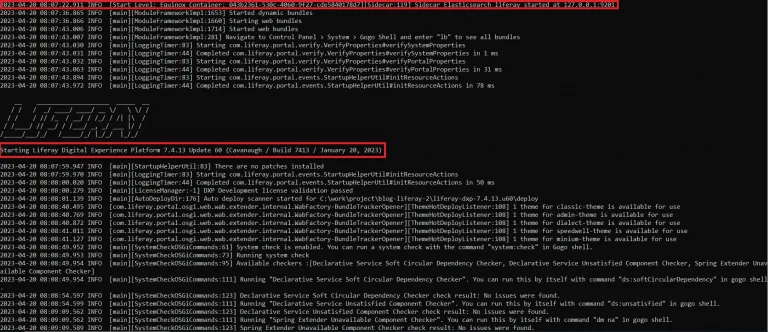
Start two or more Liferay servers simultaneously on a machine

Problem :
How to start two Liferay servers at the same time with different ports ?
Sometimes we need to start multiple Liferay servers into one system in order to locally debug the problems with the clustering or remote staging features.
Solution :
We can modify the Liferay Tomcat server configuration and change the Elasticsearch properties using Liferay OOTB.
Environment Requirements :
- Liferay Portal
Here I am starting two Liferay servers simultaneously.
I am choosing the following version, You can choose as per your requirements.
- Liferay-dxp-7.4.13.u50
- Liferay-dxp-7.4.13.u60
First Liferay Server
Please follow below steps to start the first liferay
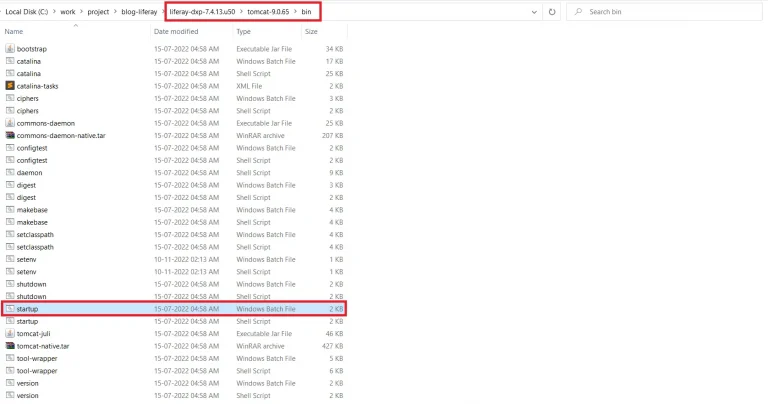
1. Start liferay-dxp-7.4.13.u50 → tomcat-9.0.65 → bin → startup (for Windows: batch file, and for Linux: shell script file)
2. After the successful startup of liferay, Sign in to the site as an Admin.
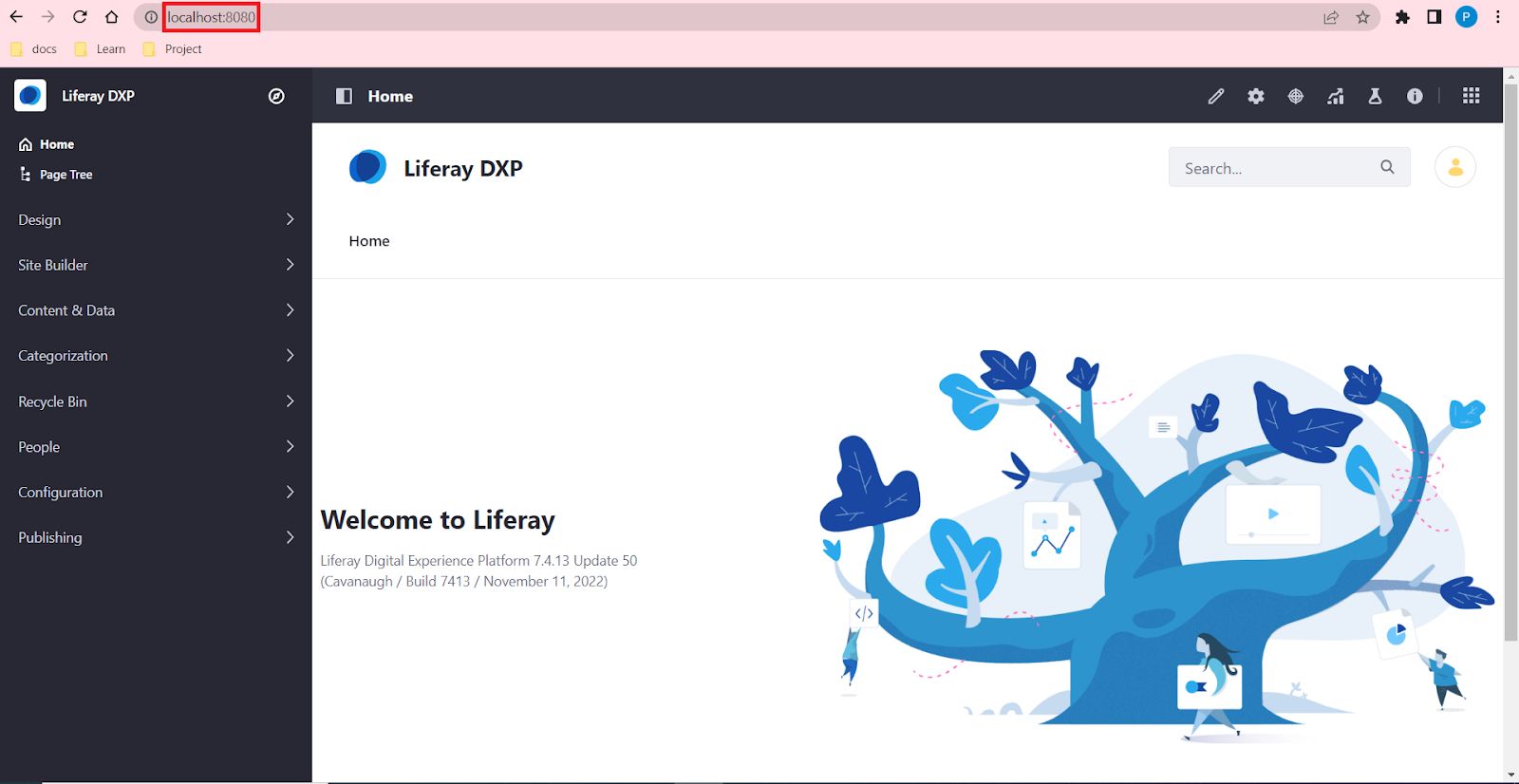
3. Sign in successfully with localhost:8080
4. Next, open the Global Menu(◧).Then navigate to Control Panel → Configuration → System Settings.
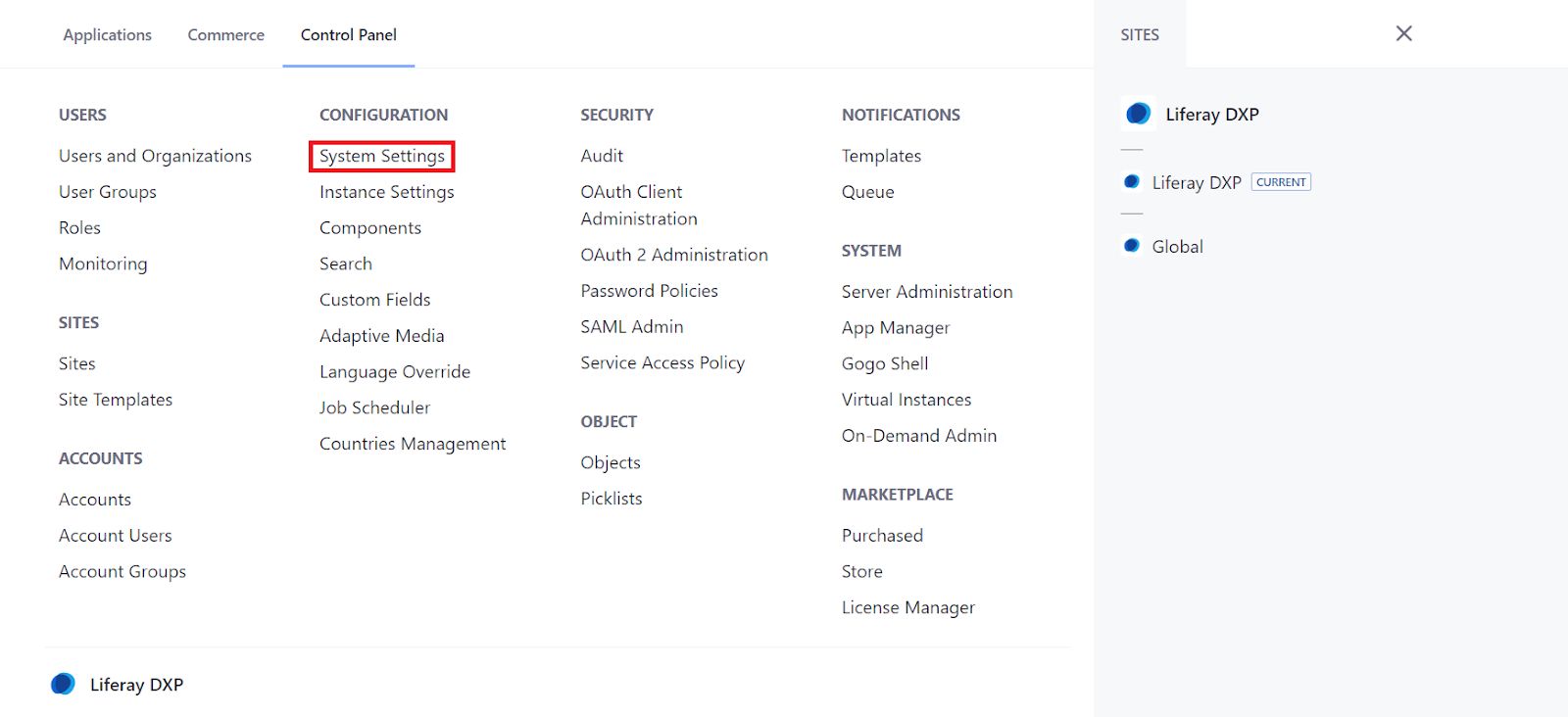
5. Click on System Settings → Platform section → click on the Search.
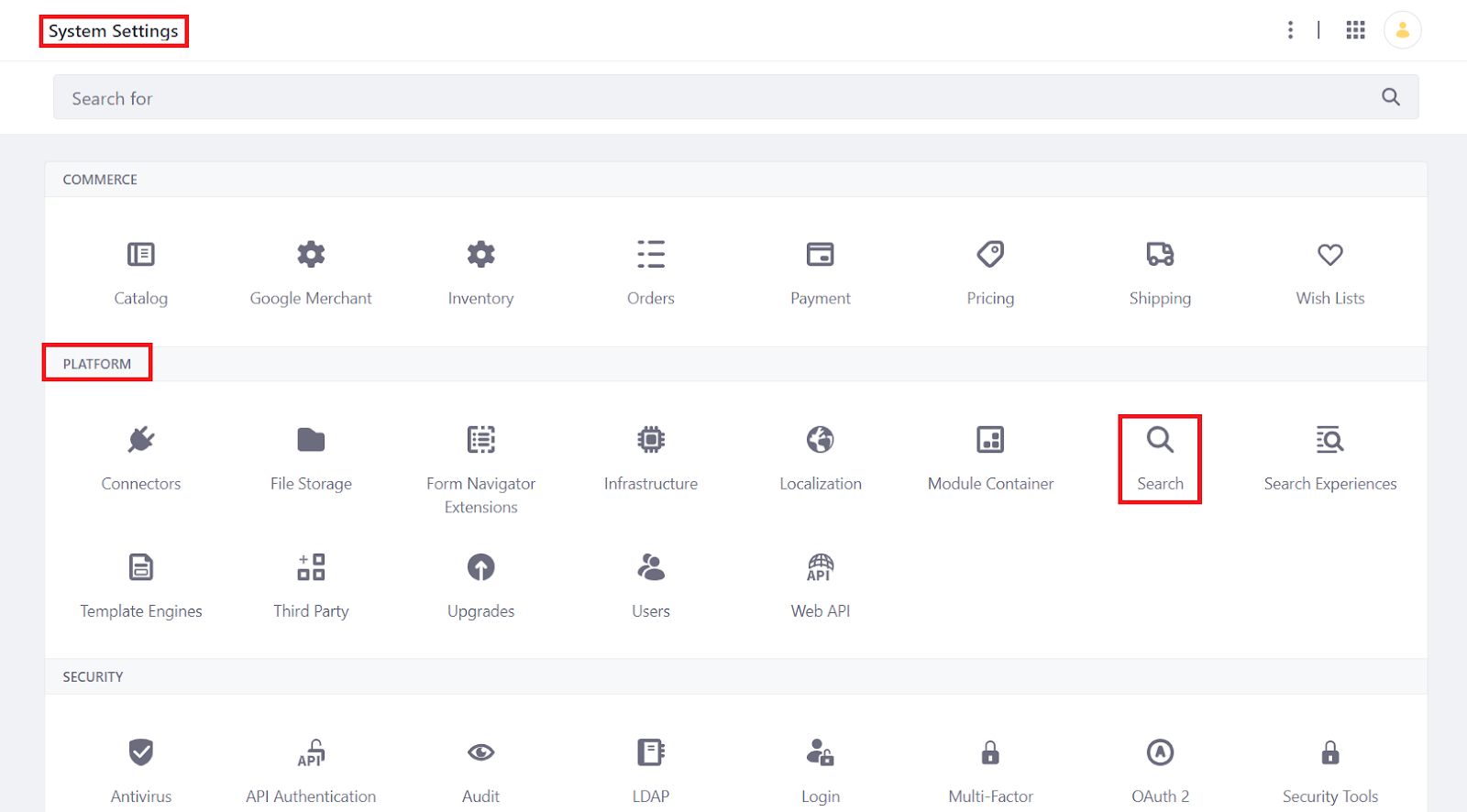
6. Click on Search, open a new tab, and look like the below image:
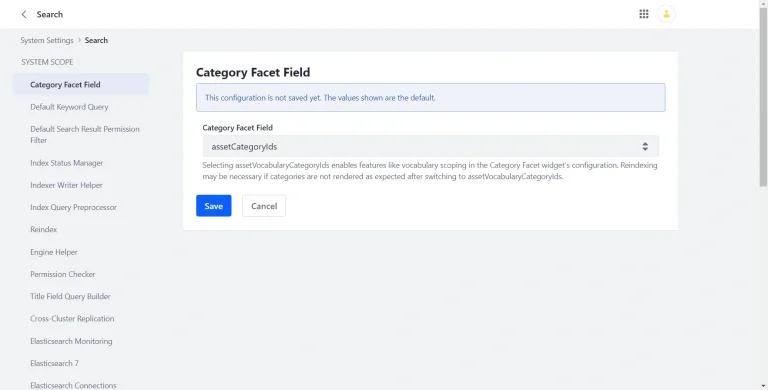
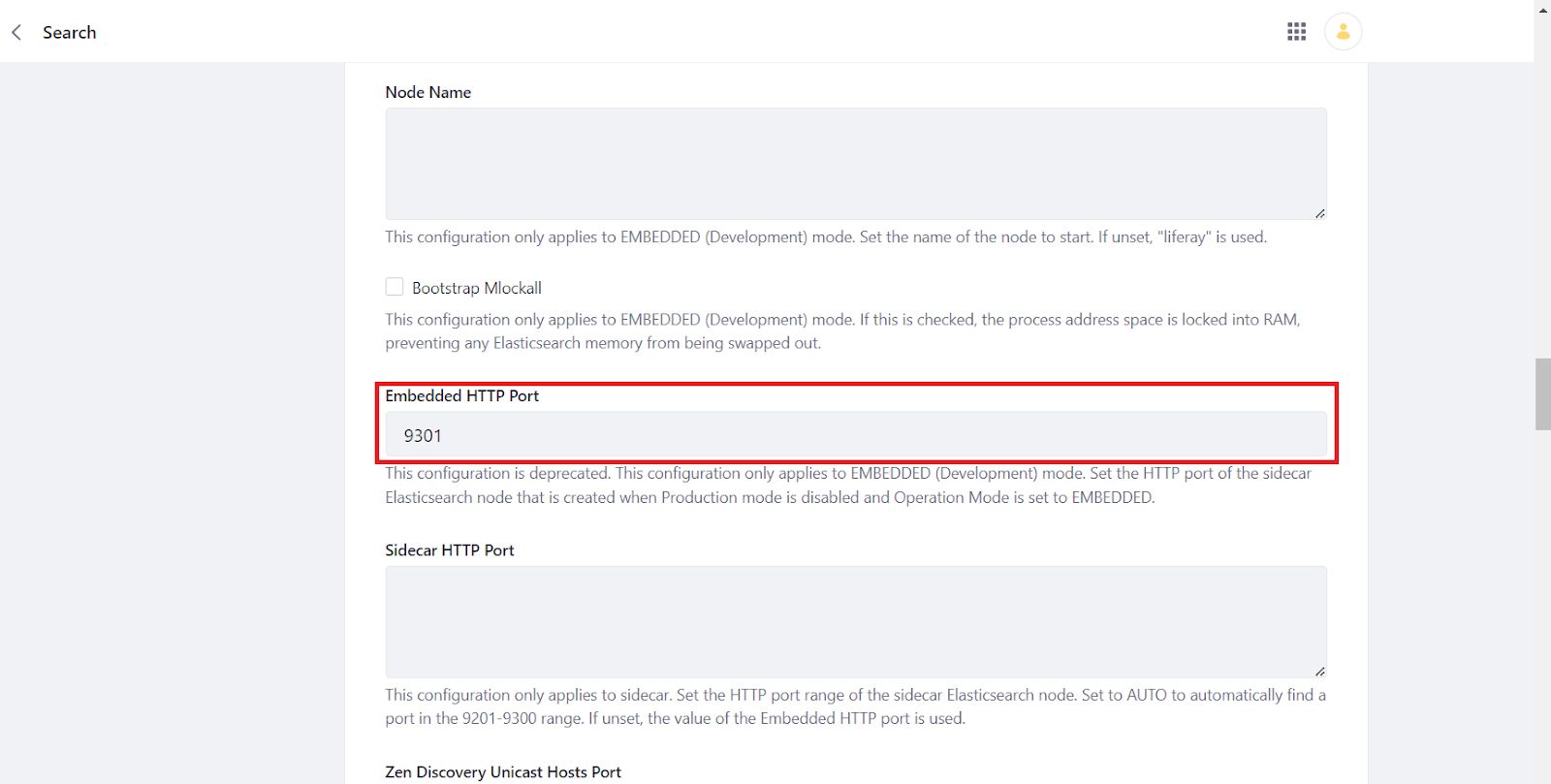
7. Click on Elasticsearch 7 and replace the existing embedded HTTP port - 9201 with the new embedded HTTP port - 9301 and then click on the Save button.
8. Restart the Liferay. Check Liferay starts with new Elasticsearch at the new port.
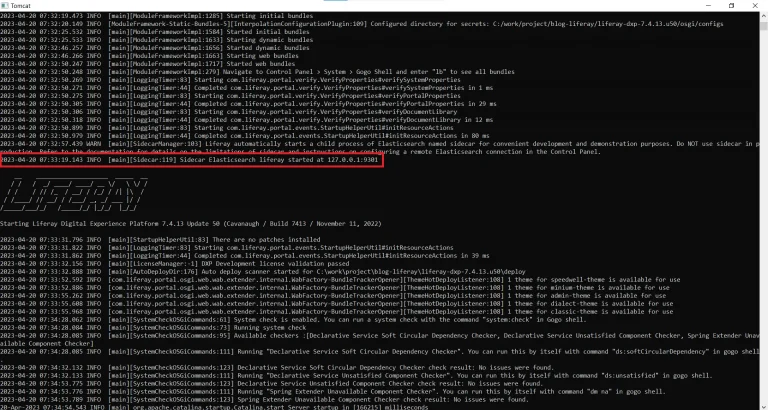
9. In the portal-setup-wizard.properties file, add the following line:
1module.framework.properties.osgi.console=11312(Port changed here from default 11311 to 11312).
Second Liferay Server
Follow the below steps.
1. First you have to modify the liferay tomcat server configuration.
It’s required to change http connector port, Server port, Redirect ports and AJP connector port in tomcat server.xml file
2. Open liferay → tomcat-9.0.65 → conf → server.xml
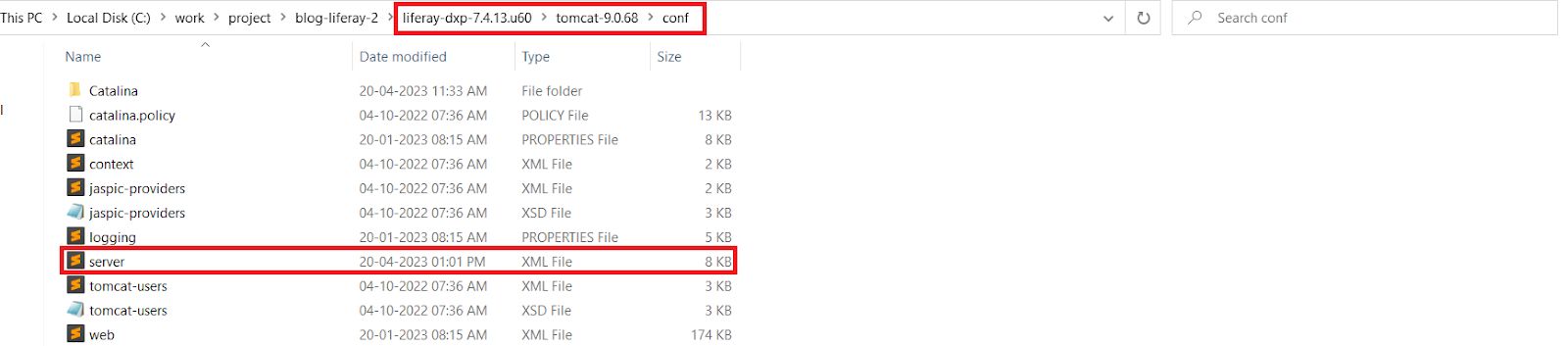
3. Open the server.xml file and update the following ports.
- Server port
Here, the server port is 8005.
Now you have to change this port from 8005 to 9005.

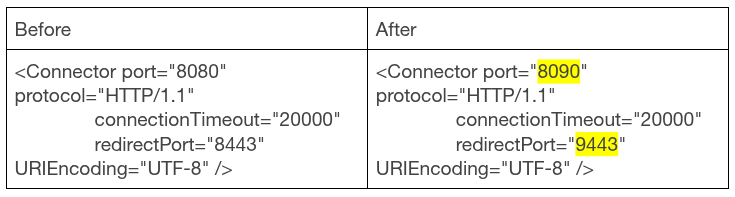
- Http connector
Here the http connector port is 8080.
Now you have to change this port from 8080 to 8090.
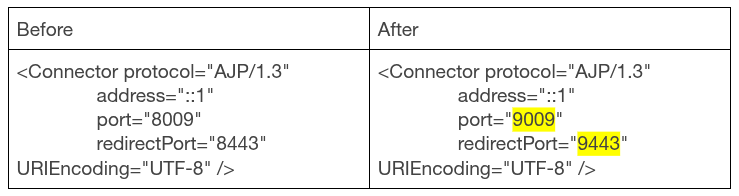
- AJP connector
Here the AJP connector port is 8009.
Now you have to change this port from 8009 to 9009.
4. Start liferay-dxp-7.4.13.u60 → tomcat-9.0.65 → bin → startup (for Windows: batch file, and for Linux: shell script file)
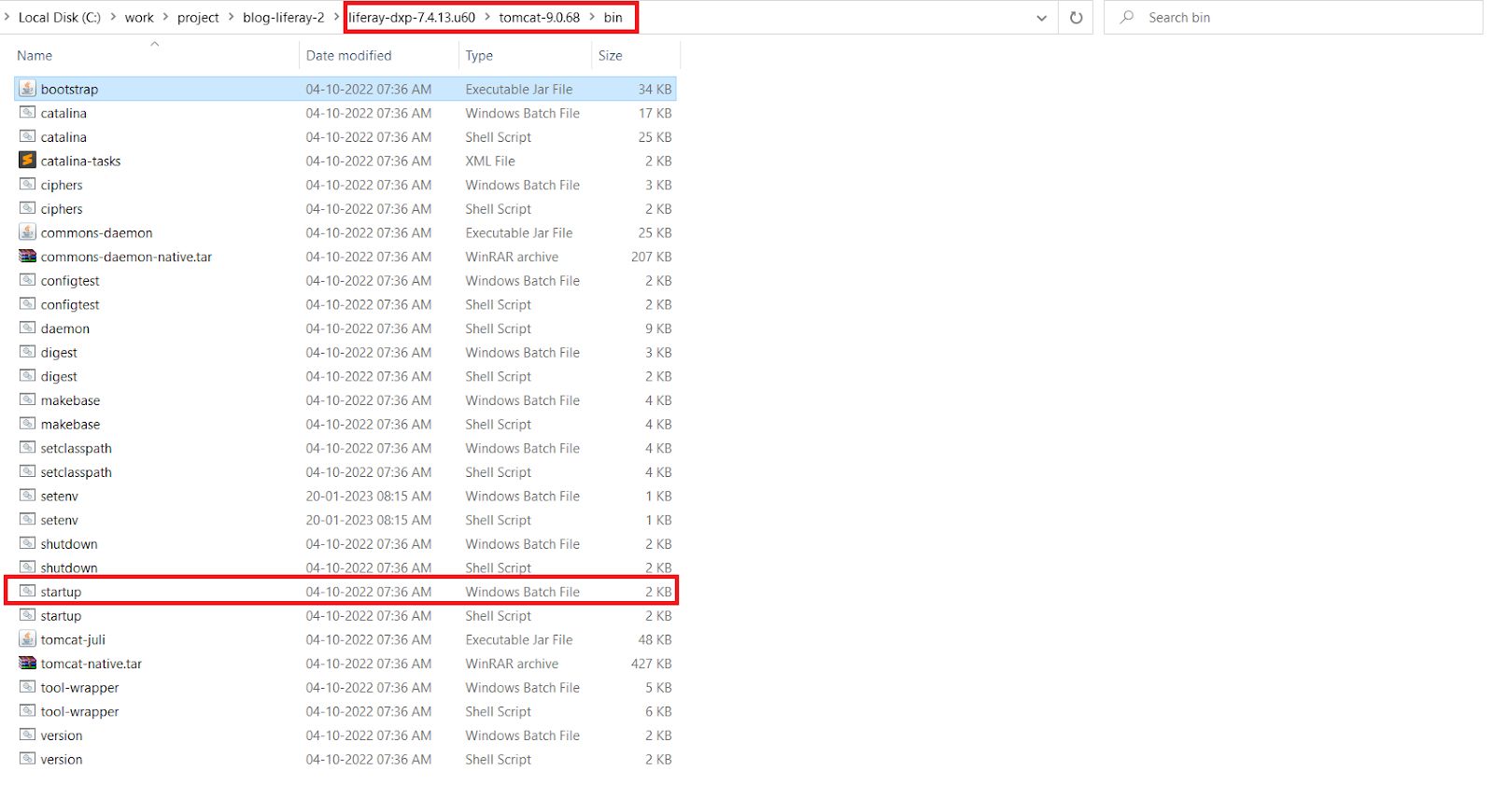
5. After the successful startup of LifeRay, sign in to the site as an Admin.
6. Sign in successfully with localhost:8090
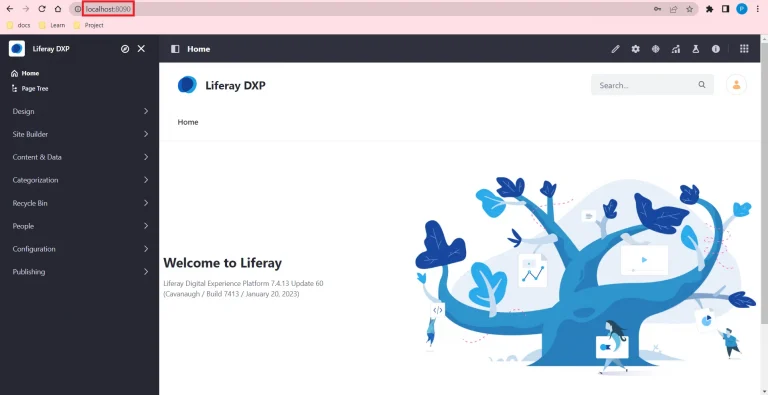
7. There are no error messages when starting two Liferays at the same time with different ports.