Powering Liferay Object Views Category-Based Filtering

Introduction
The Objects component in Liferay provides users with an advanced feature to design and control application-specific data formats. The structured data capturing capabilities of Objects work best when you organize and filter this data through categorization.
In Object entries users can apply basic categorization functions through nearly no configuration thus achieving dynamic filtering results based on categories.
The blog discussion starts by describing the process for enabling category selection followed by instructions to use filters within Object views and describes layout integration of the Categorization block to support user category assignment during entry creation and editing.
Prerequisites
- Liferay 7.4
Step-by-Step: Categorizing and Filtering Object Entries
Enable Categorization for Your Object
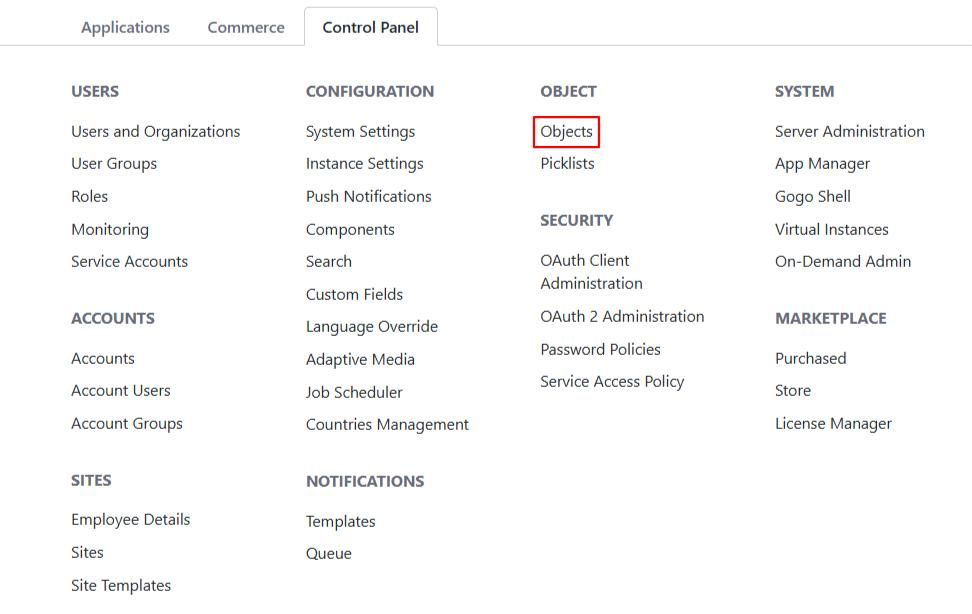
- Open the Global Menu > Control Panel > Objects.
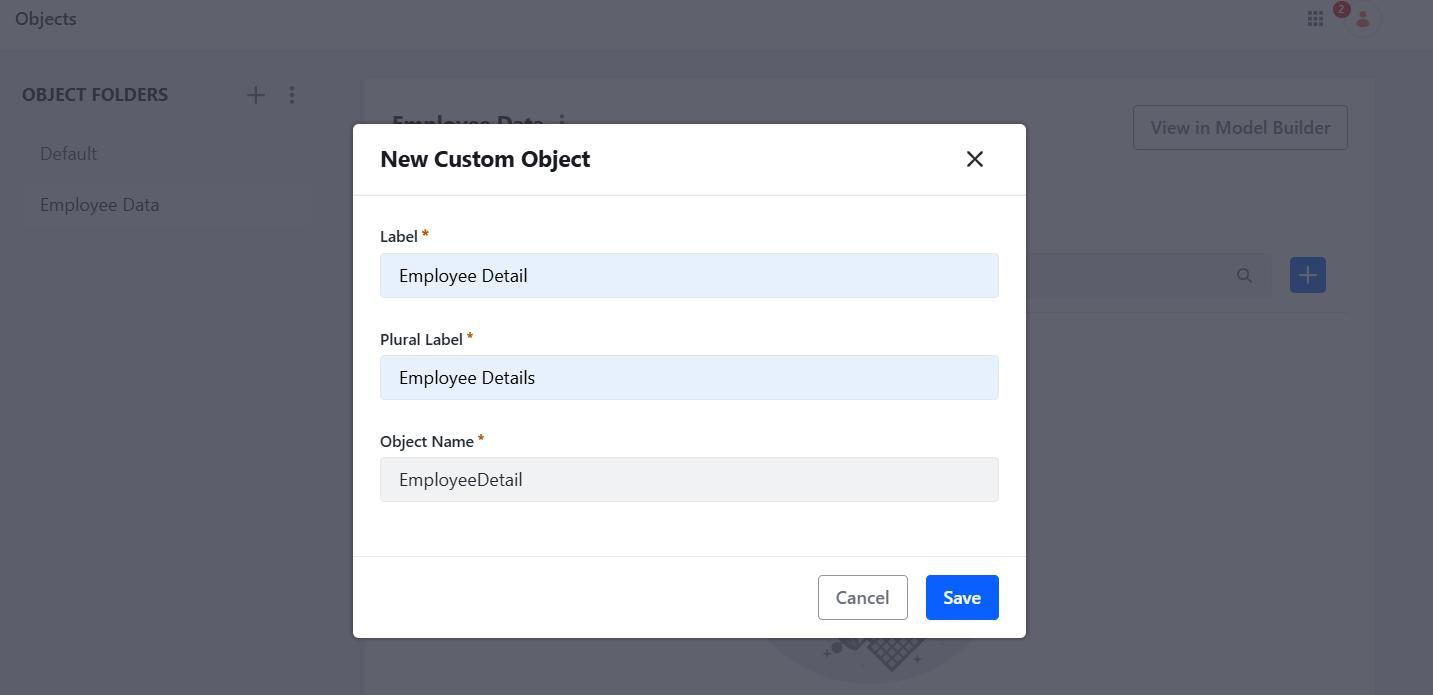
Select or create a custom object.
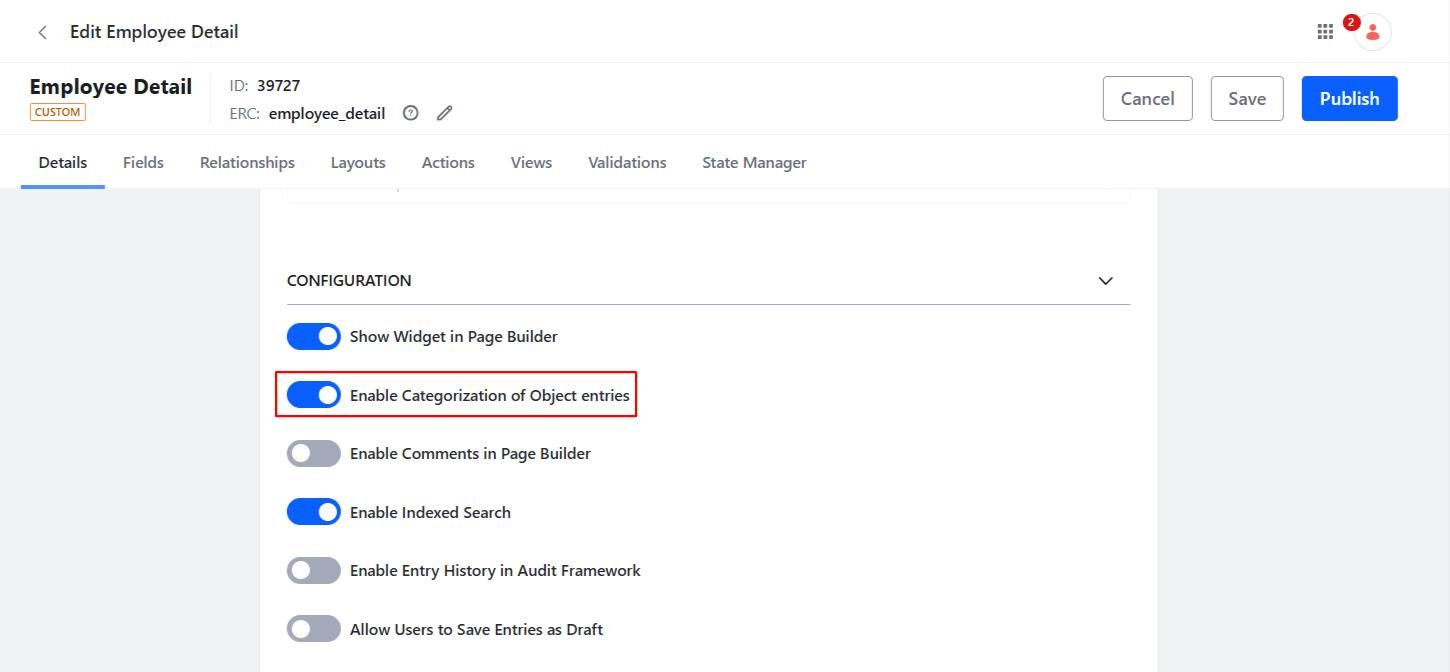
In the Details tab, enable the Categorization toggle.
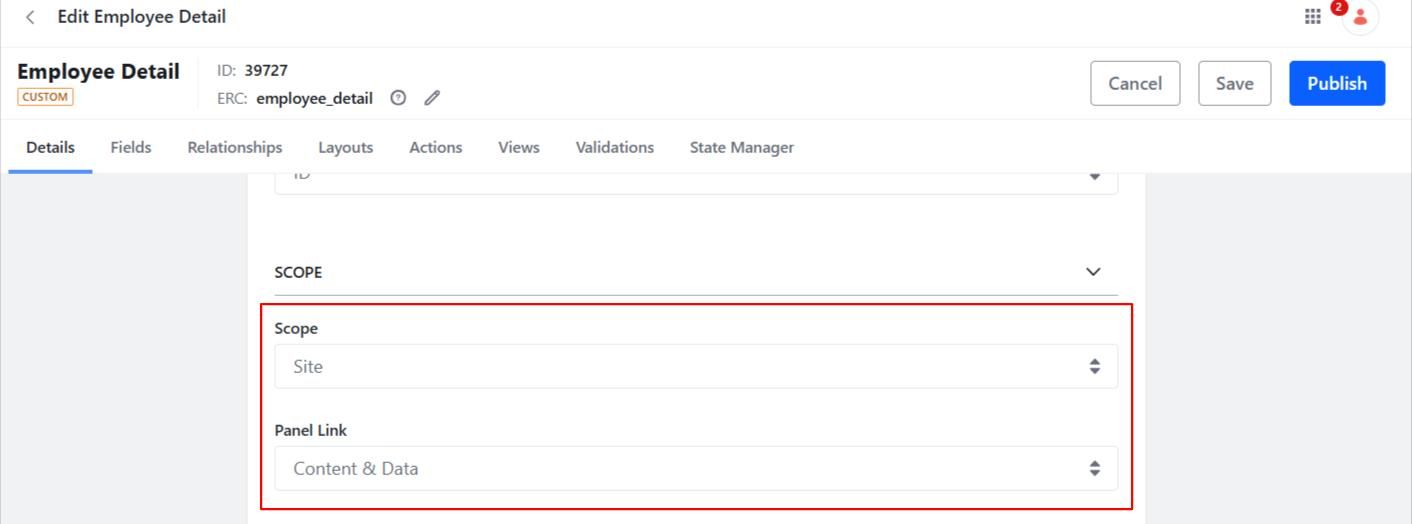
In the Details tab, switch the scope to site.
- Click save.
Add Categorization to the Object Layout
- Go to the Layouts tab inside the Object.
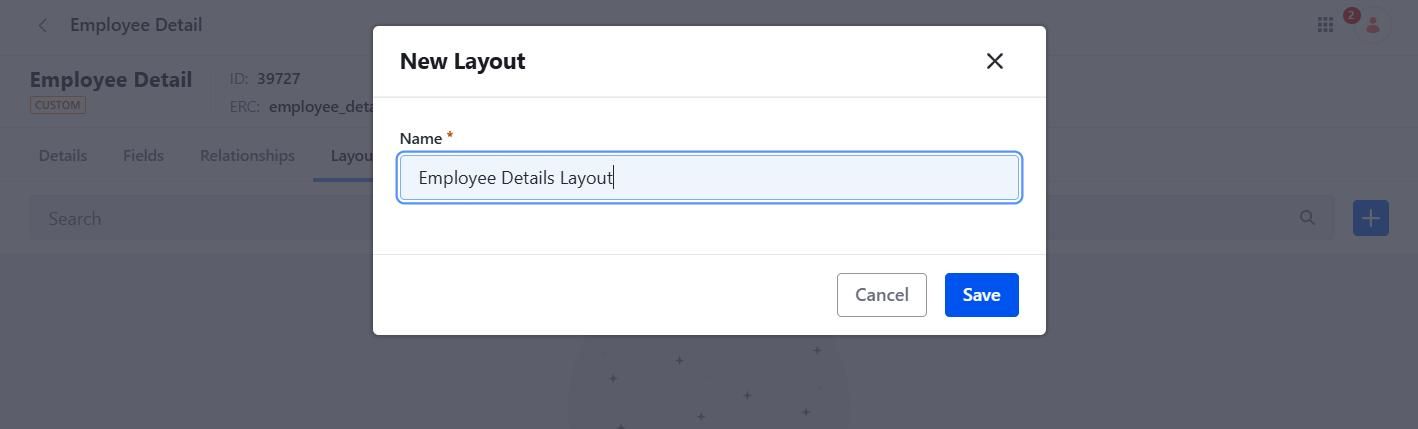
- Create a new layout.
Add your desired layout with created fields or default fields.
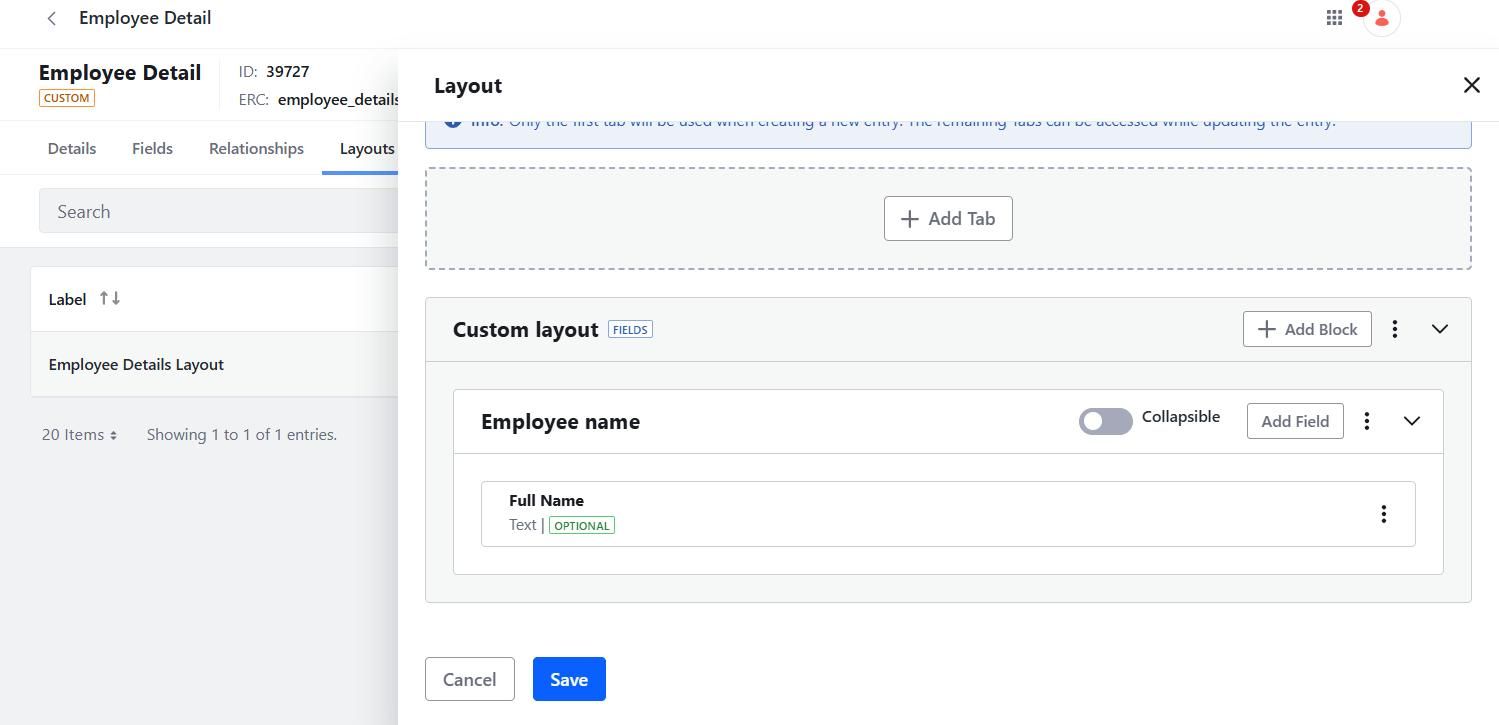
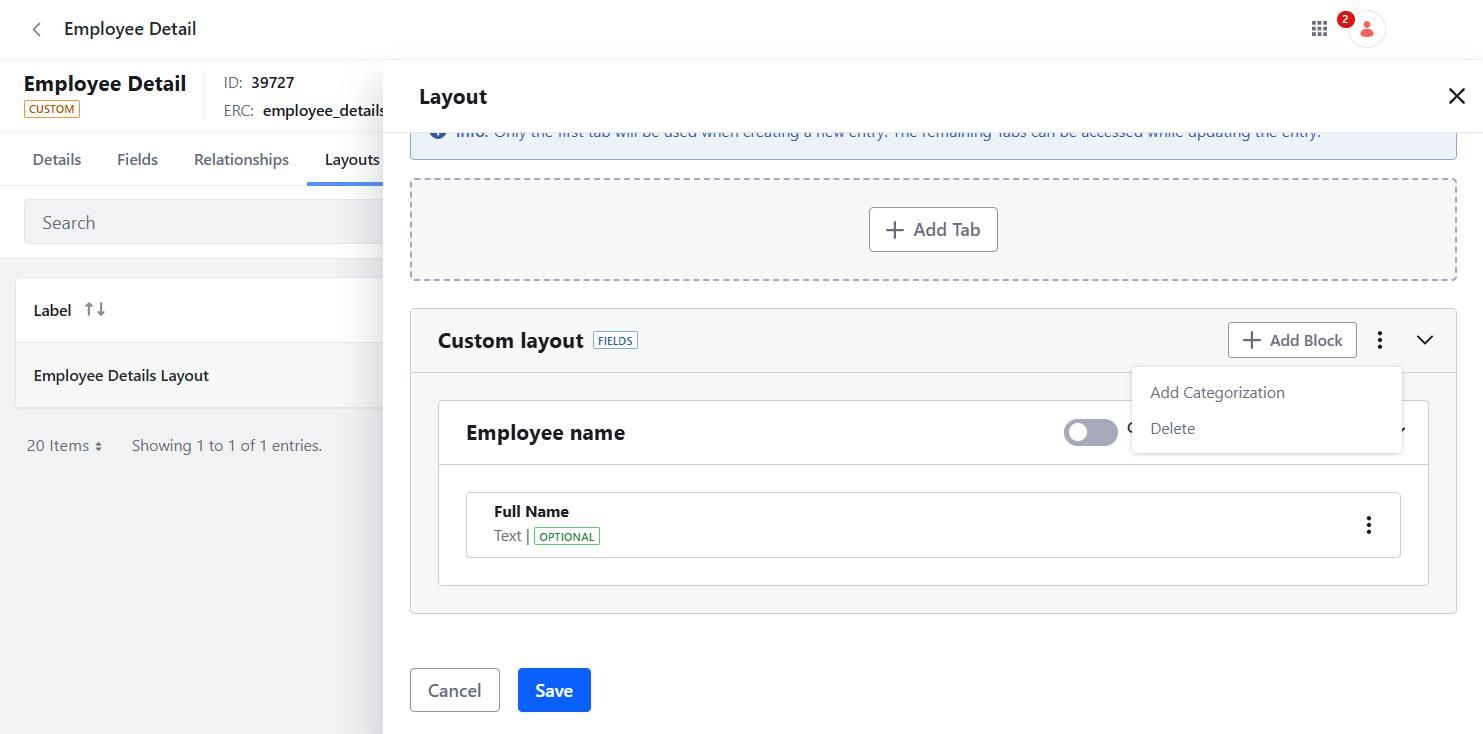
Click the Actions (⋮) menu and select “Add Categorization”.
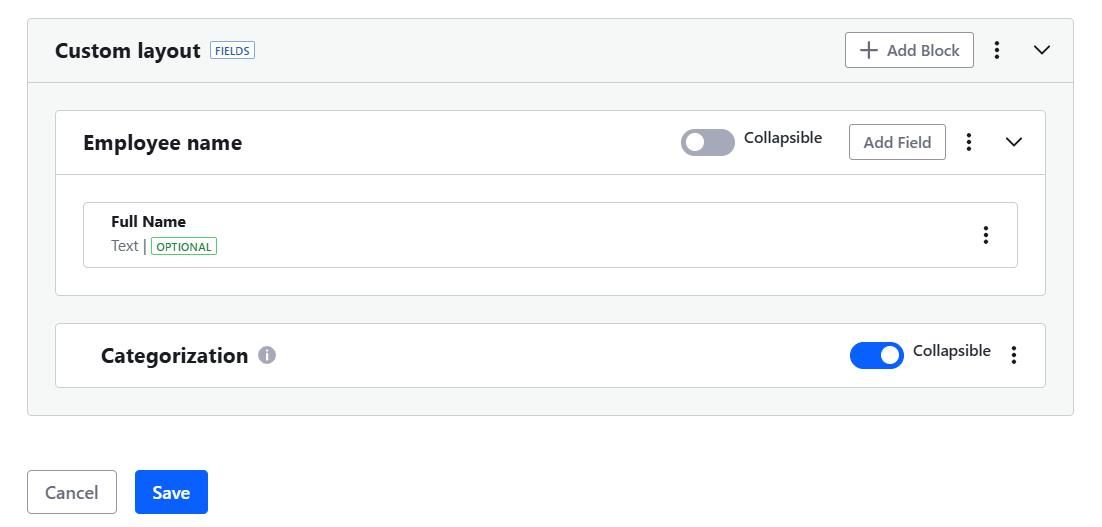
Choose whether the block should be collapsible or always expanded.
Mark the layout as default.
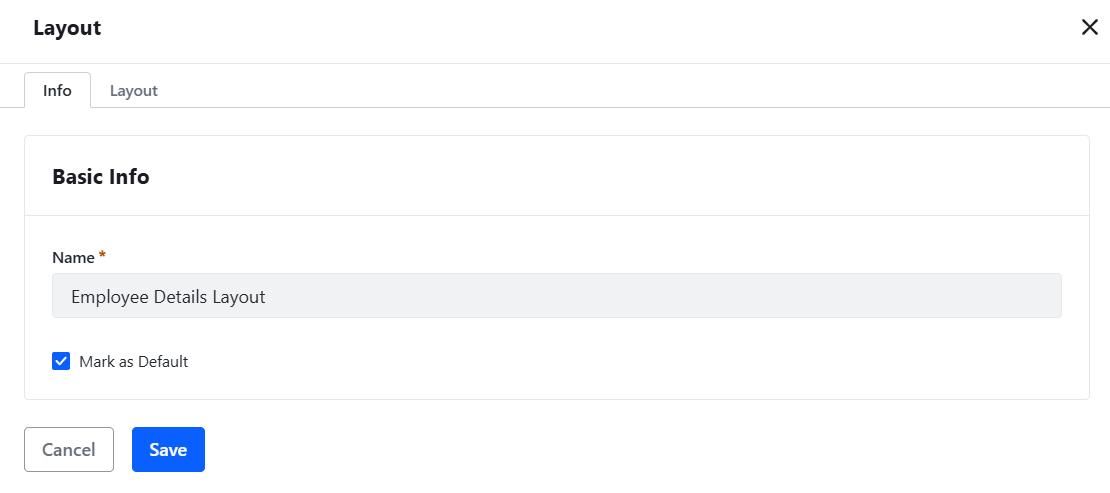
- Click Save.
- Now, when creating or editing the object’s entries, users can access and apply tags and categories.
Create Asset Vocabularies and Categories
- Navigate to Product menu > Categorization > Categories.
- Create a Vocabulary (for example: department).
- Add relevant Categories under that vocabulary.
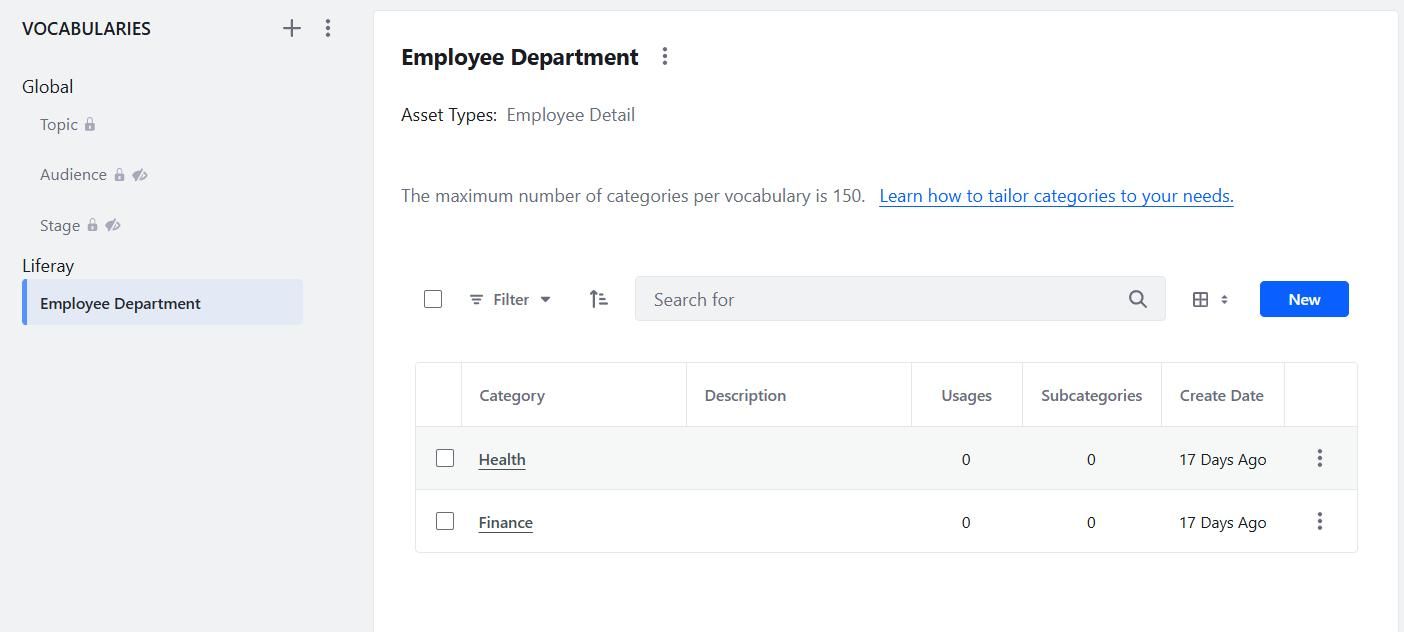
Categorize Object Entries
- Navigate to Product menu > Content & Data > Employee Details.
- Create a new entry or edit an existing one.
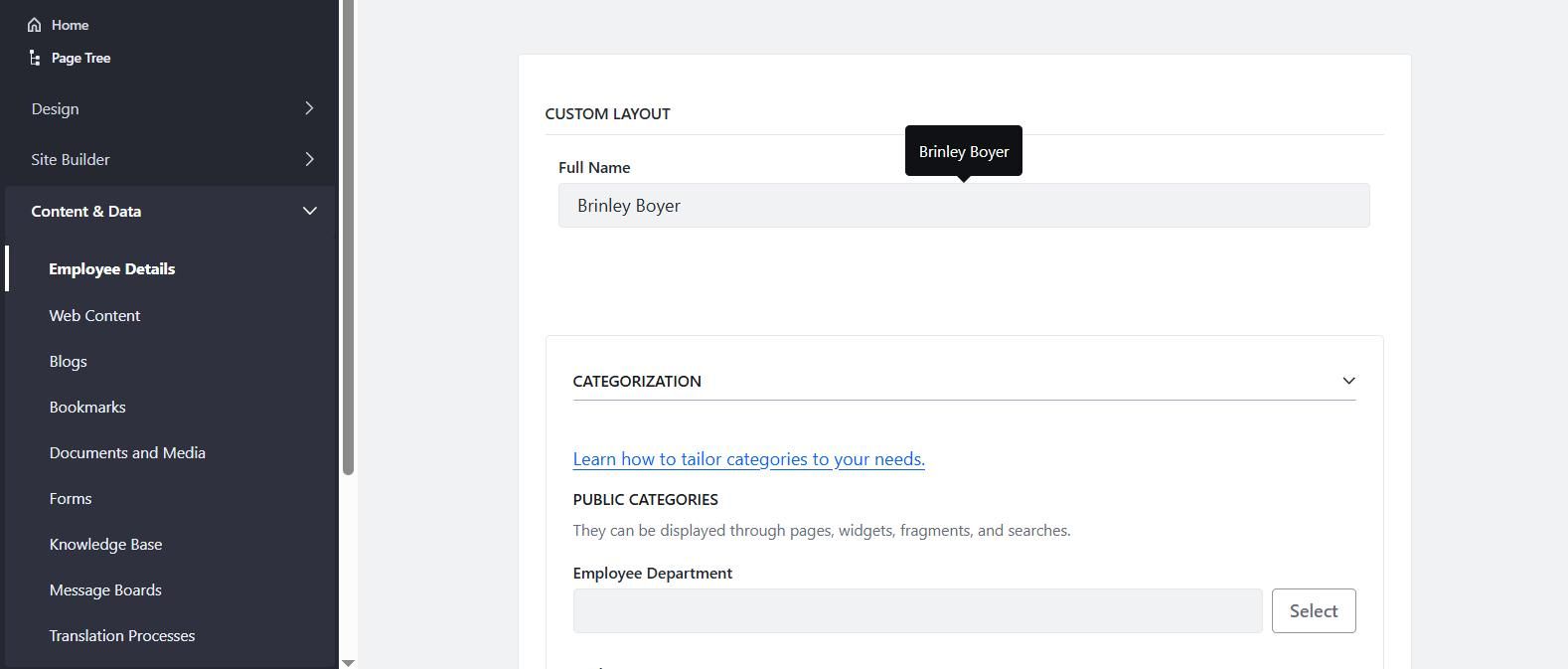
Use the Categorization section to assign tags and categories.
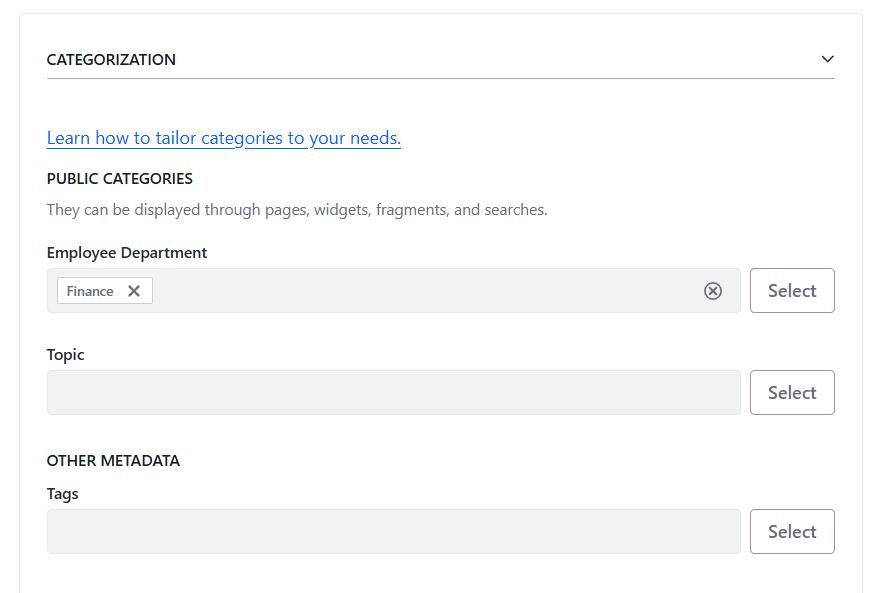
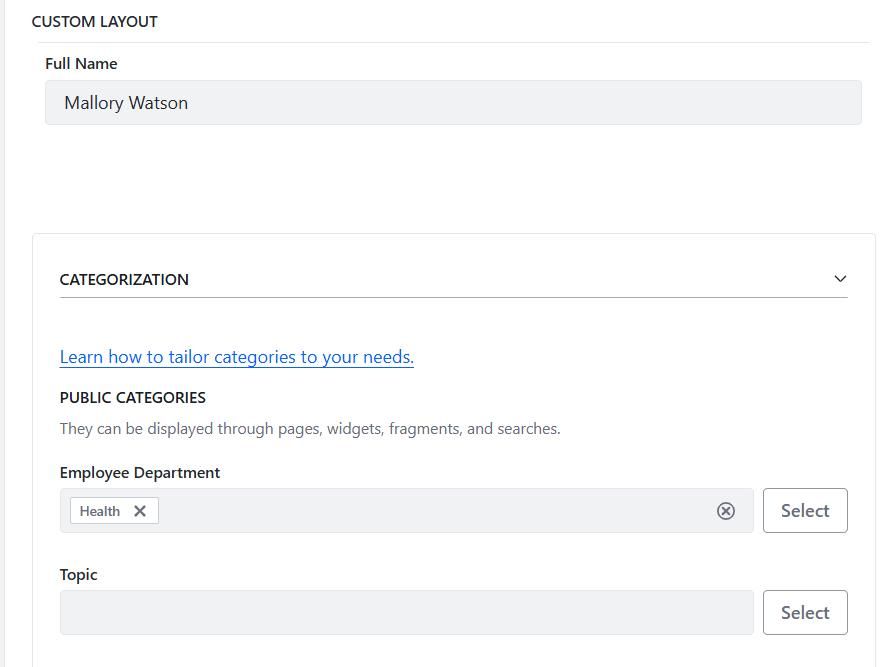
Create a collection for object entries
- Navigate to Product menu > Site Builder > Collections.
- Create a dynamic collection by selecting the employee detail object.
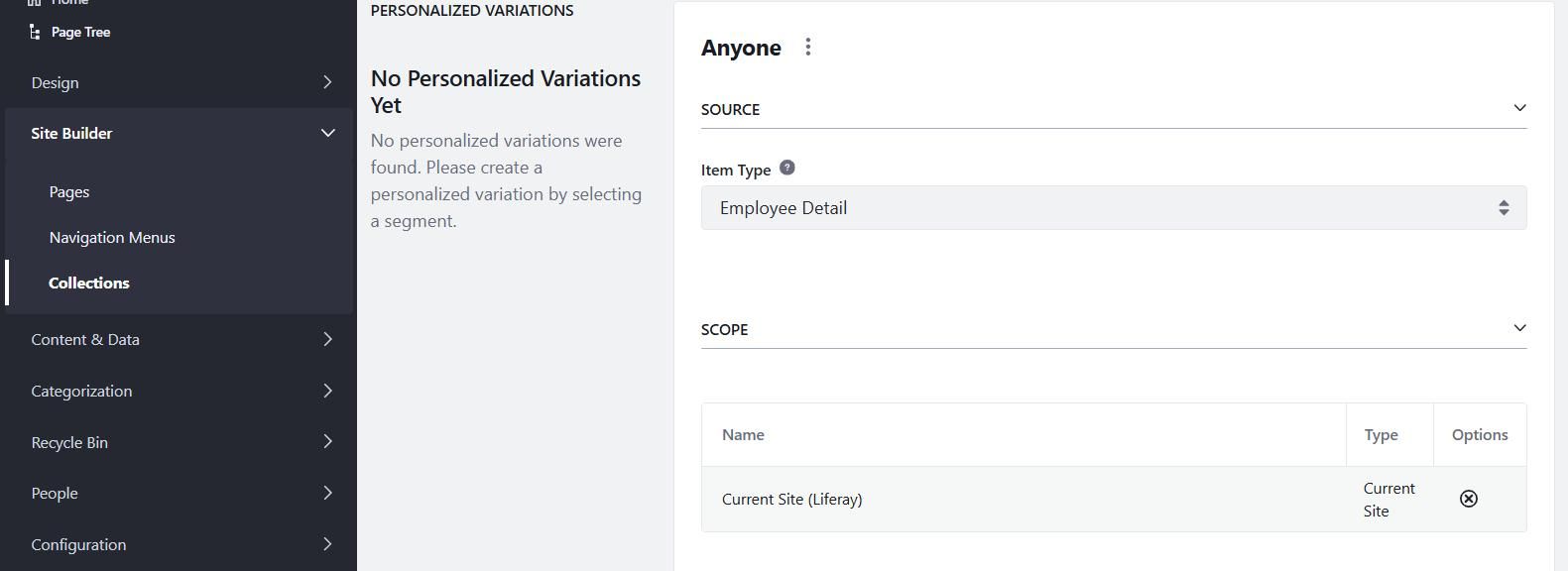
Filter Object Entries by Category
- Edit the page.
- Drag and drop the collection display on the page.
- Select the collection created for the employee detail object.
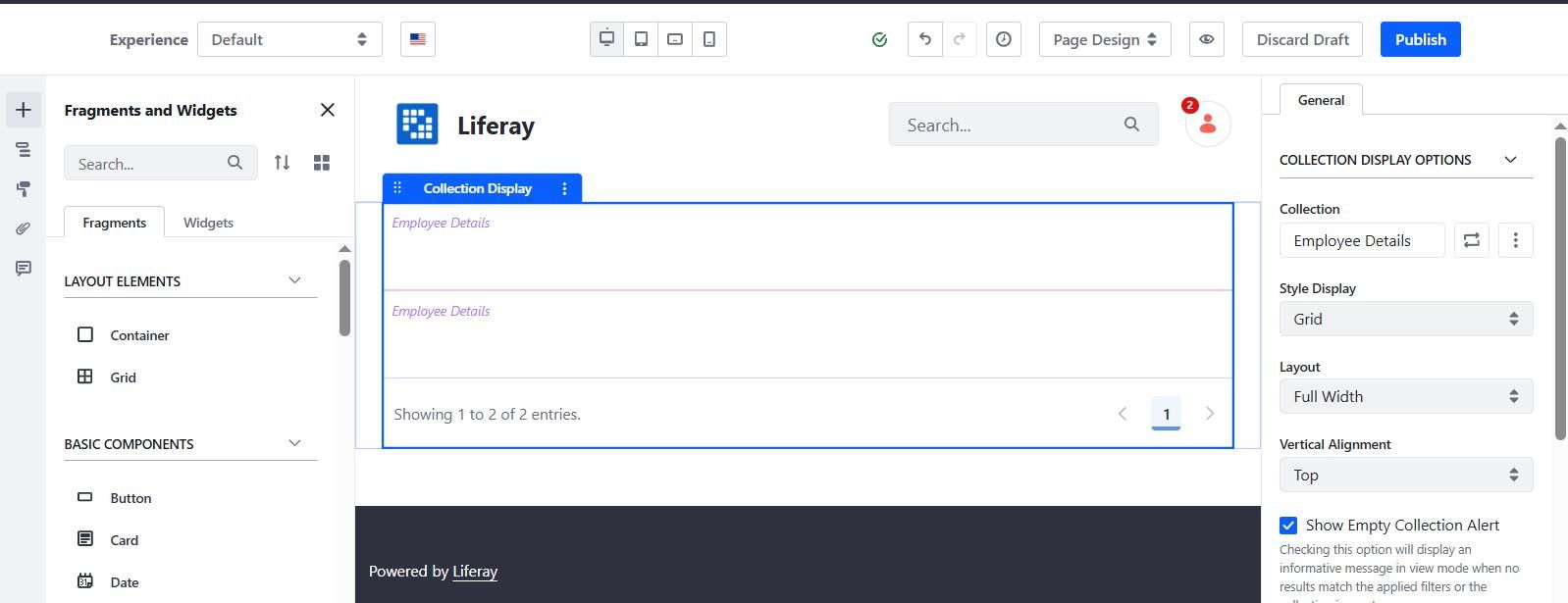
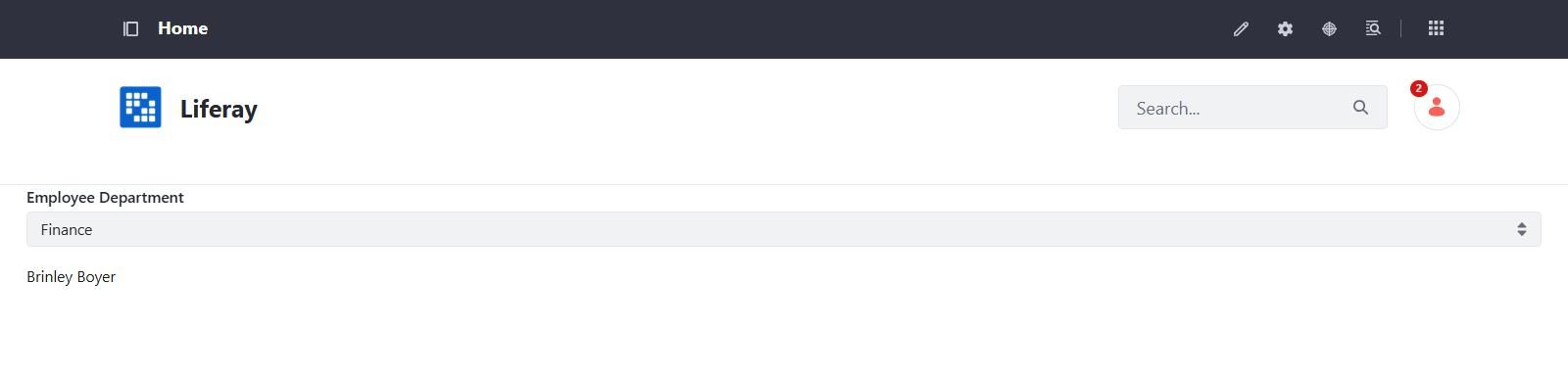
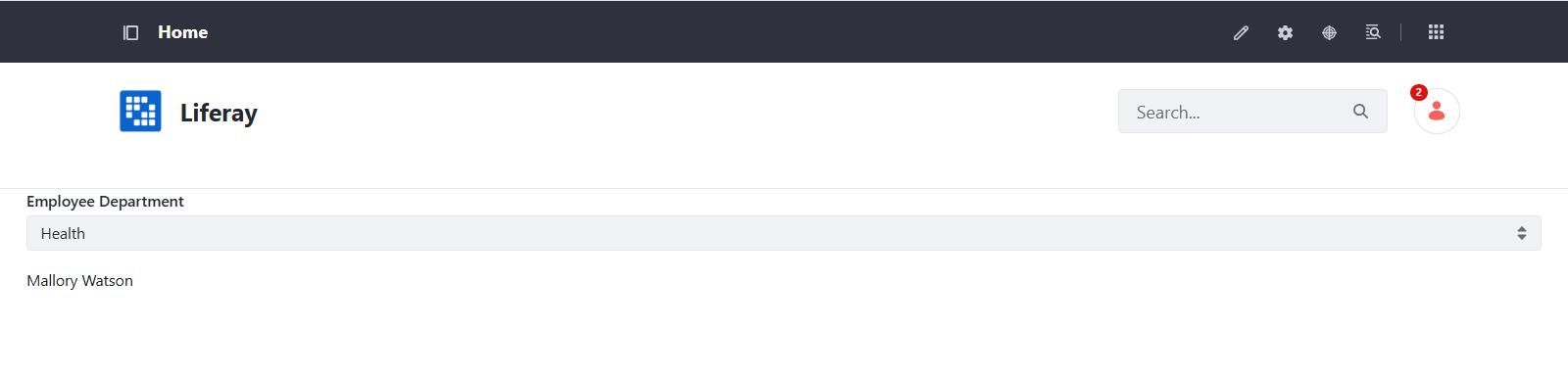
- Drag and drop the paragraph to show the full name of the employee (object’s field).
- Map the full name field to Liferay’s paragraph.
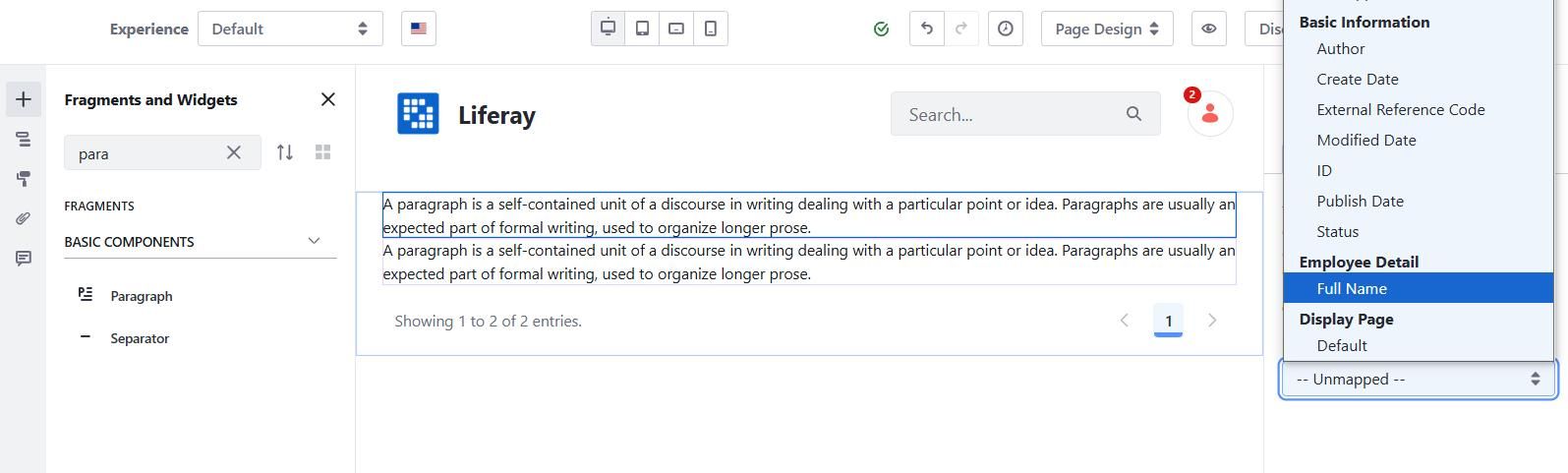
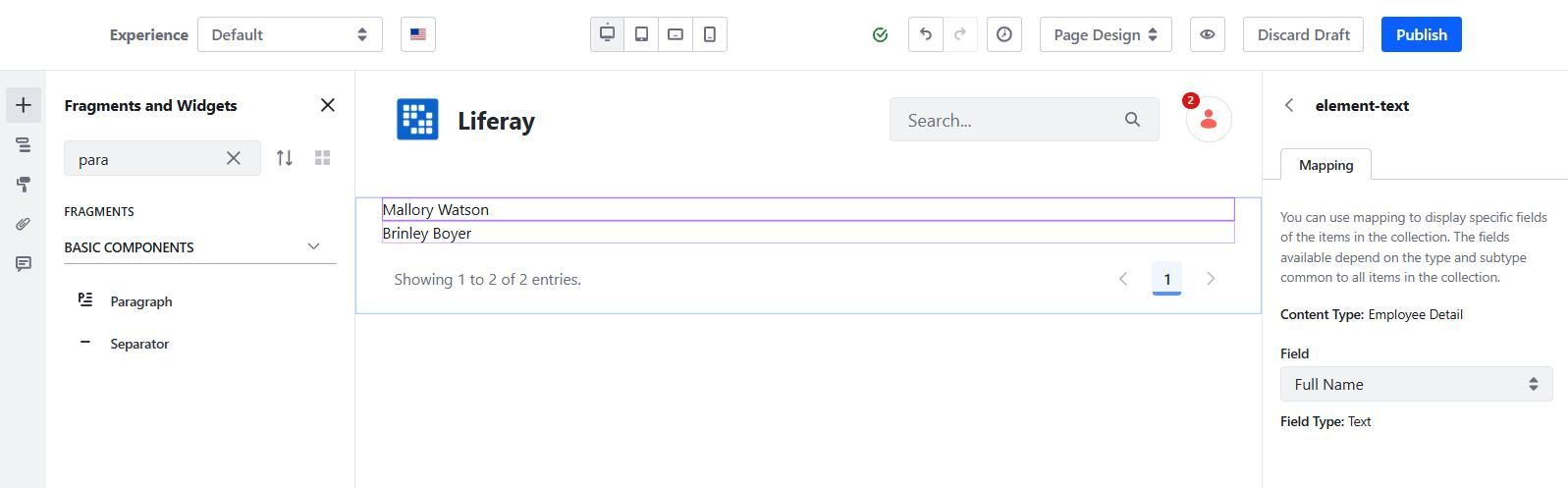
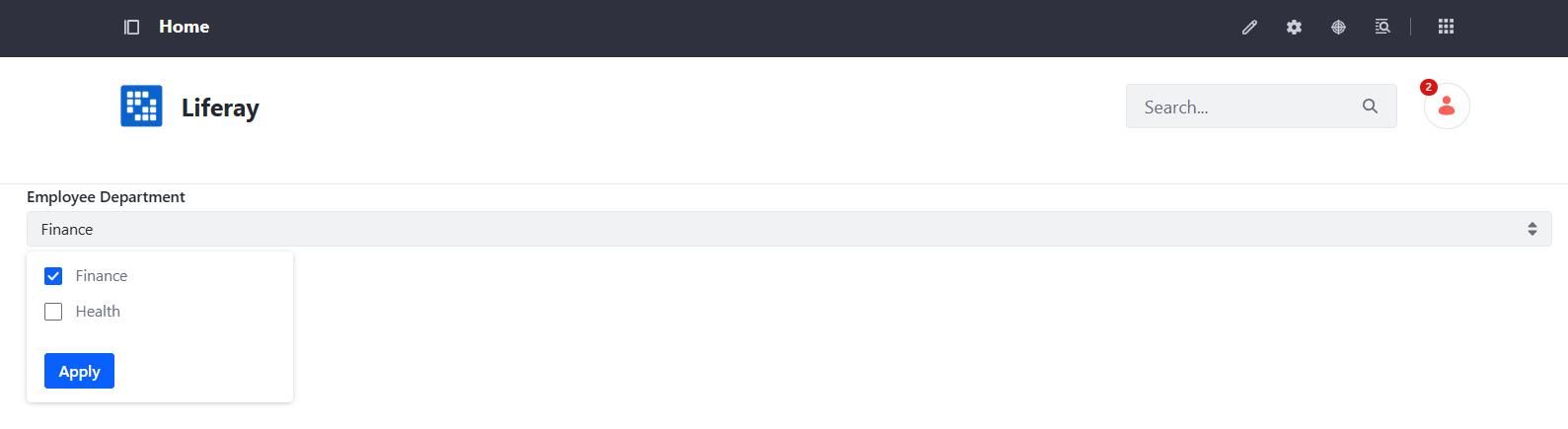
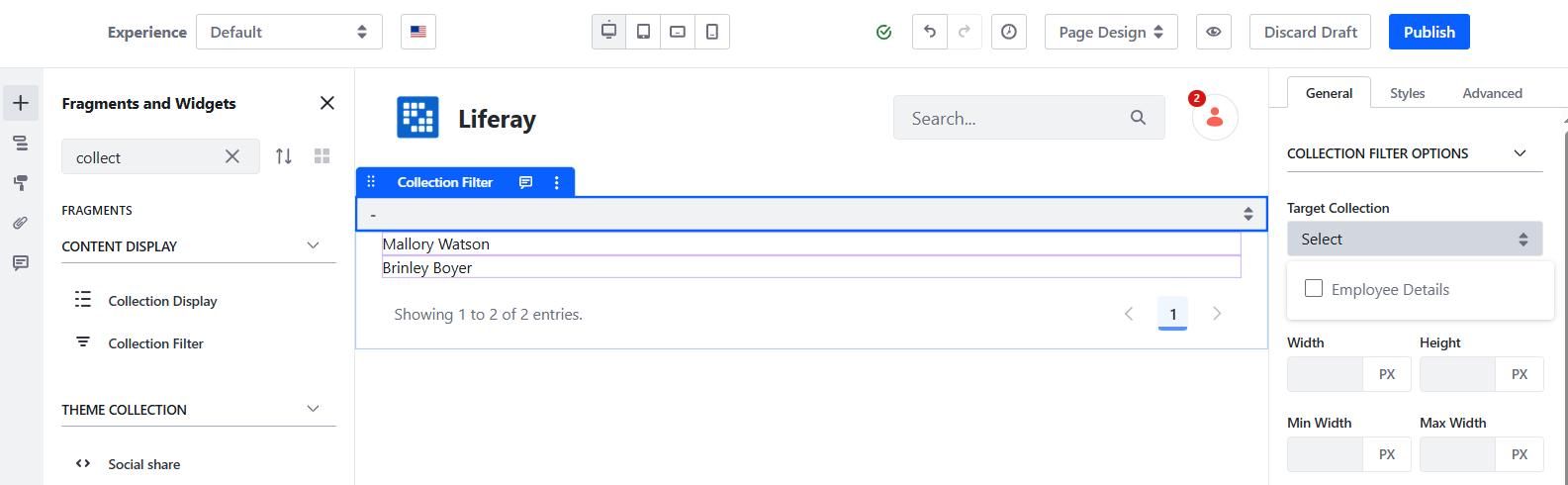
- Drag and drop the collection filter on the page.
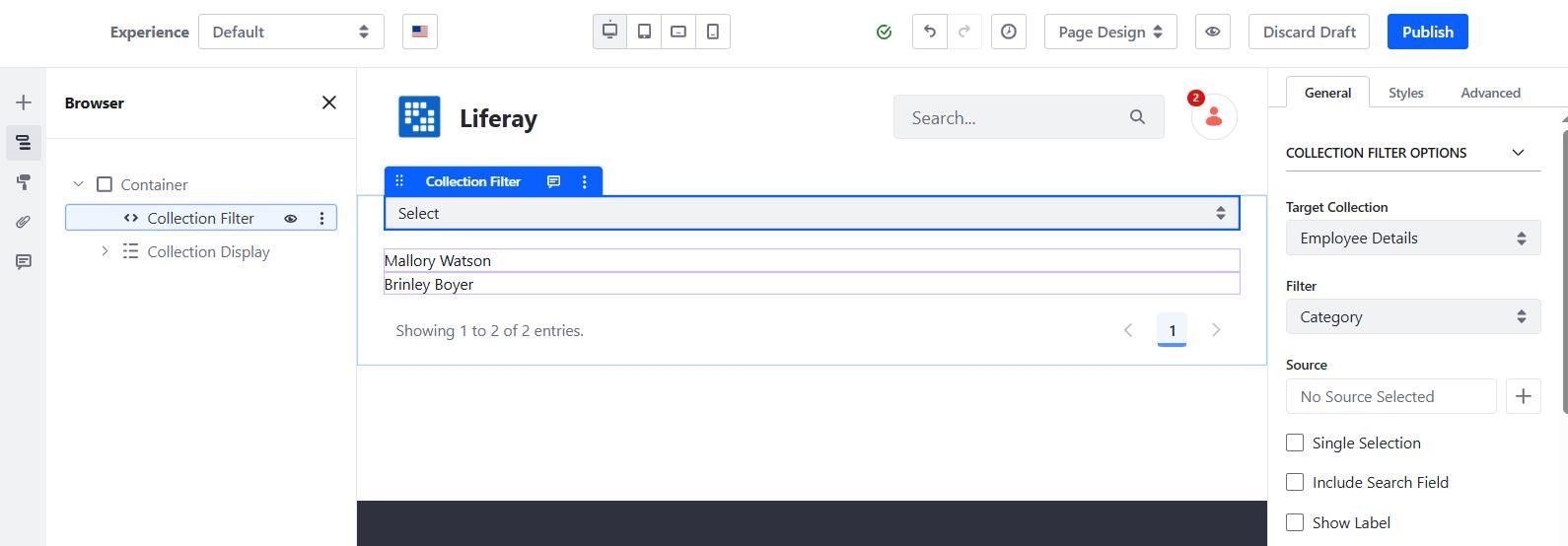
- Select the “target collection” to Employee details.
- Select the “filter” to category.
- Select the source, the category vocabulary created for object filtration.
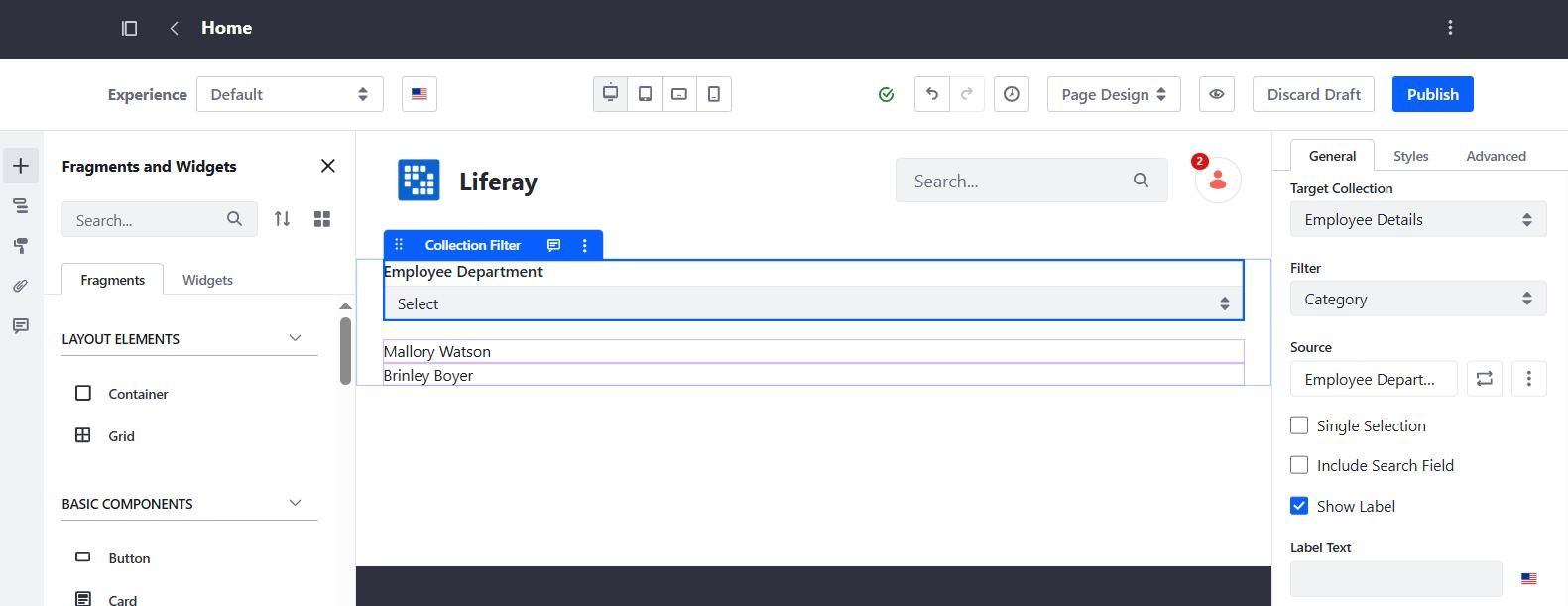
Publish the page.