Liferay
Notification With Liferay Object

Bhargav Vaghasiya•Jun 18, 2024
Introduction:
The functionality and best practices for using Liferay objects to implement user notifications are covered in this blog post. Whether one is an experienced Liferay user or new to Liferay, this blog will guide how to send notifications using objects.
Prerequisites:
- Liferay 7.4
Step 1: Create an Object
- Start by creating an object within Liferay and adding the necessary fields. Publish the object to make it accessible.
Step 2: Create a Notification Template
- Access the control panel and navigate to Notifications > Templates.
- There are two types of notifications. User notification is covered here.
- Email Notification
- The email notification template is used while sending notifications through email.
- The email notification template is divided into three parts: basic info, settings, and content, where an attachment is optional.
- Basic Info: This section holds the name of the template and description.
- Settings: This section contains the fields sender, receiver, and name.
- Content: This section contains the subject, editor type, template, and attachments.
- Definition of terms: This section provides terms for fields that can be used in the templates.
- User Notification
- The user notification template is used while sending notifications to the Liferay user.
- The user notification template is divided into three parts: basic info, settings, and content.
- Basic Info: This section holds the name of the template and description.
- Settings: This section has two fields, ‘Recipients’ and ‘To’ for whom the notification will be sent.
- Email Notification
- In this section, ‘User Notification’ is covered.
- There are two types of notifications. User notification is covered here.
- Click on "Add" and select the "User Notification" template type
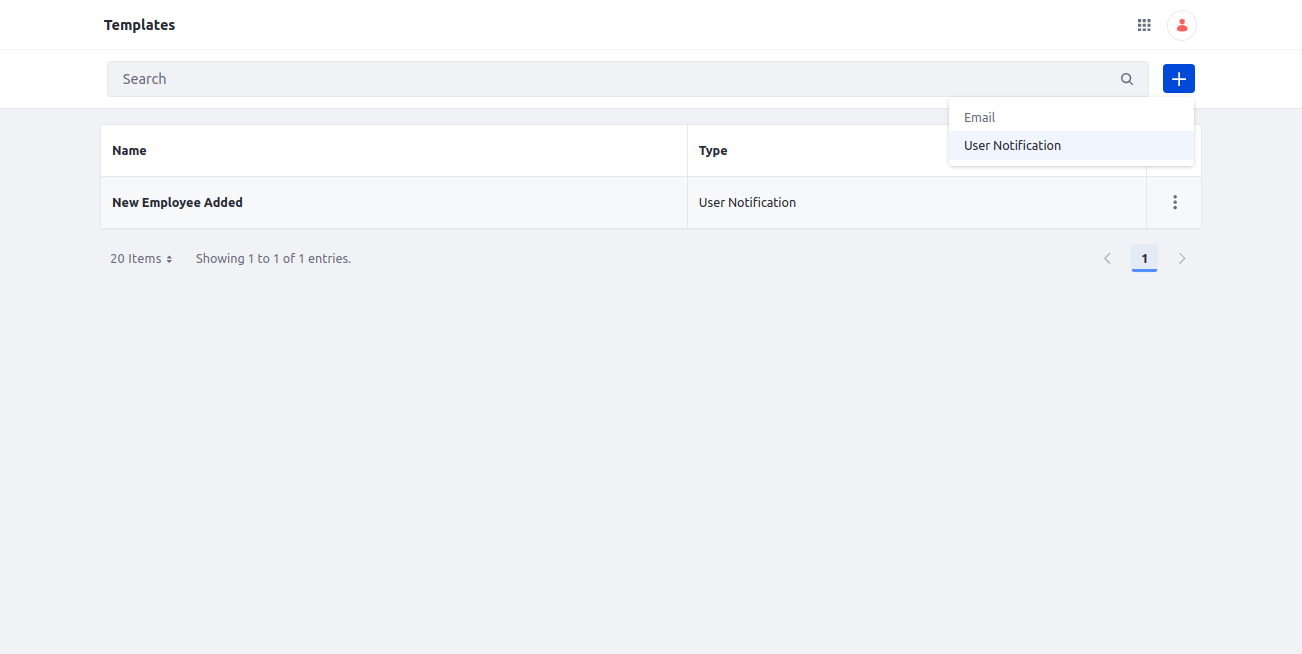
- Fill in the details according to the image.
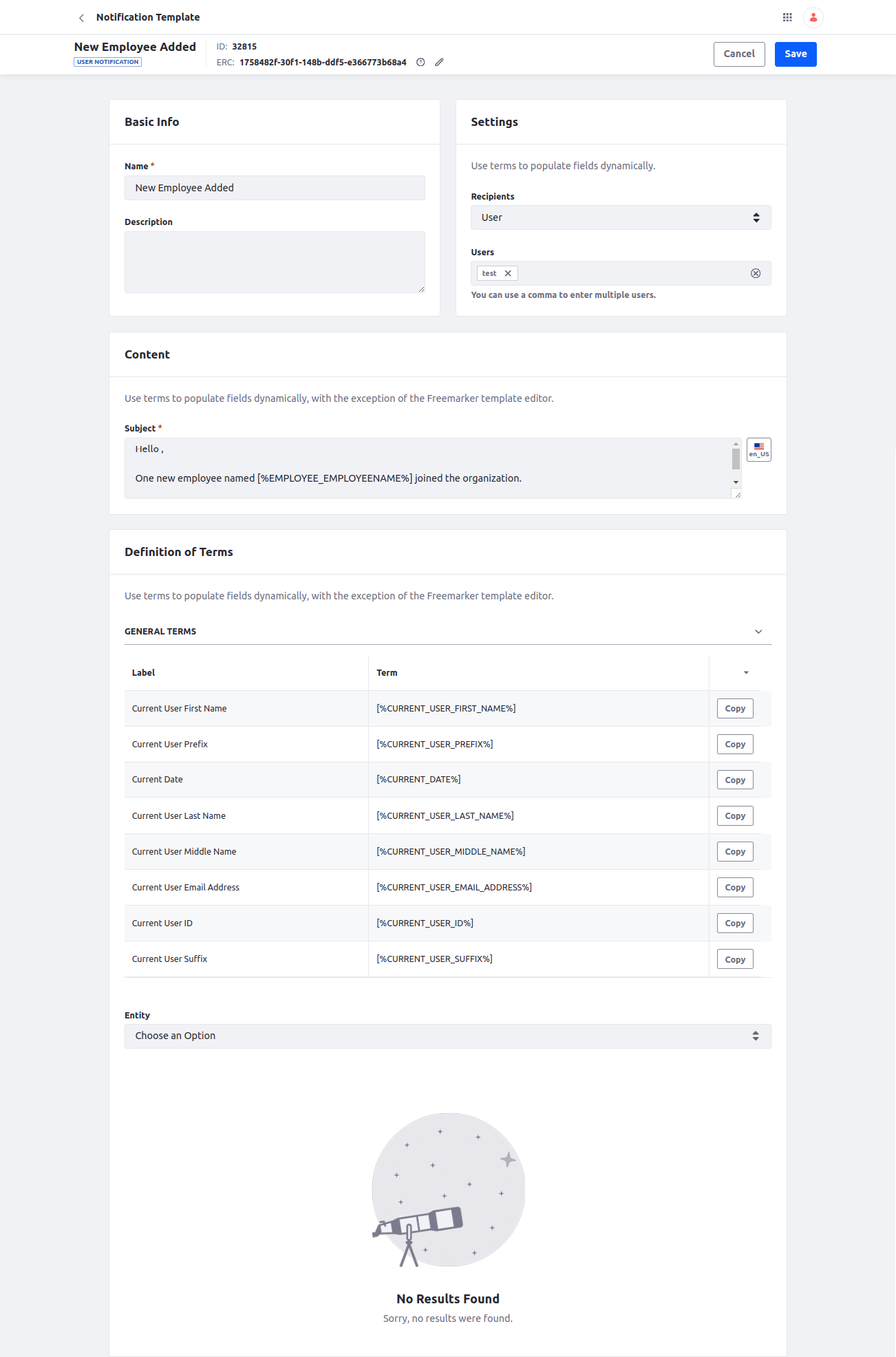
- In the Basic Info section, add name and description as required.
- In the Settings section, there are mainly two fields: recipients and to.
- Recipients: Select user, role, or definition of terms as per requirements.
- User: If selected recipients as ‘User’ are allowed to send notifications to the user having permission for object entry.
- Role: If selected recipients are 'Role', then the notification will be sent to the user assigned to that role.
- Definition of terms: If selected recipients are ‘Definition of terms’ then one can use terms that will populate value dynamically. In the last section of the template, general terms were provided, and if a specific term from the object fields is required, use the entity dropdown.
- To/Users/Role: Select either role, users, or field term.
- To: Add terms to send the notification.
- Users: Add a user with permission to create an object entry. One can add multiple users, separated by a comma.
- Role: Add roles to send the notification.
- Recipients: Select user, role, or definition of terms as per requirements.
- The content section has a subject field that has the notification subject.
Step 3: Create an action in the object
- Locate the object created in Step 1 and navigate to Object Actions.
- Create a new action within the object.
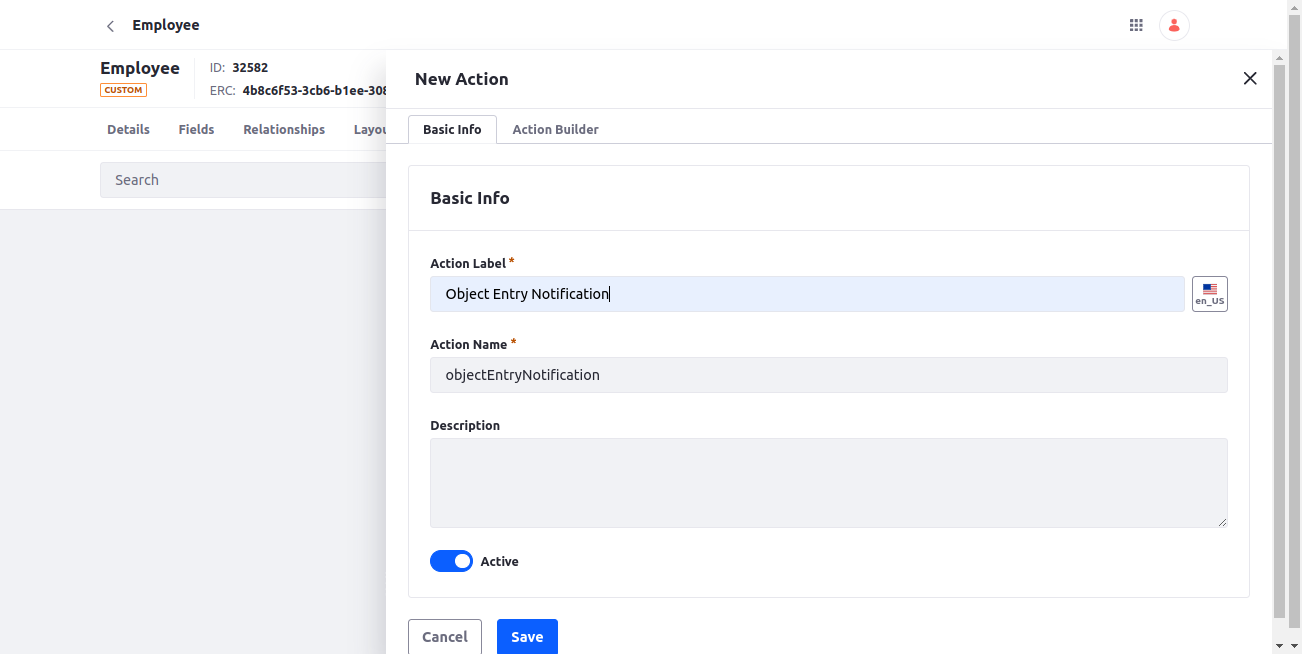
- Using the action builder, configure the trigger for notifications.
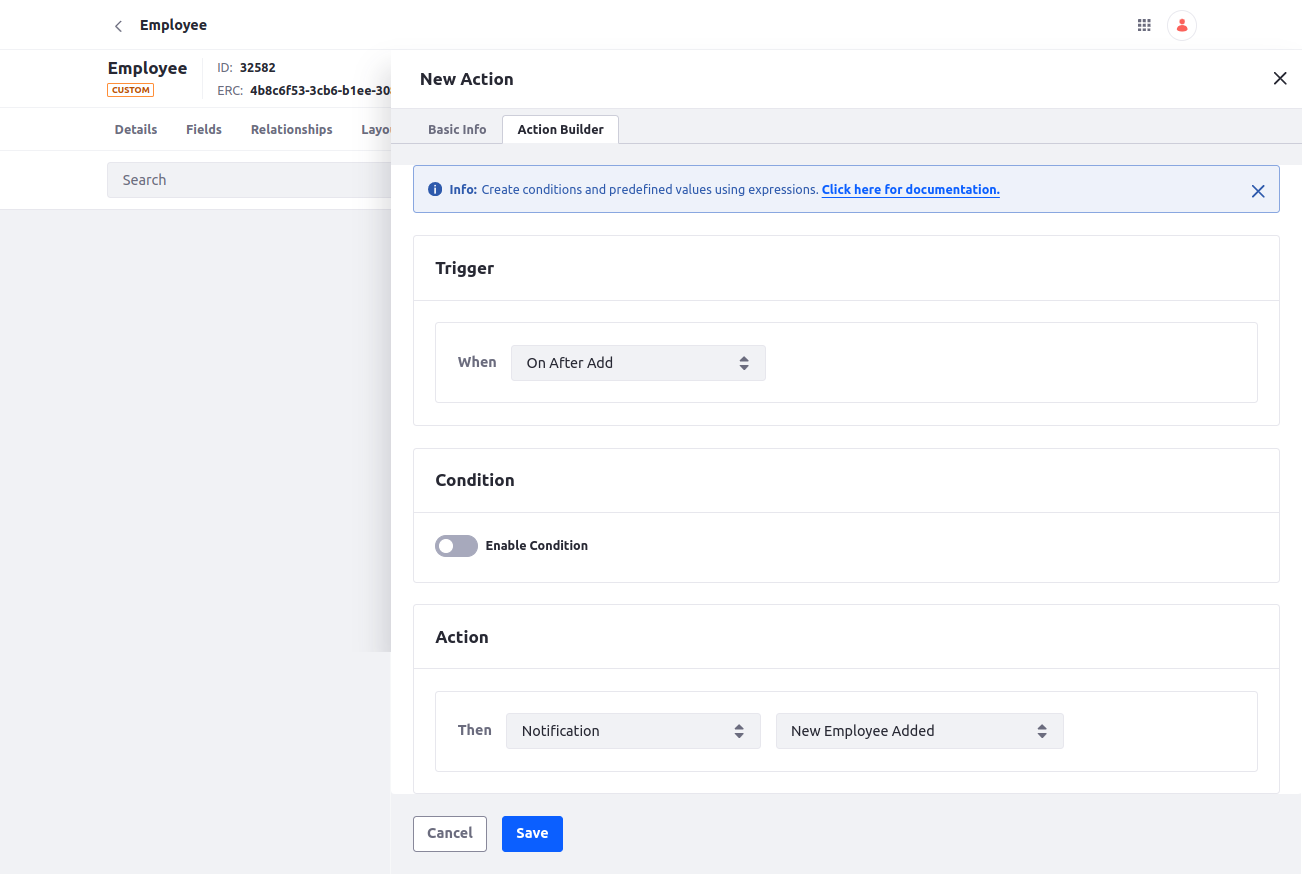
- Once the action is configured, save the object.
- With this setup, notifications will be sent to users whenever a new object entry is added.
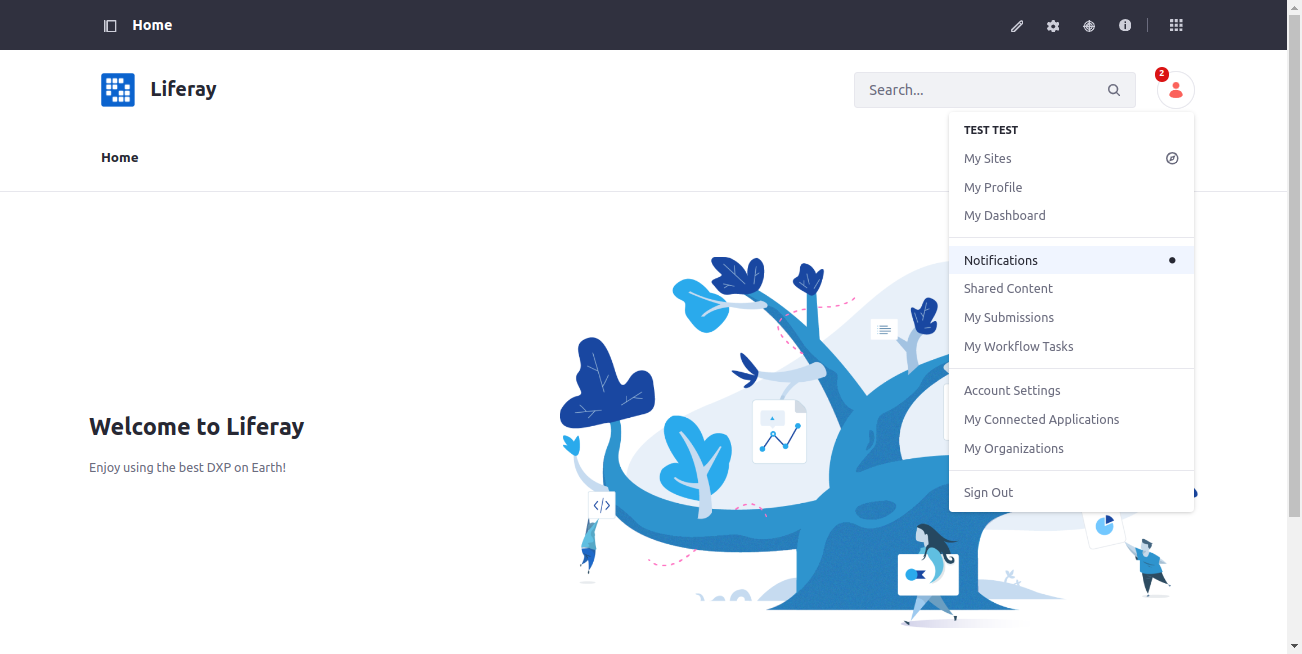
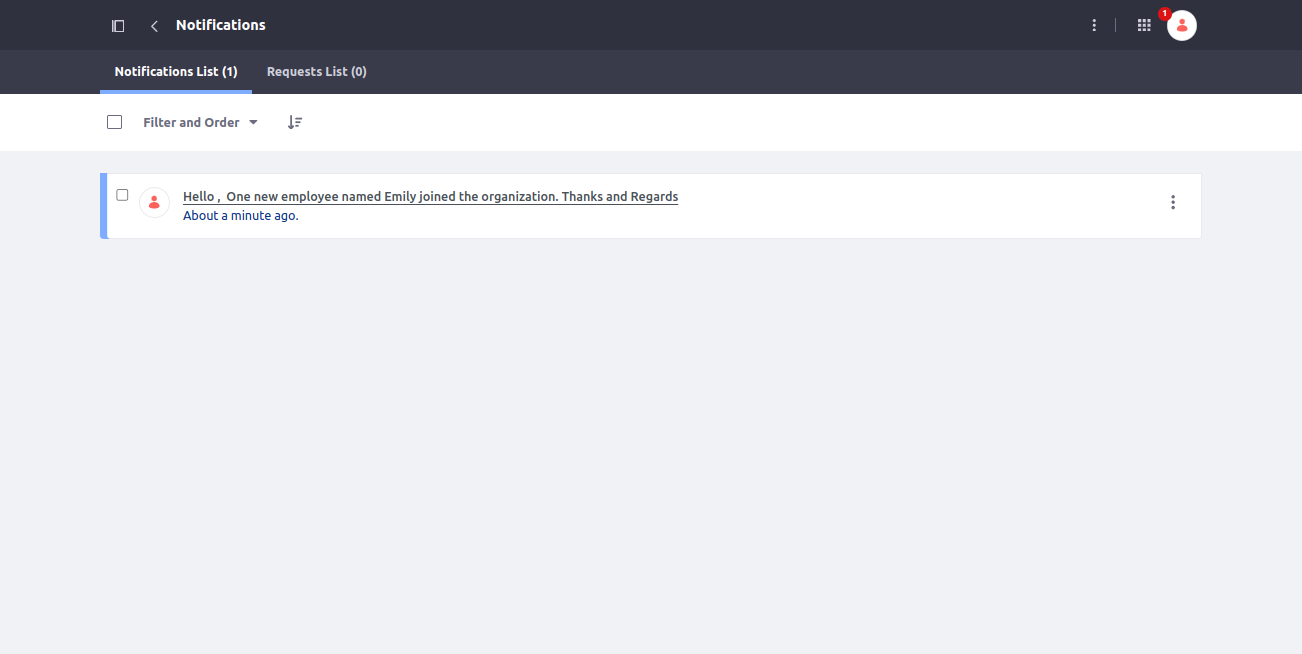
- Here is the output of the notification using an object action.
- Log in with the user that was mentioned in the notification template's settings.
- Navigate to the User Profile Menu > Notifications to view the notifications.
- Note: If ‘role’ was selected in the notification template, in that case, the user that is assigned to that role will receive the notification.
Conclusion:
Implementing user notifications in Liferay 7.4 using objects is a streamlined process that enhances user engagement and system interactivity. By following the outlined steps—creating an object, setting up a notification template, and configuring an action—Liferay users can efficiently manage and send notifications to designated recipients.


