How to write ADT with structure and template in Liferay

Introduction
The application display template (ADT) allows portal administrators to override the default display templates for portlets. For example, we want to show a list of the asset ( web contents, blogs ) in the asset publisher portlet in different designs ( Vertical list ) than OOTB design of LIferay. Application display template(ADT) is a great way of changing the Portlet display dynamically without changing code in Portlet JSP pages. In Liferay 7.2, application display template known as Widget Template.
Follow the below steps to create Web Content with structure and template
- Create Structure
Go to Liferay admin panel
Go to Sites → Select desired site → Content → Web-content → Structures
Click on “+” button
Enter the name of the structure
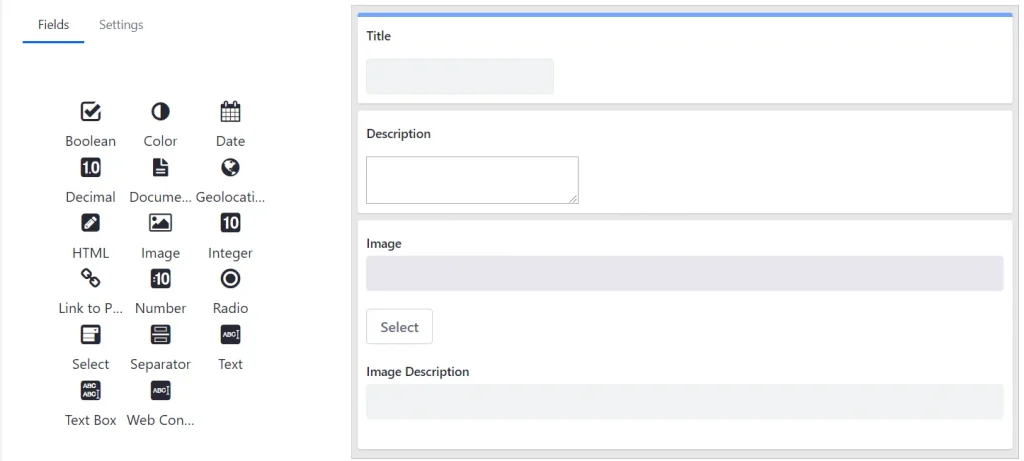
Add fields by dragging items from left to right
And click on the “Save” button to save the structure
Here, We adding Text, HTML and Image fields for demonstrating the ADT & Structure (You can change field name as per your requirement). Please refer below image.
2. Create Template
Go to Liferay admin panel
Got to Sites → Select desired site → Content → Web-content → Templates
Click on “+” button
Enter the name of the template
Here, We creating a basic template as shown below
1Title : ${Title.getData()} <br />
2Description : ${Description.getData()} <br />
3<#if Image.getData()?? && Image.getData() != "">
4    <img decoding="async" alt="${Image.getAttribute(" src="${Image.getData()}" title="|">
5</#if>
3. Create Web Content
Go to Liferay admin panel
Got to Sites → Select desired site → Content → Web-content
Click on “+” button
Select the structure
Give the name of web content
Fill the fields with appropriate details
Click on Publish
Go to the desired page
Drop the Web Content Display portlet
Click on Select Web Content to make it visible
Select the web content which you want to display
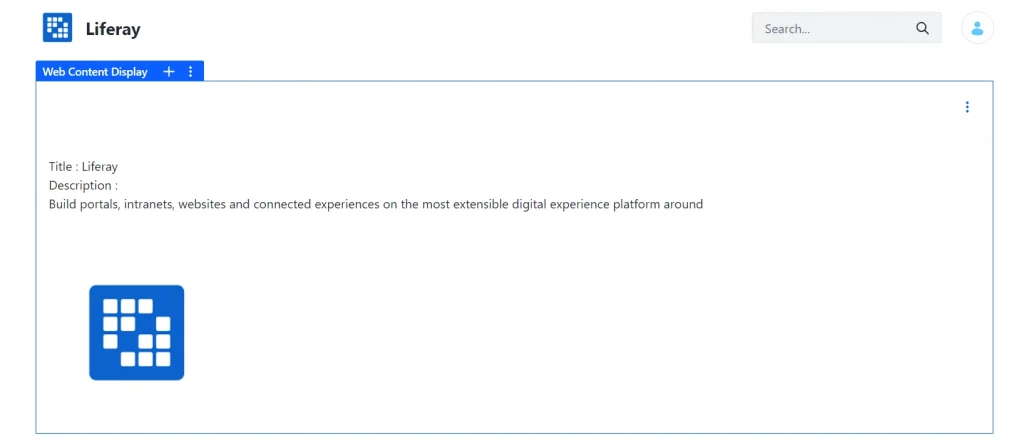
We have created web content with the structure and template. If you drop this web content in page, it will look like below image.
We can add any number of web contents using this structure and template. We can configure asset publisher to render web content using this structure. Now in order to make look and feel better we can write application display template to render webcontents list.
Follow the below steps to create the Application Display Template
Create Application Display Template using asset publisher
Go to Liferay admin panel
Got to Sites → Select desired site → Configuration → Application Display Templates
Click on “ADD” button
Select Asset Publisher Template
Add the name of the asset publisher
Add below code in ADT
1<#if entries?has_content>
2    <div class="row">
3        <#list entries as curEntry>
4            <div class="col-md-3 border border-primary" >
5                <#assign
6                    assetRenderer = curEntry.getAssetRenderer()
7                    journalArticle = assetRenderer.getAssetObject()
8                 />
9                <@liferay_journal["journal-article"]
10                    articleId=journalArticle.getArticleId()
11                    ddmTemplateKey=journalArticle.getDDMTemplateKey()
12                    groupId=journalArticle.getGroupId()
13                />
14            </div>
15        </#list>
16    </div>
17</#if>- Click on the Save button
- Go to the desired page
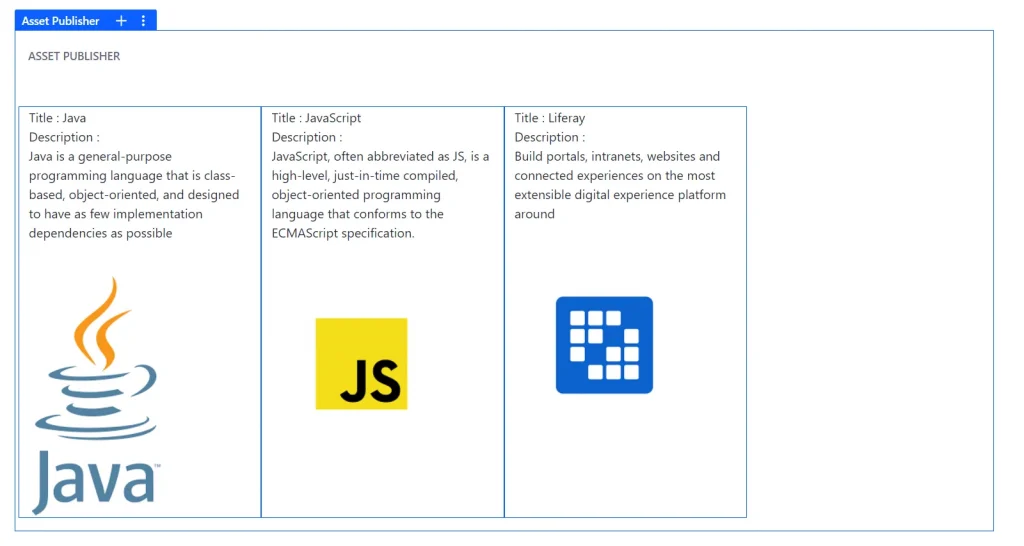
- Drop the Asset Publisher portlet, configure it with above ADT and structure
Now, you can see your web content as shown below