Delivering Personalized Experiences in Liferay Using Segments and Behavioral Data

Introduction
In today’s digital world, personalization is not just a nice to have, it is expected. Whether you are building a customer portal, internal knowledge base, or e-commerce site, delivering personalized experiences can significantly enhance user engagement and satisfaction.
That’s where Liferay really shines. These tools of Liferay enable dynamic content delivery based on user profiles, behaviors, and real-time context, offering an experience that feels uniquely relevant to each visitor.
In this blog we’ll take a closer look at how you can use Liferay’s Segments, along with behavioral data, to create engaging personalized experiences.
Prerequisites
- Liferay DXP 7.3+ or Liferay Portal CE 7.4+
- Access to Liferay Analytics Cloud (optional but enhances behavior tracking)
- Basic understanding of Liferay’s content management and audience targeting tools
Steps to Create and Use Segmentation
Step 1: Access the Segments
Overview:From the Site Menu on the left side of the screen, go to People → Segments.Liferay lets you to create segments based on a variety of criteria such as:
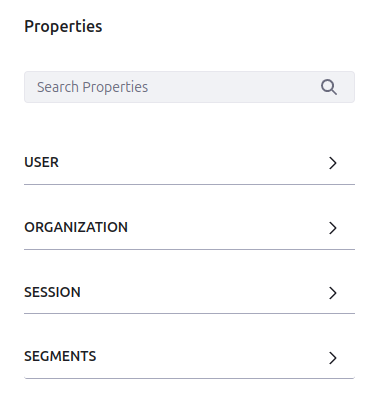
Use Case: Marketing Team First, we need to set up the organization and users:
- Go to Control Panel → Users and Organizations → Click Add → Organization and name it Marketing
- Add two users: Marketing User1and Marketing User2.
- Assign both users to the Marketing organization
This sets up the foundation for segmenting users by their organization.
Step 2: Create a New Segment
Overview: In the Segments
- Click on New
- Enter a name and description of the Segment
- Select the source type by simply drag and drop.
- Define conditions using available filters such as:
- Demographics (e.g., age, language, job title)
- Session data (e.g., browser, location)
- Behavioral data (e.g., visited pages, time on site – requires Analytics Cloud)
Tip: You can use multiple conditions to refine your audience. For example, segment users who visited a specific page multiple times and are from a specific country.
Use Case: Marketing Team Create a segment for users in the Marketing organization:
- Go to People → Segments → Add Segment
- Name the segment: Marketing Team
- Under Conditions, drag and drop the Organization and select Marketing
- Click Save
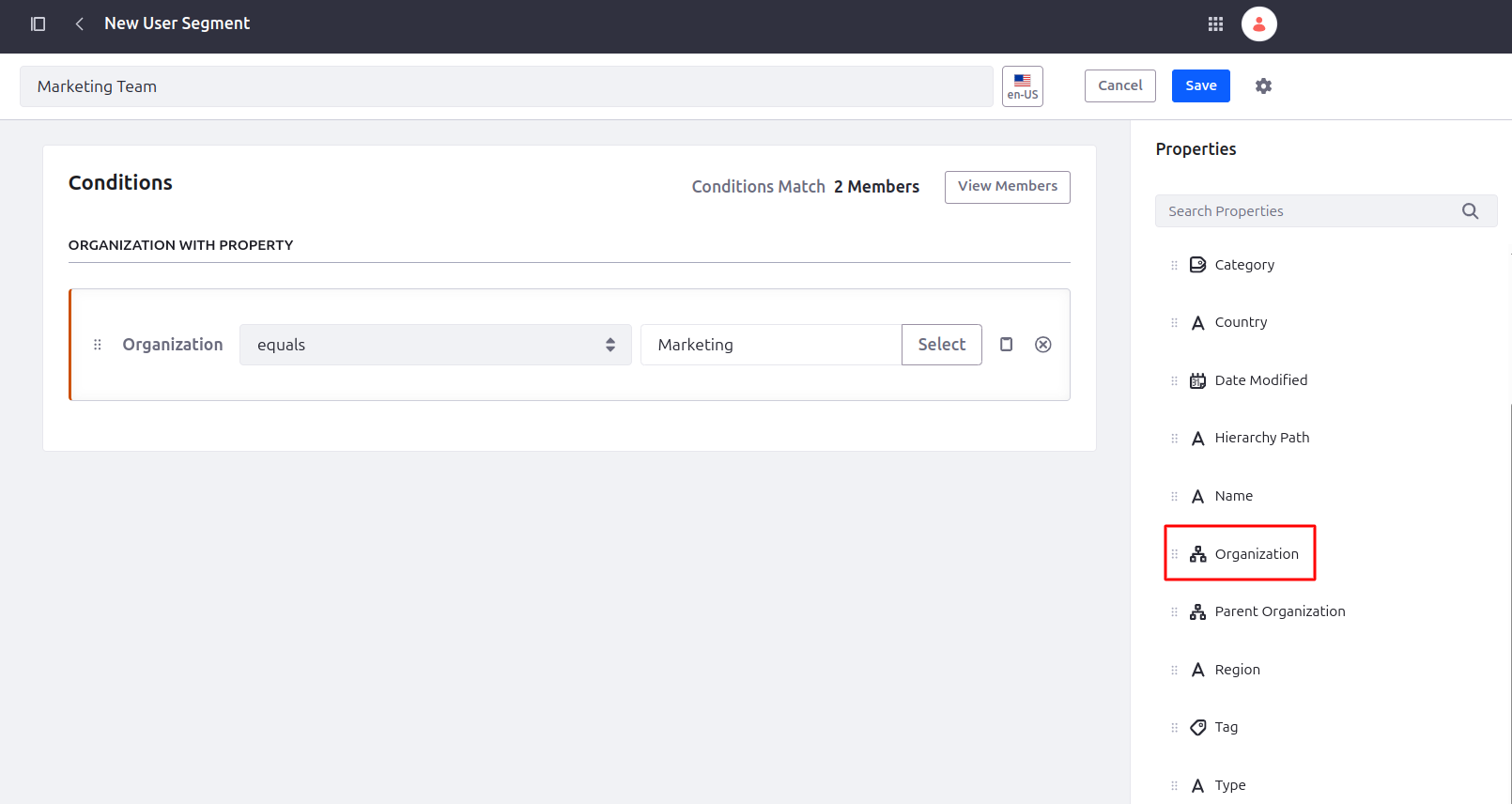
Now you created a segment based on the user’s organization.
Step 3: Preview the Segment
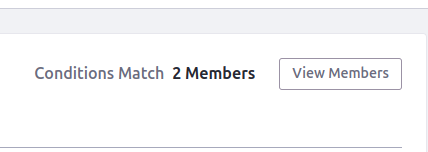
Overview:Once you’ve set the parameters for your conditions, use the Preview Users feature to guarantee that the segment captures the right users. This helps confirm your logic before deploying it for personalization.
Use Case: Marketing TeamGo to the Marketing Team segment and Preview Users to confirm that Marketing User1 and Marketing User2 are included as expected. This validation ensures that the segmentation rule is correctly configured.
Step 4: Apply Segments to Pages or Content
Overview:Liferay makes it possible to create personalized content interactions through:
- Fragment Personalization: Assign individual content fragments to different segments
- Widget Visibility: Control visibility of widgets on a page through audience targeting.
- Web Content Personalization: Use segment filters with Asset Publisher or Content Sets
Use Case: Marketing TeamLet’s now create personalized content for the Marketing Team:
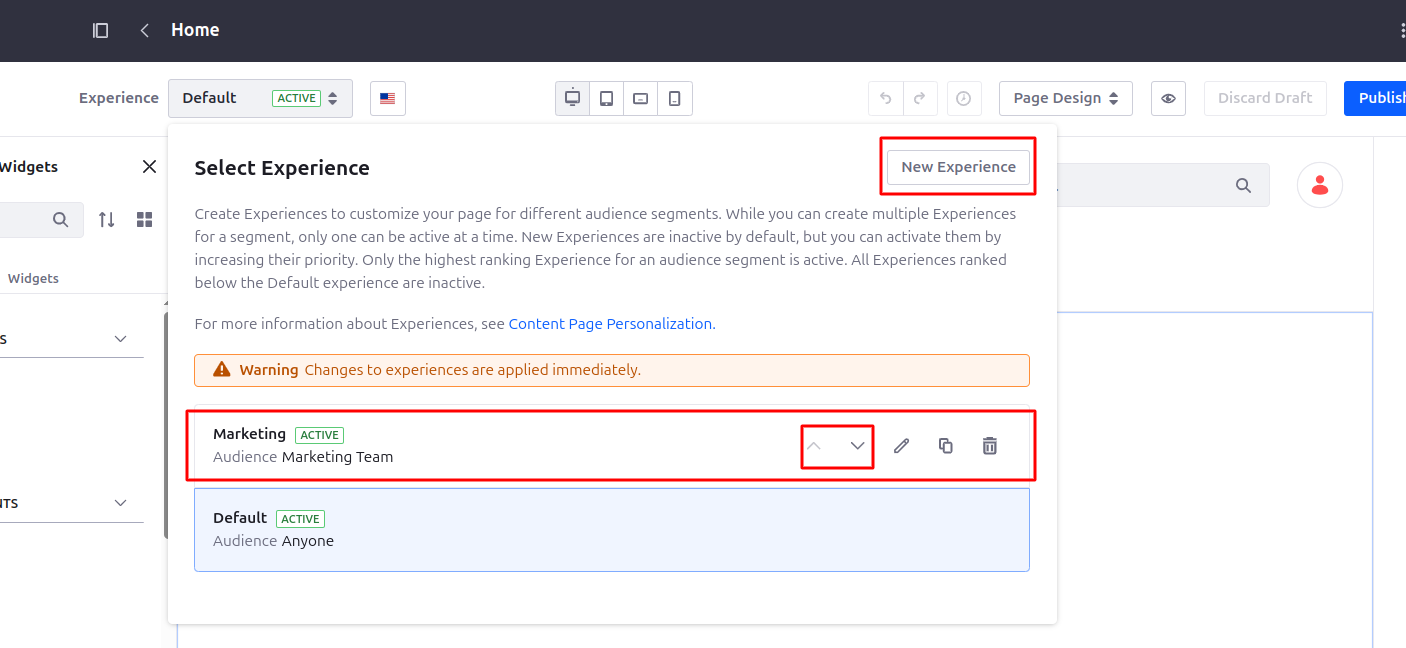
- Go to a public or private page in your site and enter Edit Mode.
- Use the Experience selector to create separate experiences for:
- Default Segment
- Marketing Team Segment
- Up and Down Arrows change the priority of the Segment.
4.Now, add two Content Fragments:
- One for Default Segment– Fragment Content: “Welcome to our site!”
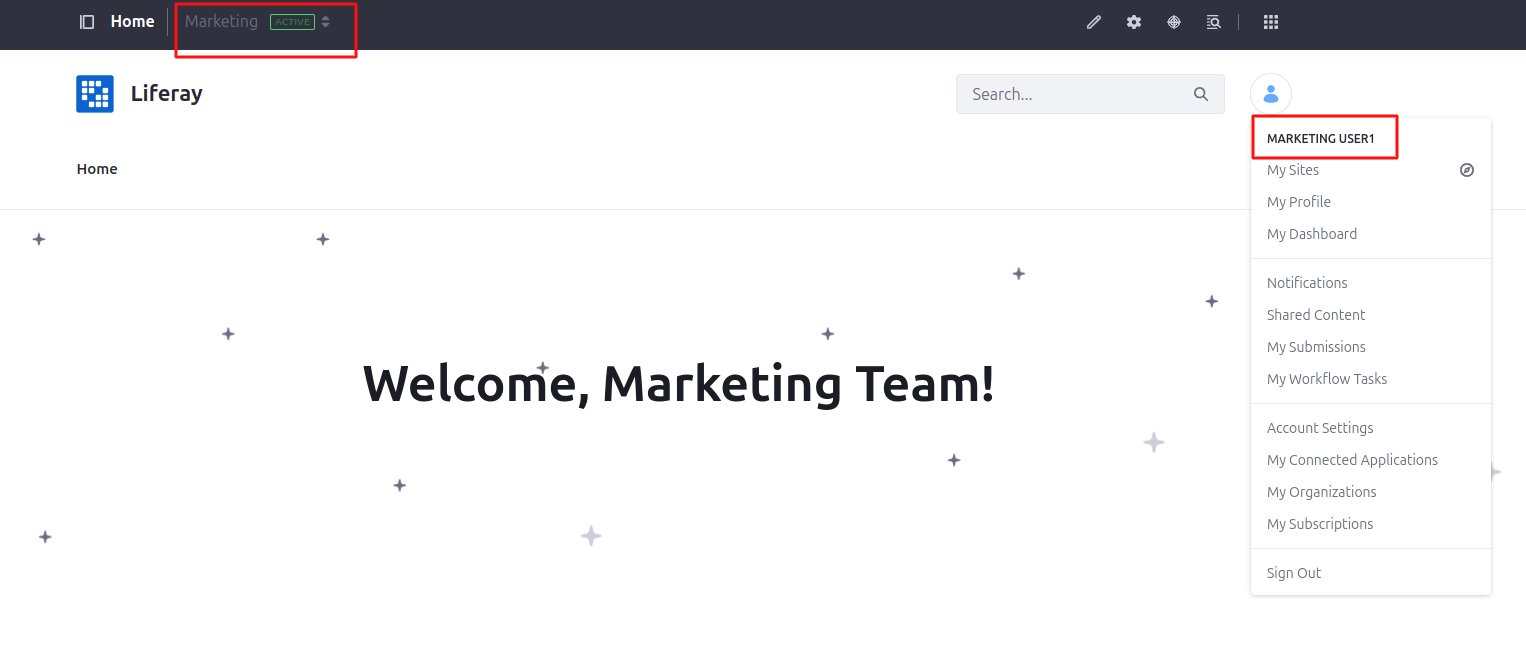
- One for Marketing Team Segment– Fragment Content: “Welcome, Marketing Team!”
5.Assign each fragment to its corresponding segment experience
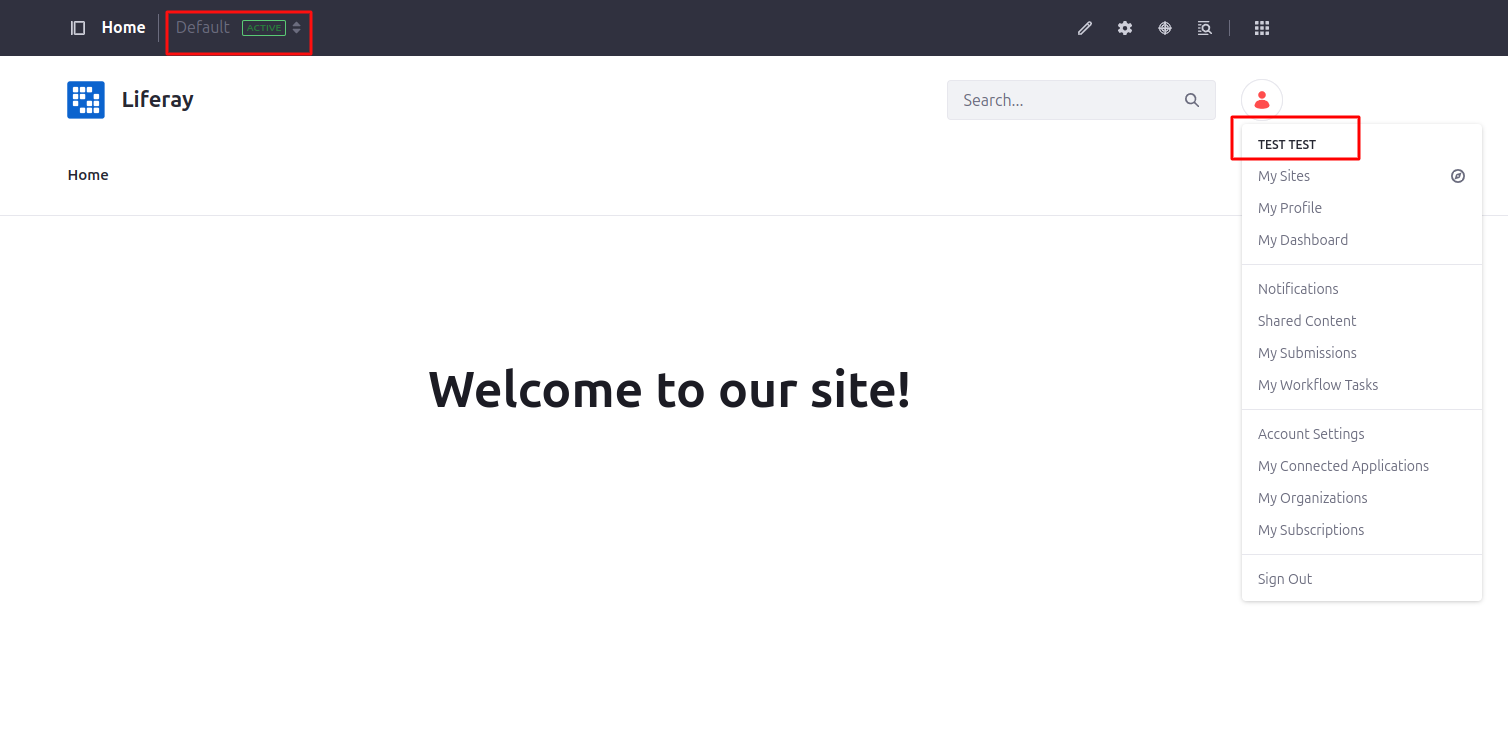
Now, Marketing organization users will have messaging tailored to them when they come to the site.
Step 5: Track and Optimize Using Analytics Cloud (Optional)
Overview:If you have Liferay Analytics Cloud enabled, you can monitor segment-specific data metrics such as:
- Page views and session duration
- Conversion goals (e.g., form submissions, link clicks)
- Behavior patterns (e.g., bounce rates, navigation flow)
Use Case: Marketing TeamWith Analytics Cloud, it is possible to monitor the interactions of your team members or users with personalized content. For instance, you might analyze how often they access campaign resources or click internal calls-to-action, and use this data to refine future content strategies.
Conclusion
Liferay's personalization capabilities are both powerful and approachable. With just a few clicks, you can group users based on their attributes or behaviors, and deliver targeted content. We described in our example how straightforward it is to create a segment using organizational information to tailor the experience. To personalize even further, Liferay’s Segmentation tools can be combined with geolocation, behavioral data, and custom rules.


