Calculated Fields in Liferay 7.4: Aggregation, Auto-Increment & Formula Guide

Introduction
Liferay 7.4 Objects are the power of low code to create business applications without coding custom modules. Basic object fields can store data, but Calculated Fields will take your application to the next level by creating dynamic, read-only fields based on logic or other data.
Calculated fields offer a more powerful way to get the data from the users than manually entering it, and they can be used to:
- Automatically generate identifiers
- Calculate totals and metrics
- Summarize related records
- Build intelligent data-driven applications
In this guide, we will explore each type in detail with real-world examples and exact navigation steps.
Applicable Liferay Versions
Aggregation - Liferay 7.4 U47+/GA47+
Auto-Increment - DXP 2024.Q1+/Portal GA112+
Formula - Liferay DXP 2023.Q4+/Portal GA102+
Prerequisites
You should understand basic object creation.
Overview
Unlike the previous versions of Liferay, Liferay Objects (introduced and enhanced in Liferay 7.4) can be used to create structured business applications without the need to write custom Java modules. Objects are just like entities backed by a database that you can define their fields, relationships, validations, actions and permissions all from the UI.
Relationships and calculated fields can be used together to enable simple data entry forms to become fully functional business applications.
Where to Access Objects
You can access objects by navigating to Application Menu → Control Panel → Objects.
1. Aggregation Fields
An Aggregation Field calculates a read-only value from related object entries.
It works only when:
- There is a relationship (One-to-Many or Many-to-Many)
- Related object contains numeric fields
- You want to summarize related data
Supported Functions :
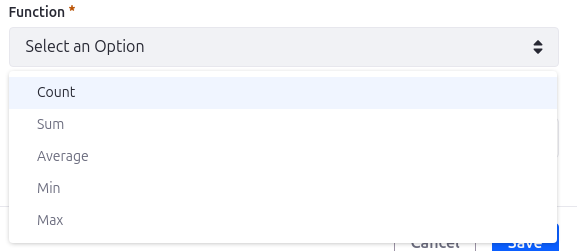
Example : Ticketing System
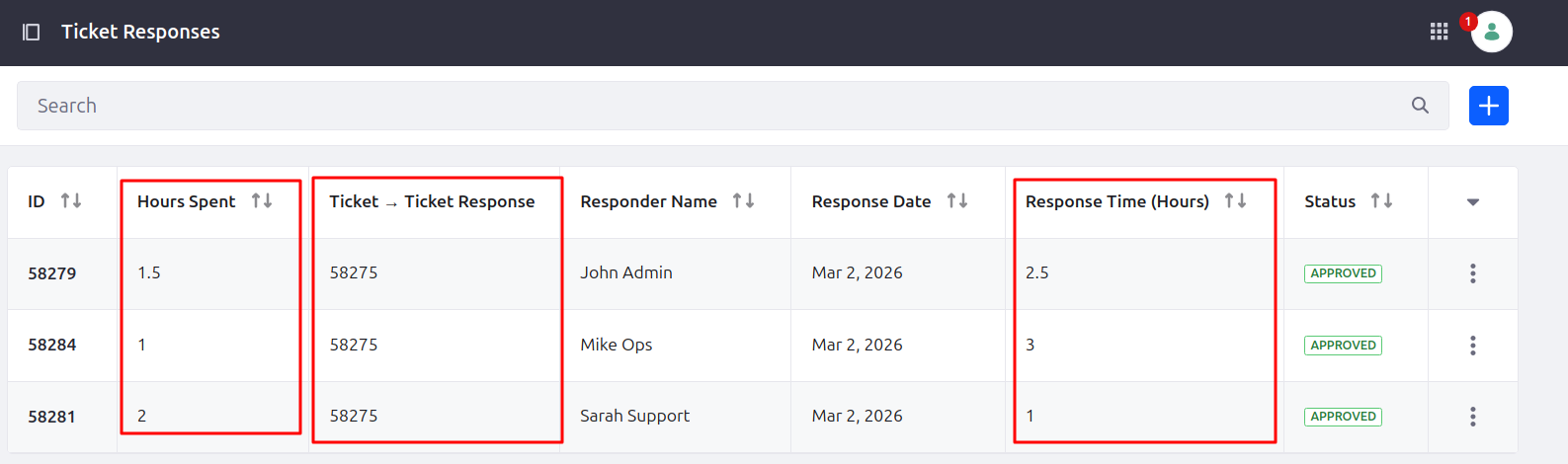
There are two objects: Ticket and Ticket Response. One Ticket may contain multiple Ticket Responses and each Ticket Response can record Response Time (Decimal) and Hours Spent (Decimal) information.
Now you want to:
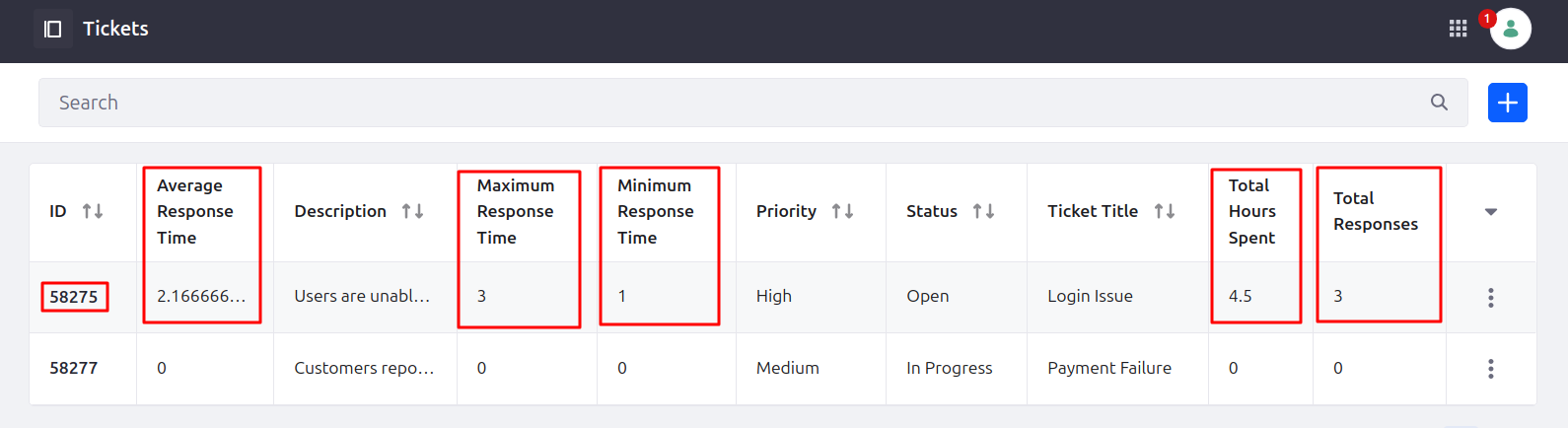
- Count total responses
- Calculate total hours spent
- Find average response time
- Show minimum & maximum response time
Step 1 : Create Objects
- Create Ticket Object
- Make a new Ticket object to handle support or issue records. Add the following fields : Ticket Title (Text), Description (Long Text), Status (Picklist – Open, In Progress, Closed). Once all the fields have been added, publish the object so that it can be used in the application.
- Create Ticket Response Object
- Add the following fields: Response Message (Long Text), Response Time (Hours) (Decimal), Hours Spent (Decimal), Responder Name (Text), and Response Date (Date). Once all necessary fields are added, publish the object to share with others.
Step 2 : Create Relationship
- Create Ticket Object
- Go to Ticket → Relationships → Add Relationship and add a One-to-Many relationship for Ticket Response. Once the relationship is set up, publish to share it. This will automatically generate a relationship table inside.
Step 3 : Add Aggregation Field
In the third step, select Aggregation Field.
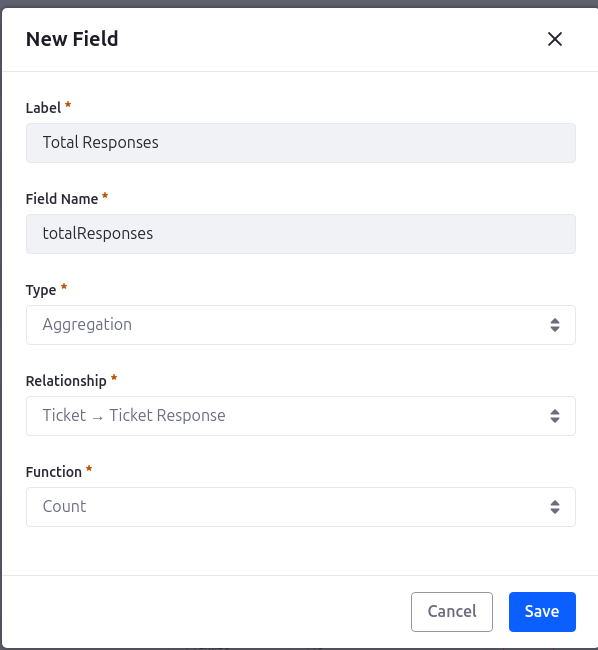
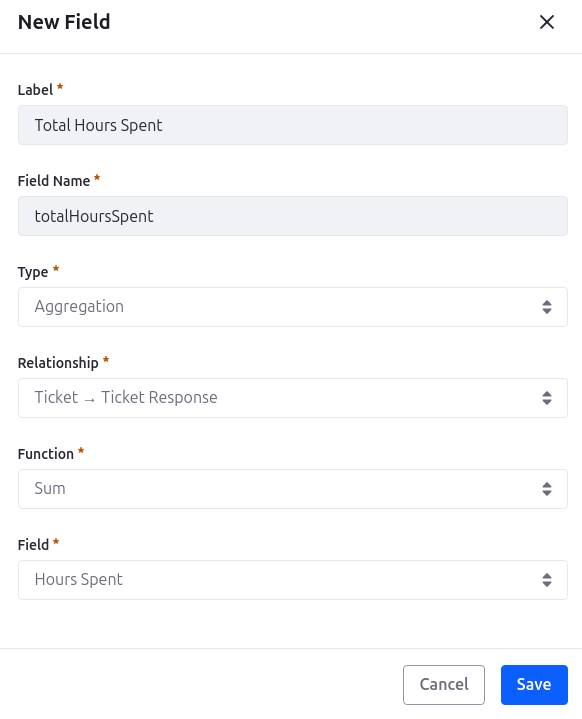
Click on Ticket → Fields → Add Field, and choose Aggregation as a field type. Fill out the field using the Ticket - Ticket Response relationship, pick an aggregation function (Count, Sum, Avg, Min, Max) and then select the required numeric target field.
Example Fields:
- Total Responses – Aggregation (Count)
- Total Hours Spent – Aggregation (Sum → Hours Spent)
- Average Response Time – Aggregation (Average → Response Time)
- Minimum Response Time – Aggregation (Min → Response Time)
Publish the object.
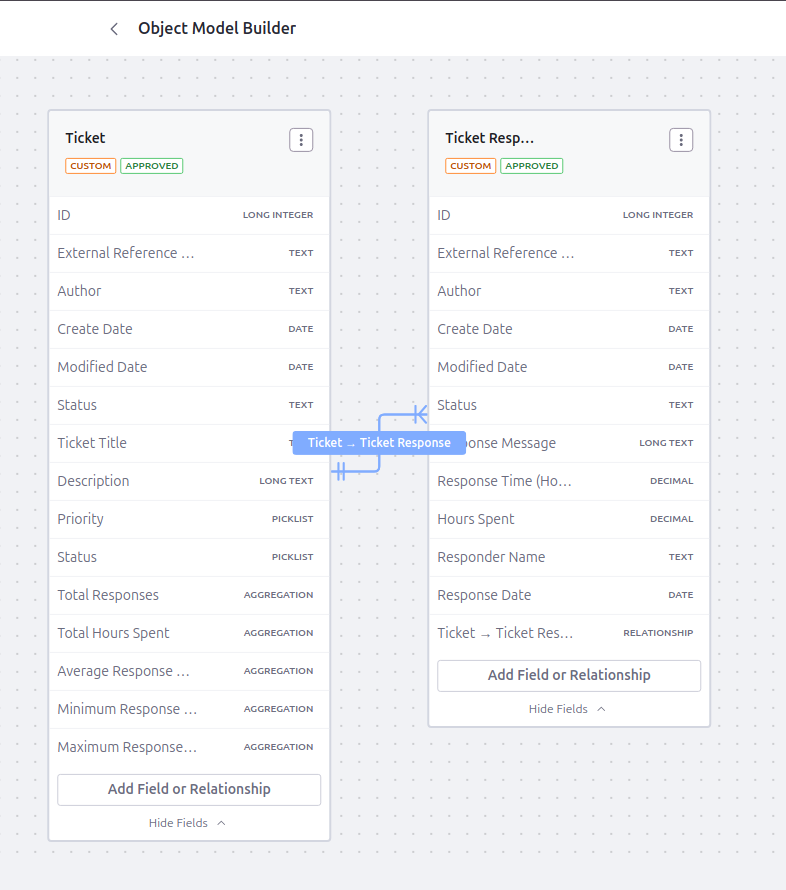
Create a Ticket entry and then add multiple related Ticket Response entries with values such as response time and hours spent. The aggregation fields in the Ticket automatically calculate totals, averages, and other metrics based on these related responses.
Filtering Aggregation
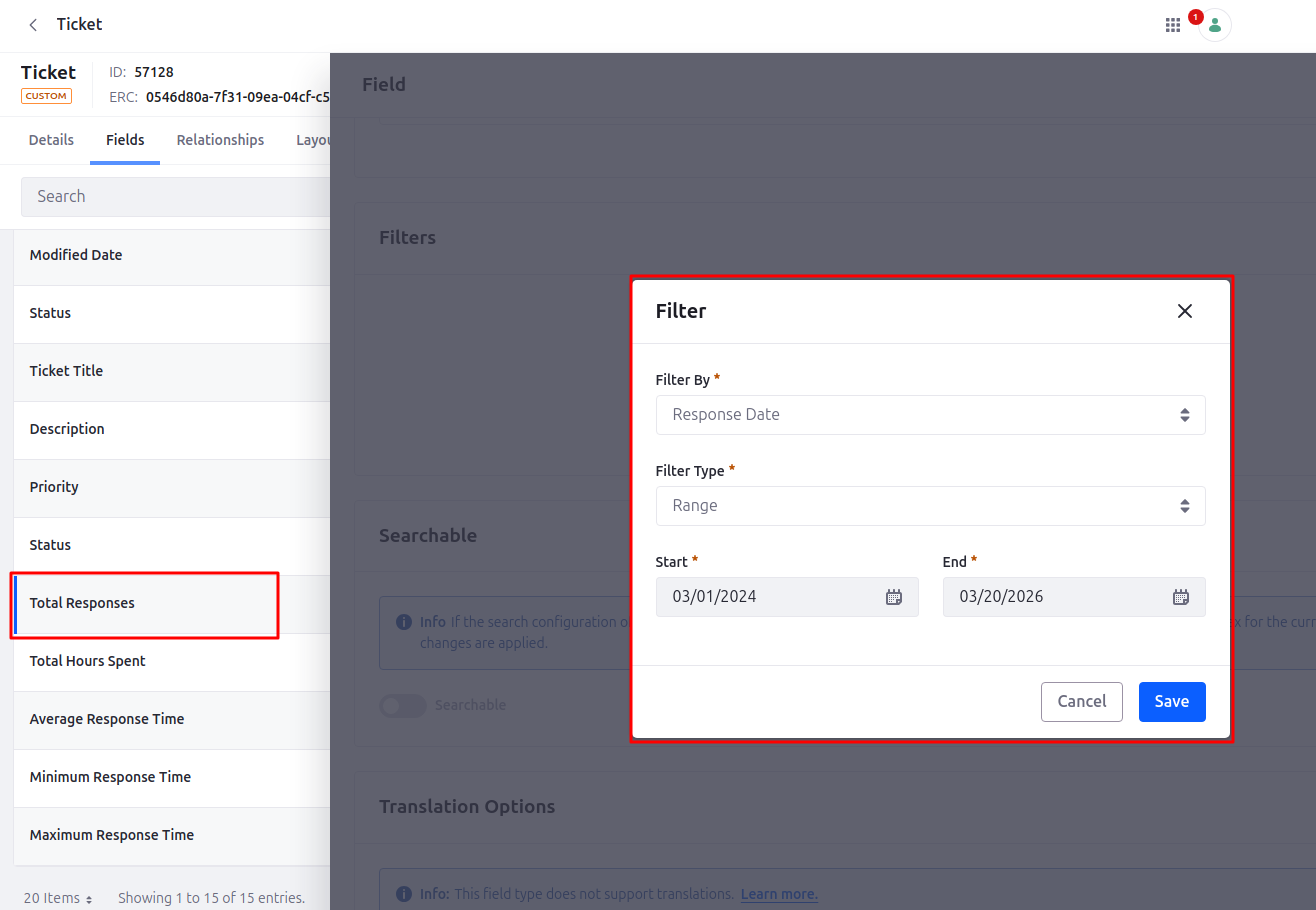
You can add filters like below :
Technical Behavior of Aggregation Fields
Aggregation fields are read-only and automatically update whenever related records are modified. The aggregated values are stored in the object table and indexed in Elasticsearch for efficient searching and reporting.
2. Auto-Increment Fields
Auto-Increment field generates unique, sequential values automatically for each new object entry. It is read-only, automatically generated and can include prefix and suffix.
| Prefix | Starting Value | Suffix | Suffix | |
|---|---|---|---|---|
| Example 1 | INV- | 1000 | none | INV-1001, INV-1002, INV-1003… |
| Example 2 | none | 0 | none | 0, 1, 2, 3... |
| Example 3 | none | 1 | -TKT | 01-TKT, 02-TKT… |
Example : Invoice System
Create an Invoice Object.
Step 1: Create Objects
Navigation: Invoice Object → Fields → Add Field
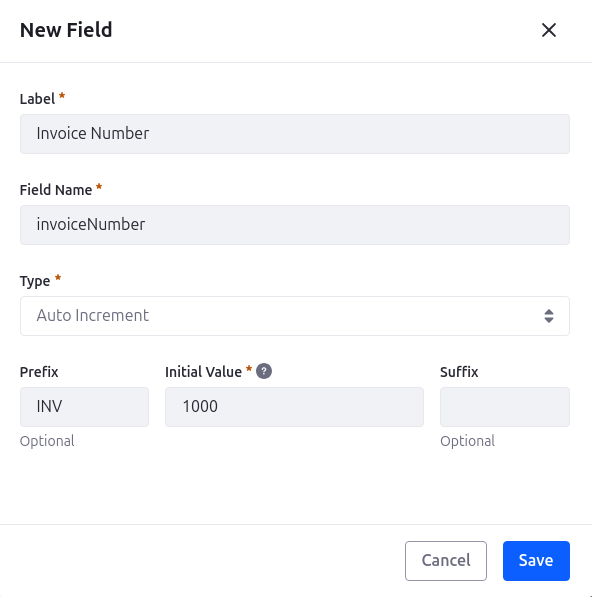
Add an Auto-Increment column to the Invoice Number and set the Starting Value to 1000 and add a prefix (INV-) and/or suffix (If needed). Once changes are published, the Invoice Number will be automatically assigned to a new entry.
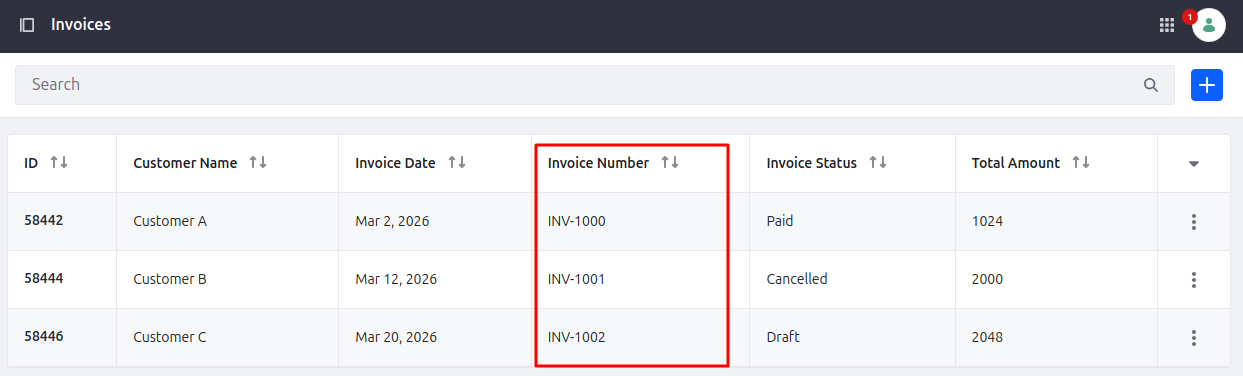
Do NOT change format after production. Changing Prefix, Suffix, Starting value may cause inconsistency in records.
Import & Export Behavior
When working with data migration :
Rules for Successful Import
| Condition | Required |
|---|---|
| Unique External Reference Code (ERC) | ✔ |
| Unique Auto-Increment Value | ✔ |
What Happens If Rules Are Broken
- If the import rules are not followed, duplicate values can cause the import to fail, data conflicts may result in a partial import, and incorrect or inconsistent formats can cause some records to be skipped during the process.
Formula Fields
What is a Formula Field?
Field values are automatically calculated by formula fields based on numeric field values of the same object entry. They are able to handle simple mathematical calculations, including addition, subtraction, multiplication and division. These calculations can only be used within the same object, and can not access fields from associated objects.
Real-Time Example : Project Cost Calculation
Create a Project object and add the following fields: Hours Worked (Decimal), Hourly Rate (Decimal), Tax Percentage (Decimal), and Base Cost (Formula) to automatically calculate the total project cost based on the entered values.
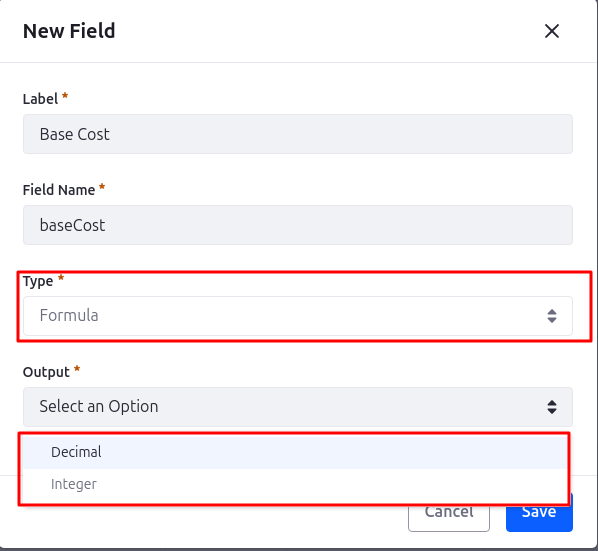
You can define Integer or Decimal as an output type.
Formula to calculate the Base cost:
Base Cost: (hoursWorked * hourlyRate) * (1 + taxPercentage/100)

Click on Edit to add the formula.
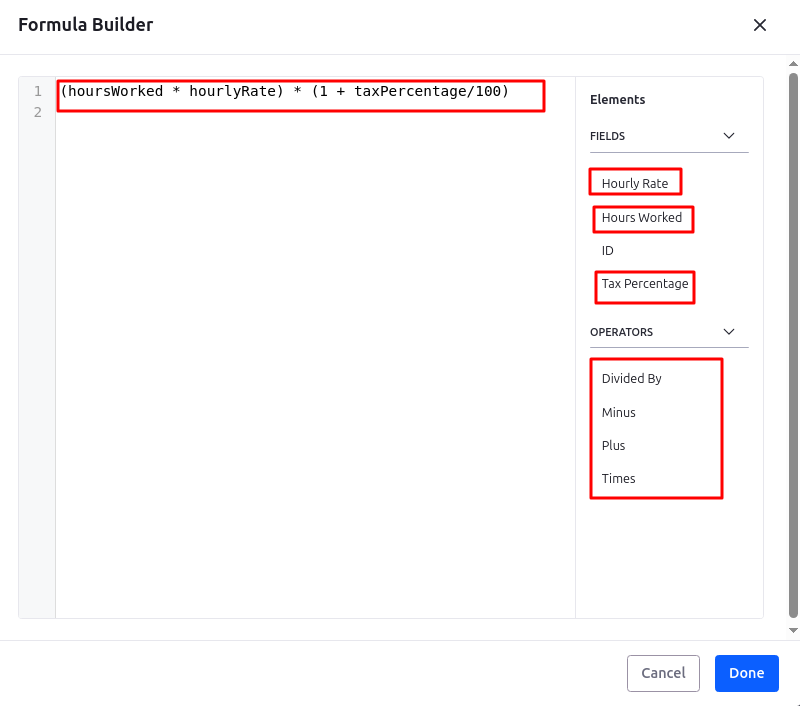
Save the object, then create a new entry. The cost will be calculated automatically upon saving.
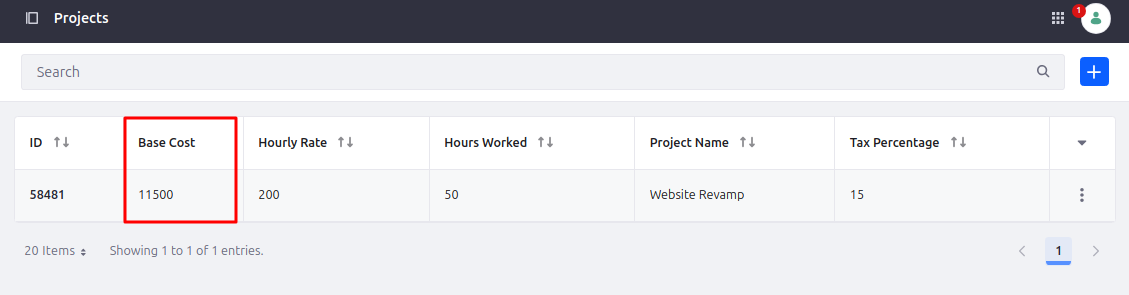
Technical Behavior
Formula fields are evaluated at runtime and remain read-only for users. Their values are automatically updated whenever any referenced field changes, and the calculated results are indexed for efficient search and reporting.
When to use
| Feature | Aggregation | Auto-Increment | Formula |
|---|---|---|---|
| Cross-object | Yes | No | No |
| Uses relationship | Yes | No | No |
| Uses numeric fields | Yes | No | Yes |
| Editable | No | No | No |
| Real-time calculation | Yes | At creation | Yes |
Common Mistakes to Avoid
- Using Aggregation without relationship
- Applying too many filters
- Changing auto-increment format after go-live
- Dividing by zero in formula field
Conclusion
Calculated fields transform Liferay Objects from simple data storage into intelligent, dynamic business applications. You can build low-code enterprise solutions directly inside Liferay 7.4 without writing custom Java modules. Instead of making usCalculated Fields in Liferay 7.4 Object Users calculate values manually, let your object model do the work intelligently.


