Add Custom Language Support To Liferay 7

Introduction
Liferay provides its ability to support multiple languages. It currently supports about 40 languages out of the box. In this blog we will see How to add a new language in Liferay 7. We will add “Gujarati” language in our example.
Environment Requirement
- JDK 8
- Eclipse
- Liferay Portal
1) Web.xml (“${LIFERAY_HOME}\tomcat\webapps\ROOT\WEB-INF”)
Add new language in Liferay, it requires a servlet-mapping entry in web.xml. So we are modifying Liferay Portal’s web.xml file.
1// web.xml
2<servlet-mapping>
3	<servlet-name>I18n Servlet</servlet-name>
4	<url-pattern>/gu/*</url-pattern>
5</servlet-mapping>
6<servlet-mapping>
7	<servlet-name>I18n Servlet</servlet-name>
8	<url-pattern>/gu_IN/*</url-pattern>
9</servlet-mapping>
10<security-constraint>
11	<web-resource-collection>
12		<web-resource-name>/c/portal/protected</web-resource-name>
13		<url-pattern>/gu/c/portal/protected</url-pattern>
14		<url-pattern>/gu_IN/c/portal/protected</url-pattern>
15	</web-resource-collection>
16</security-constraint>
This step will activate the “Gujarati” language in Liferay.
2) Portal-ext.properties
We have configured servlet-mapping entry. Now we need to configure ‘locales’ property in portal-ext.properties.
1locales=ar_SA,eu_ES,bg_BG,ca_AD,ca_ES,zh_CN,sl_SI,sk_SK,es_ES,sv_SE,tr_TR,uk_UA,vi_VN,gu_INBy configuring the above property “Gujarati” language will be available in the Liferay portal.
Restart Liferay server
Go to the Control Panel → Configuration → Instance Settings.
Click on “Localization”.
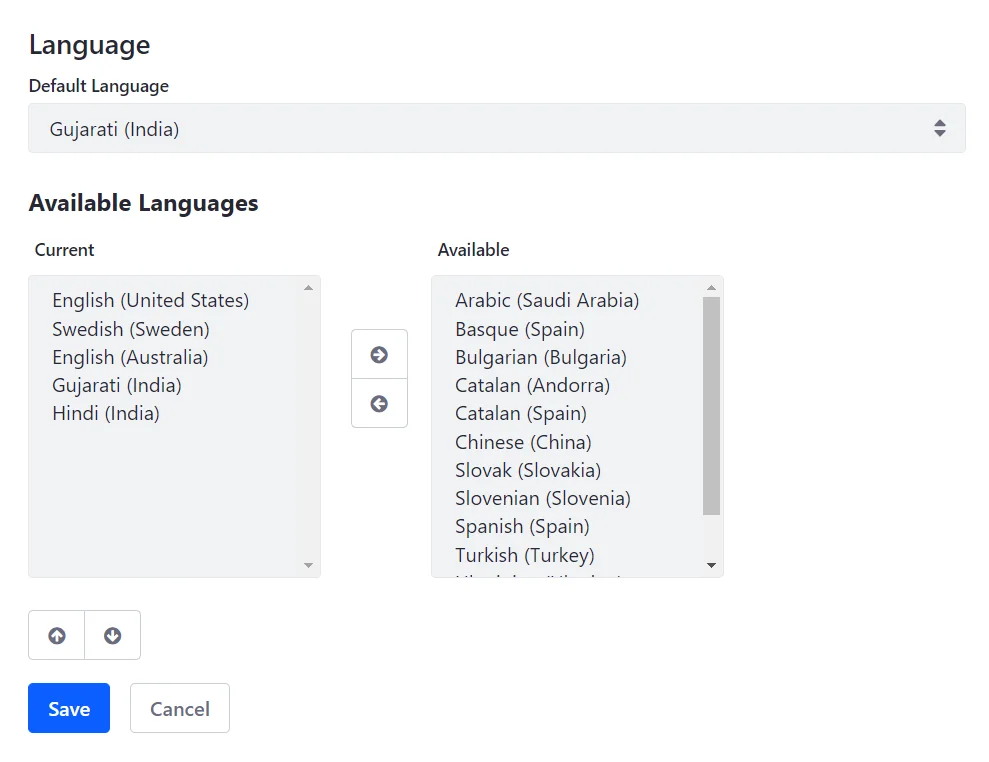
Move Gujarati language from available to current and click on save.
Select Gujarati language as default language and click on save. Now our LIferay Portal’s default language is Gujarati.
3) Create resourceBundle module
Resource bundle module provides a way to add custom language key/value in Liferay Portal. You can create a resource bundle module for an existing language or custom language that you have added. Here we will create a resource bundle for ‘Gujarati’ language that we have added into the portal.
Create module project and create class which extends ResourceBundle. Please take a look at the code below.
1// GuInResourceBundle.java
2@Component(
3	immediate = true,
4	property = {
5		"language.id=gu_IN"
6	},
7	service = ResourceBundle.class
8)
9public class GuInResourceBundle extends ResourceBundle {
10
11	private final ResourceBundle _resourceBundle = ResourceBundle.getBundle(
12		"content.language_gu_IN", UTF8Control.INSTANCE);
13
14	@Override
15	public Enumeration<String> getKeys() {
16		return _resourceBundle.getKeys();
17	}
18	@Override
19	protected Object handleGetObject(String key) {
20		return _resourceBundle.getObject(key);
21	}
22}
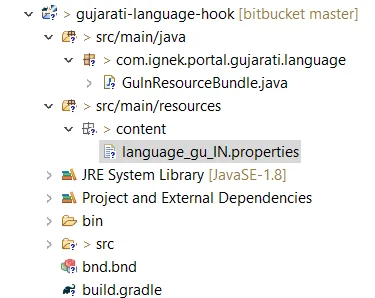
Create “content” folder in “src/main/resources”.
Create “language_gu_IN.properties” file in the content folder.
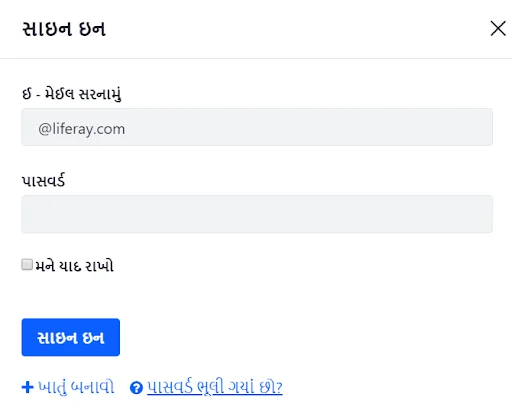
4) Add below language key/value in “language_gu_IN.properties”. Here we are adding gujarati translations for sign in portlet.
1password =\u0AAA\u0ABE\u0AB8\u0AB5\u0AB0\u0ACD\u0AA1
2email-address=\u0A88 - \u0AAE\u0AC7\u0A88\u0AB2 \u0AB8\u0AB0\u0AA8\u0ABE\u0AAE\u0AC1\u0A82
3remember-me =\u0AAE\u0AA8\u0AC7 \u0AAF\u0ABE\u0AA6 \u0AB0\u0ABE\u0A96\u0ACB
4sign-in =\u0AB8\u0ABE\u0A87\u0AA8 \u0A87\u0AA8
5create-account =\u0A96\u0ABE\u0AA4\u0AC1\u0A82 \u0AAC\u0AA8\u0ABE\u0AB5\u0ACB
6forgot-password =\u0AAA\u0ABE\u0AB8\u0AB5\u0AB0\u0ACD\u0AA1 \u0AAD\u0AC2\u0AB2\u0AC0 \u0A97\u0AAF\u0ABE\u0A82 \u0A9B\u0ACB?
Module project structure should like below image :
5) Deploy your module and clear cache from the Liferay control panel
6) Now sign in portlet will looks like below