Create custom configuration under Instance Settings in Liferay 7.2

Introduction
Liferay provides lots of configurations under Instance settings for OOTB features. We can add our own configuration in the Liferay control panel so that we can save configurable values for our project. Here you will learn about how we can implement custom configuration in Liferay 7.2.
Prerequisites
- Java
- Liferay portal 7/7.x
Environment Requirement
- JDK
- Eclipse
- MySQL
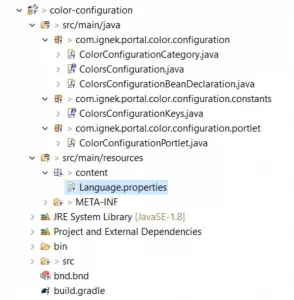
1) Create module project with below classes
2) Create a Java interface
Its interface is used to configure the Liferay form application.
1// ColorsConfiguration.java
2@ExtendedObjectClassDefinition(category = "colors-configuration", scope = ExtendedObjectClassDefinition.Scope.COMPANY)
3
4@Meta.OCD(id = ColorsConfigurationKeys.COLORS_CONFIGURATION, localization = "content/Language", name = "colors-configuration")
5
6public interface ColorsConfiguration {
7
8	@Meta.AD(deflt = "descriptive",
9			name = "colors",
10			optionLabels = { "%White", "%Red", "%Yellow" },
11			optionValues = {"white", "red", "yellow" },
12			required = false)
13
14	public String colors();
15}
Meta.OCD
Registers this class as a configuration with a specific id. The ID must be the fully qualified configuration class name.
Meta.AD
Specifies optional metadata about the field, such as whether it’s a required field or if it has a default value. Note that if you set a field as required and don’t specify a default value, the system administrator must specify a value in order for your application to work properly. Use the default property to specify a default value.
3) Create category and section
If you don’t want the default sections and categories, you can make your own by implementing the ConfigurationCategory interface.
1// ColorConfigurationCategory.java
2package com.ignek.portal.color.configuration;
3import ...
4
5@Component(service = ConfigurationCategory.class)
6public class ColorConfigurationCategory implements ConfigurationCategory {
7	private static final String CATEGORY_ICON = "cog";
8	private static final String CATEGORY_KEY = "colors-configuration";
9	private static final String CATEGORY_SECTION = "color configuration";
10
11	@Override
12	public String getCategoryIcon() {
13		return CATEGORY_ICON;
14	}
15	@Override
16	public String getCategoryKey() {
17		return CATEGORY_KEY;
18	}
19	@Override
20	public String getCategorySection() {
21		return CATEGORY_SECTION;
22	}
23}1Note : please edit the Language.properties located in module project’s location /src/main/resources/content/Language.properties1category.colors-configuration=Colors Configuration
2colors-configuration=Colors Configuration
3category-section.color-configuration=Color Configuration4) Create a configuration bean declaration
It’s used to register your configuration class.
1// ColorsConfigurationBeanDeclaration.java
2package com.ignek.portal.color.configuration;
3import ...
4
5@Component(
6		immediate = true,
7		service = ConfigurationBeanDeclaration.class)
8
9public class ColorsConfigurationBeanDeclaration implements ConfigurationBeanDeclaration {
10
11	@Override
12	public Class<?> getConfigurationBeanClass() {
13		return ColorsConfiguration.class;
14	}
15}
After registering with a ConfigurationBeanDeclaration, you’re ready to use your Configuration in module projects.
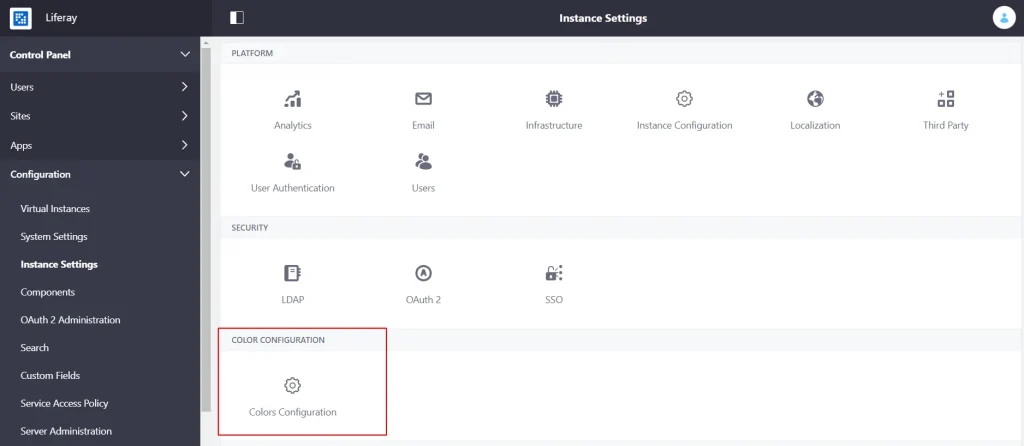
Deploy the configuration module and now you can see your configuration in your Control Panel → Configuration → Instance Settings.
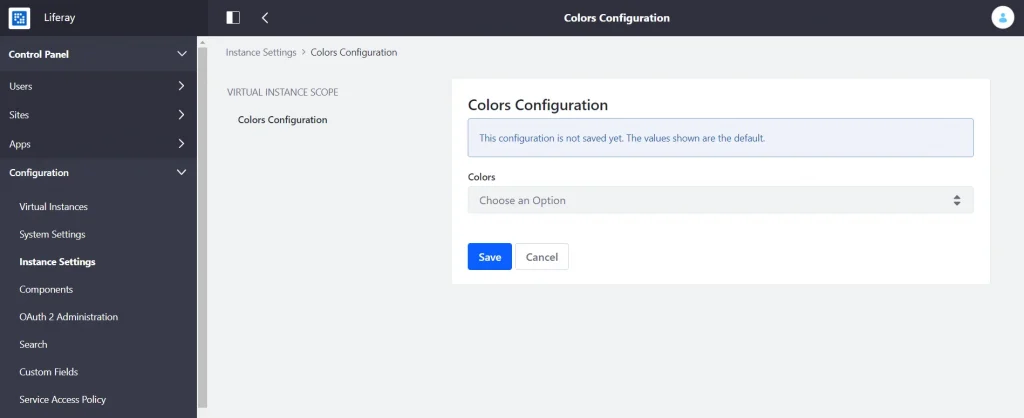
Now you can fetch custom configuration values in your custom portlet using the following code.
1// ColorConfigurationPortlet.java
2package com.ignek.portal.color.configuration.portlet
3
4@Component(
5          ...
6)
7
8public class ColorConfigurationPortlet extends MVCPortlet {
9	private Log log = LogFactoryUtil.getLog(this.getClass().getName());
10	private ConfigurationProvider configurationProvider;
11
12	@Reference(unbind = "-")
13	protected void setConfigurationProvider(ConfigurationProvider configurationProvider) {
14		this.configurationProvider = configurationProvider;
15	}
16
17	@Override
18	public void render(RenderRequest renderRequest, RenderResponse renderResponse)
19			throws IOException, PortletException {
20
21		ThemeDisplay themeDisplay = (ThemeDisplay) renderRequest.getAttribute(WebKeys.THEME_DISPLAY);
22		ColorsConfiguration colorsConfiguration;
23		try {
24			colorsConfiguration = configurationProvider.getCompanyConfiguration(ColorsConfiguration.class,themeDisplay.getCompanyId());
25			System.out.println("colorsConfiguration----------->" + colorsConfiguration.colors());
26		} catch (ConfigurationException e) {
27			log.error(e);
28		}
29		super.render(renderRequest, renderResponse);
30	}
31
32}
This will print the color configuration value you have saved from Liferay Control Panel.


