Use of Liferay Blueprint With Collection

Introduction
Using blueprints with collections ensures consistency, saves time on configuration, and simplifies scaling and maintenance.
Prerequisites
Use the Blueprint with Collection
Step 1 : Enable the beta feature flag
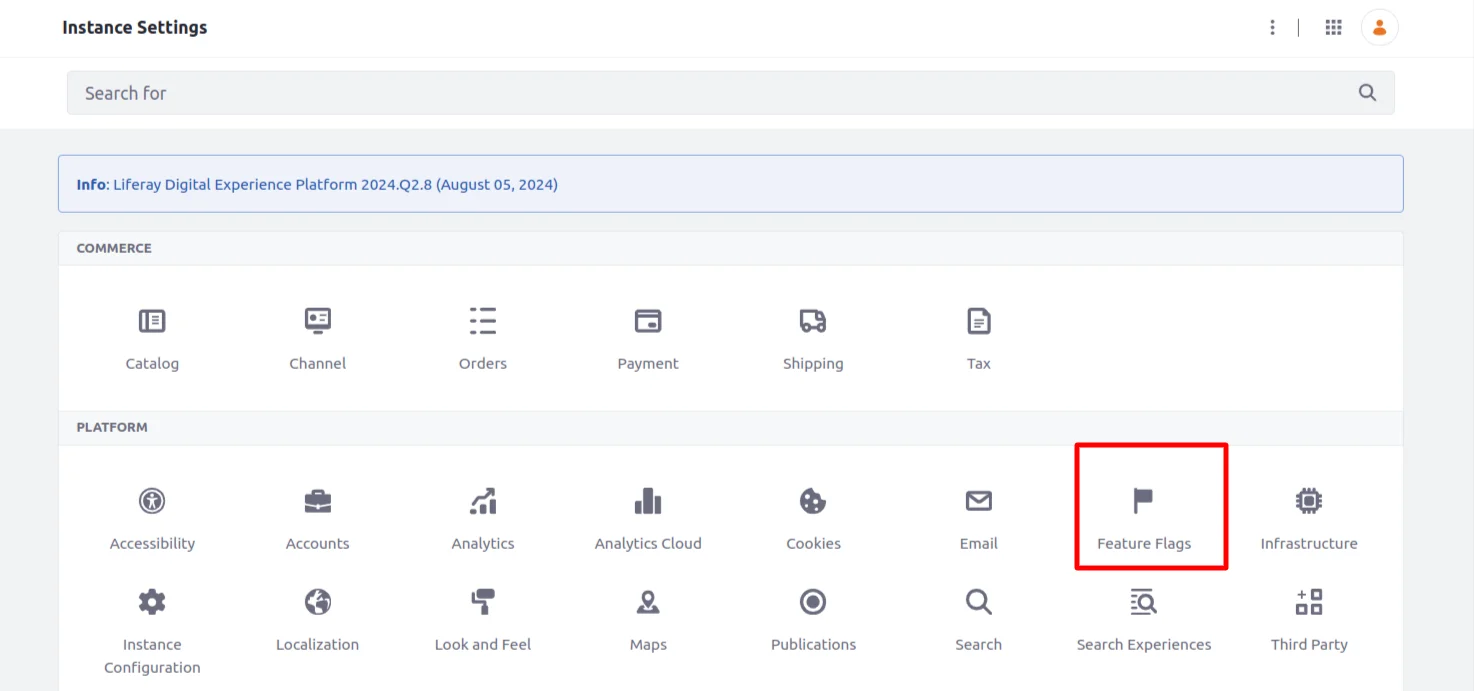
To access and manage feature flags, open the Global Menu and navigate to
Control Panel > Instance Settings. Click on Feature Flags under Platform.
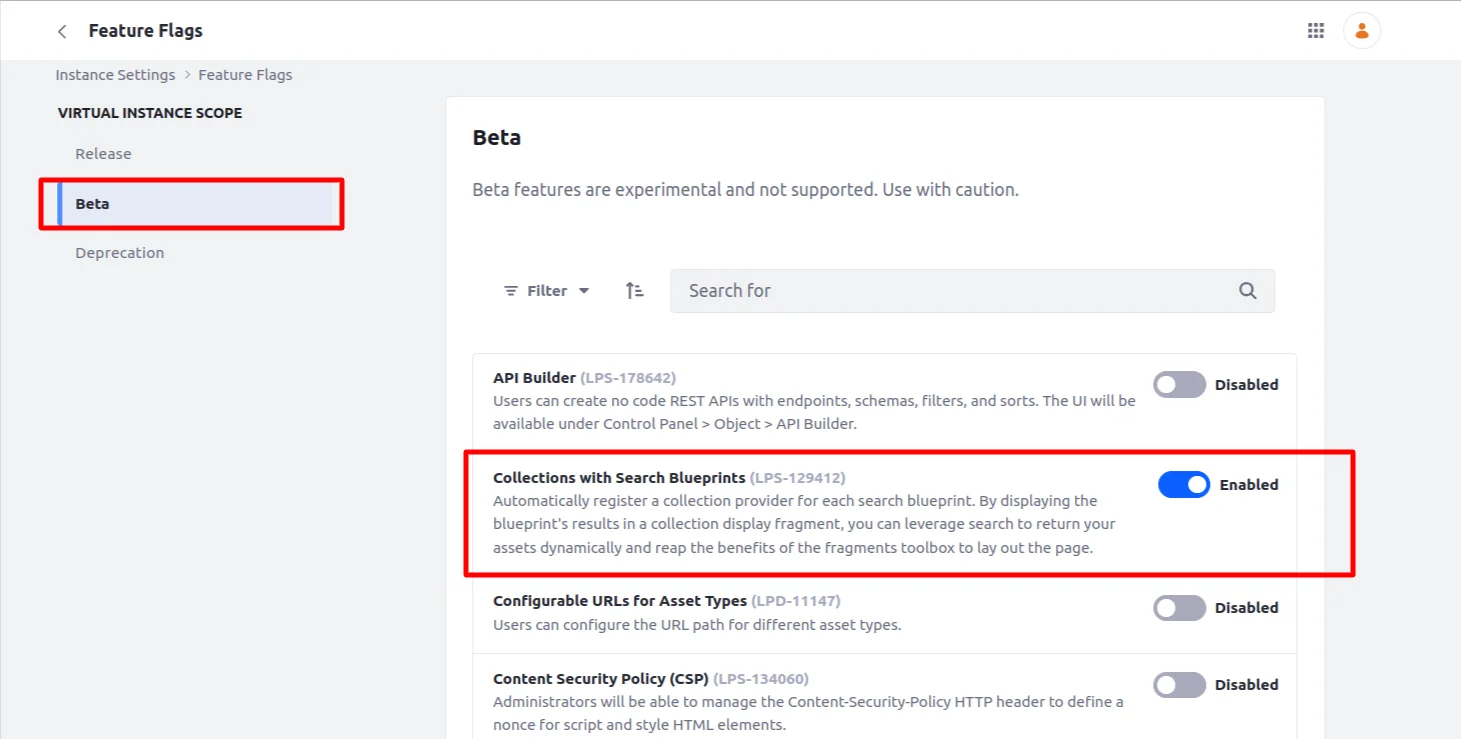
Enable the Collections with the Search Blueprints feature.
Step 2 : Create the blueprint
Note : If you have already created the blueprint, you need to edit and save it again to see it in the collection provider after enabling the beta feature flag.
Consider the scenario
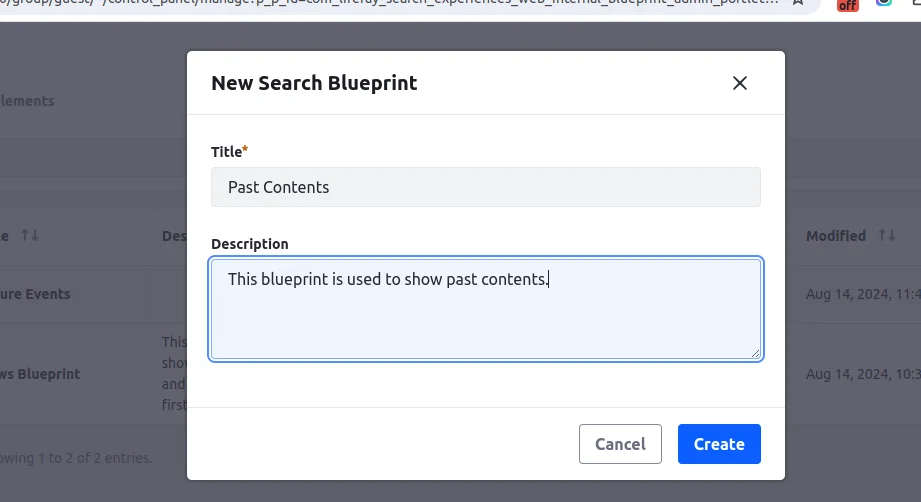
We will filter past content by creating a blueprint that shows only web content with a create date in the past. I have created three web contents.
Navigate to the Control Panel > Applications > Blueprint > Create a new blueprint named Past Contents
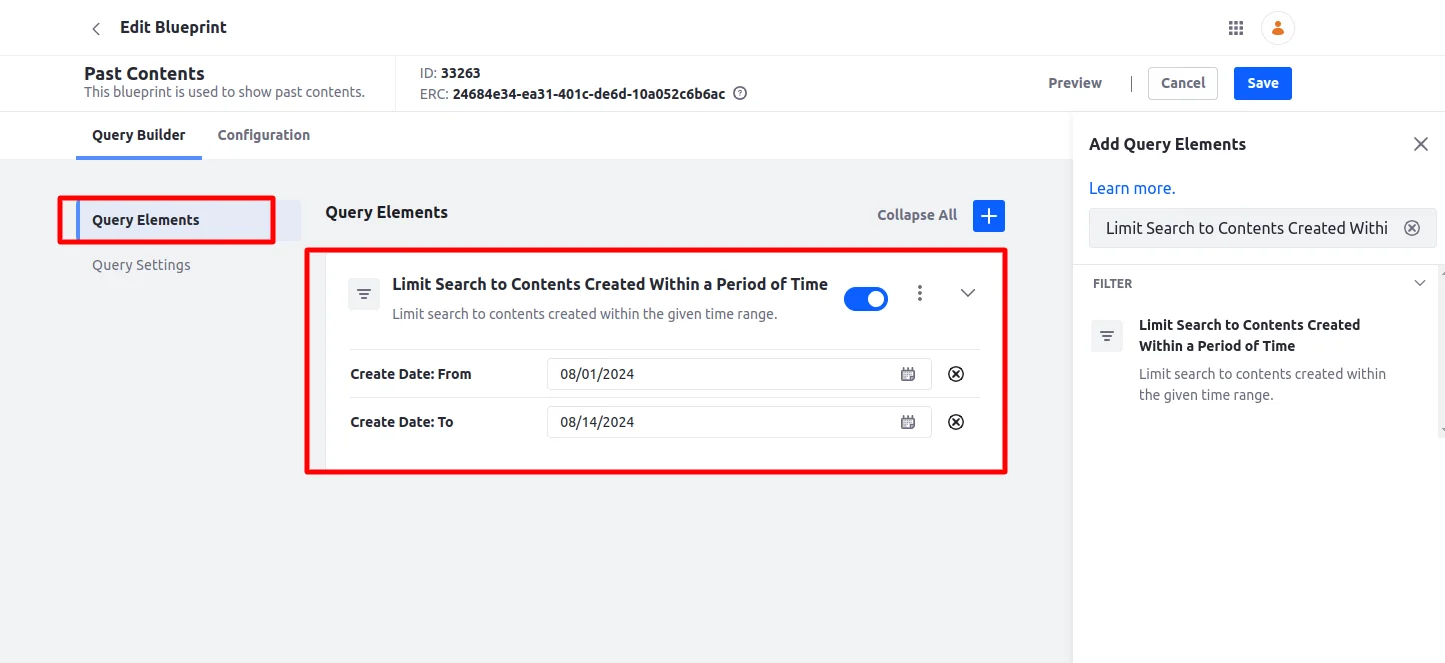
Select Limit Search to Contents Created Within a Period of Time from Query Elements, and provide the from date and to date. (Select past dates to display contents within this date range)
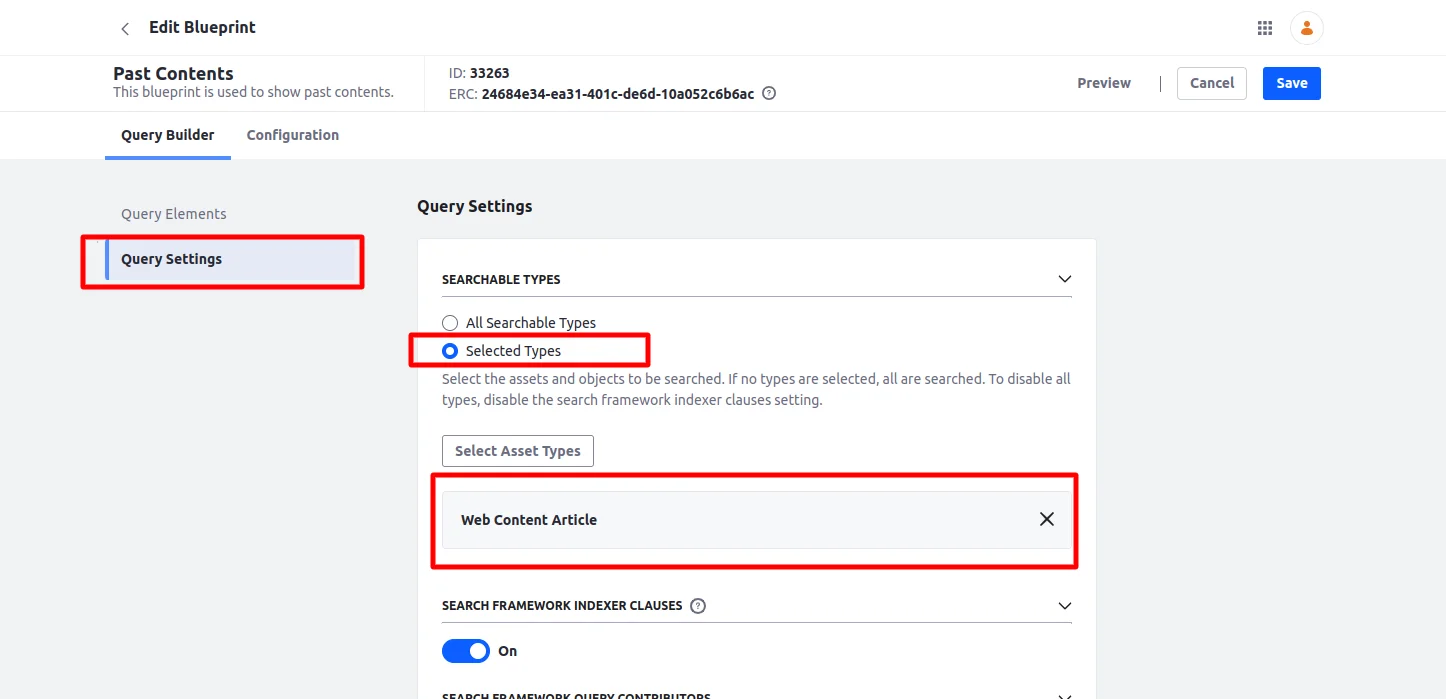
Select the Web Content Article from the query settings to display only web contents. Save the blueprint.
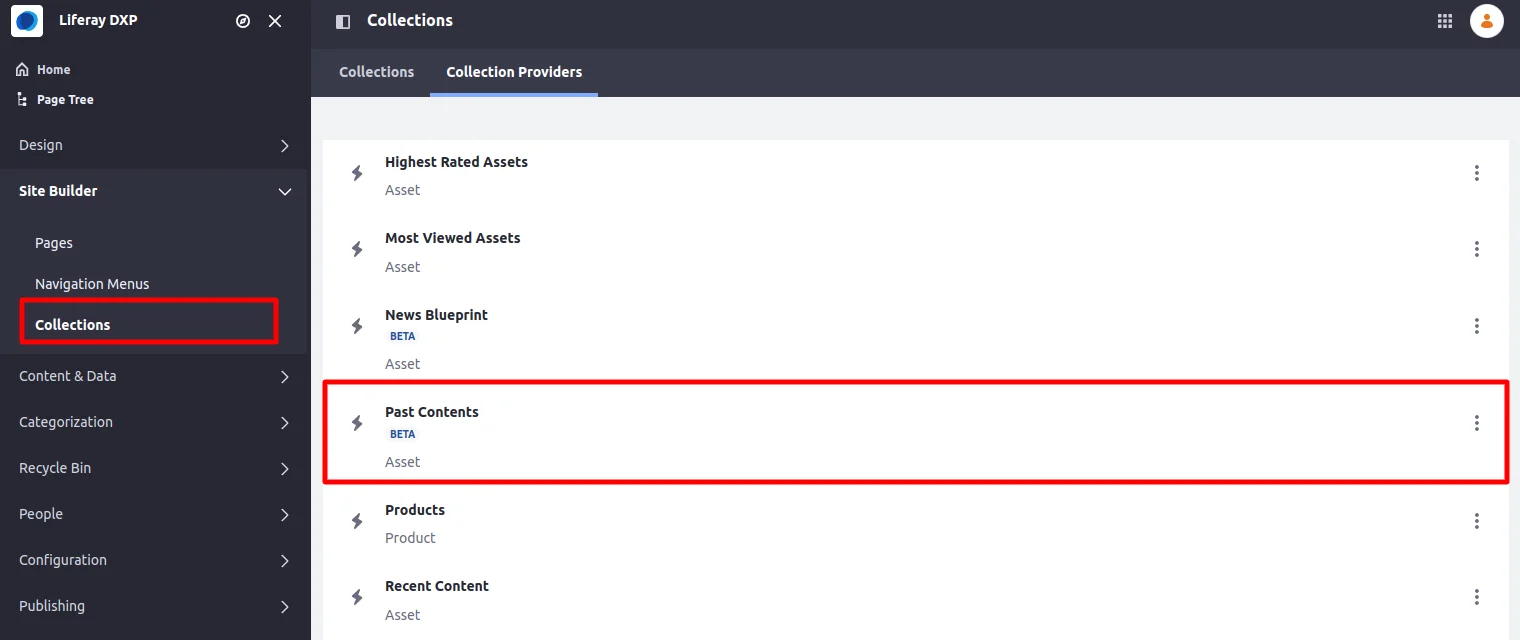
The Past Contents blueprint will be visible in the collection provider.
- You can check the items that match your blueprint condition by clicking the three dots and selecting the View Items button. After clicking it, only web content will be visible, and only content with a creation date in the past will be displayed
Step 3 : Use the blueprint on a page
Create a content page, then select the Collection Display widget from the widgets menu and drag it onto the page.
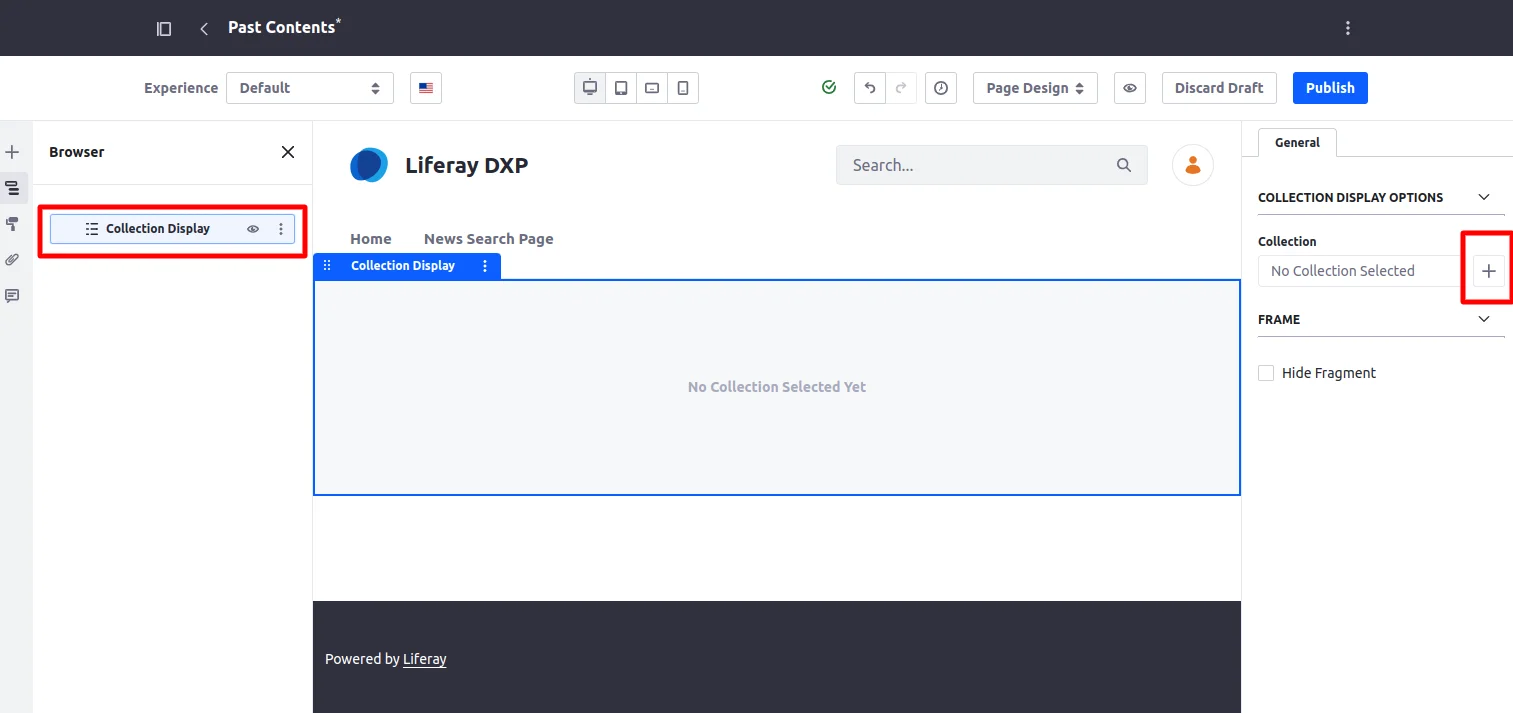
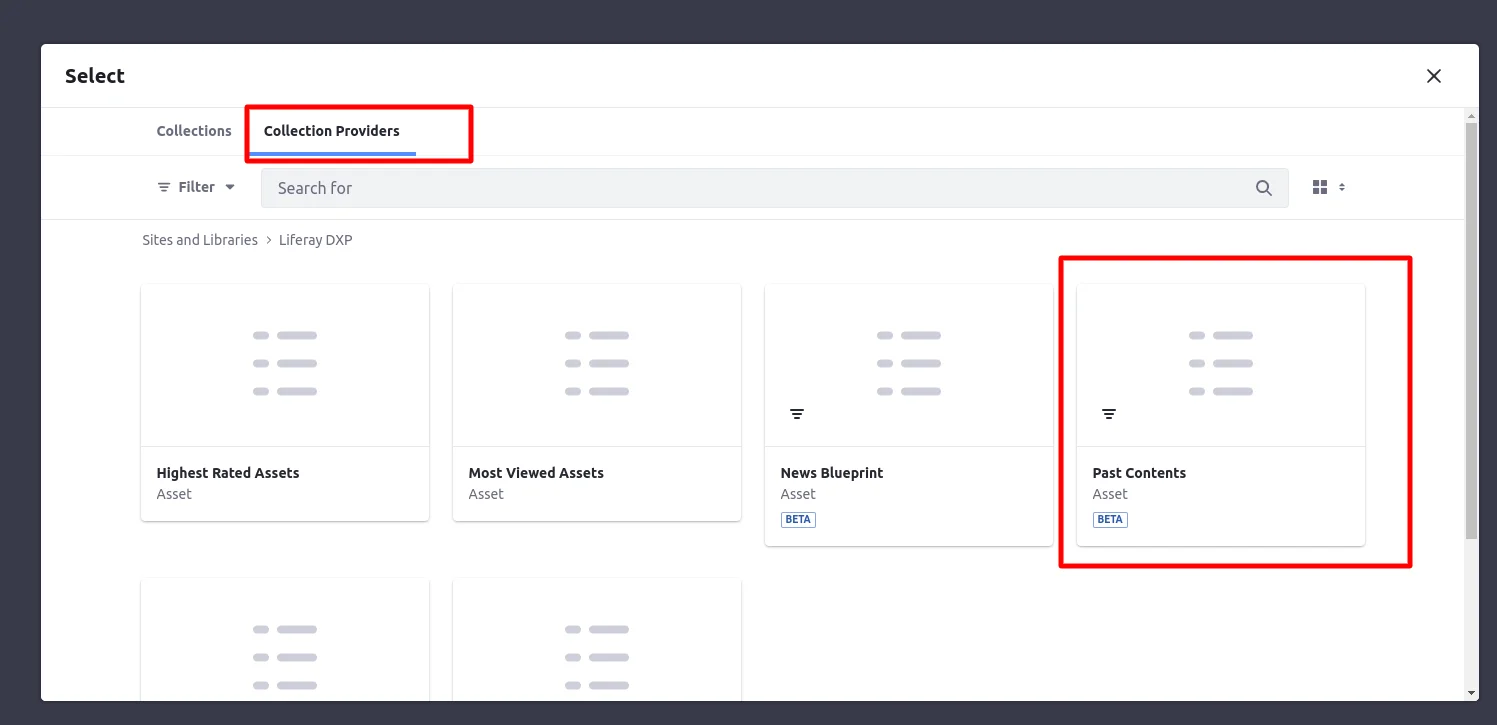
You will see a plus icon on the right side of the Collection Display configuration. Click on the plus icon. When you do, the below screen will be visible. Please select the Past Contents blueprint you created.
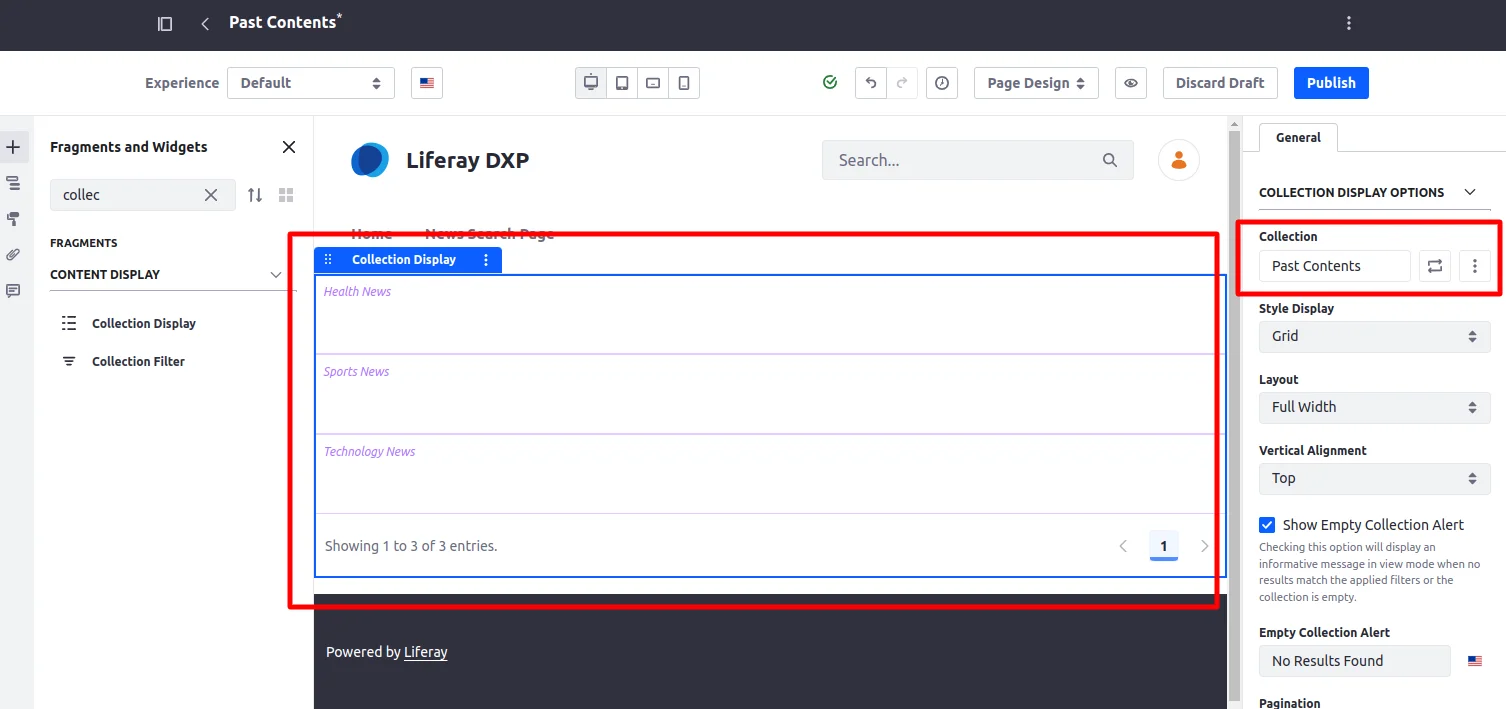
To display collection display entries, we need to map them to widgets.
- Drag and drop the Heading widget onto the collection display.
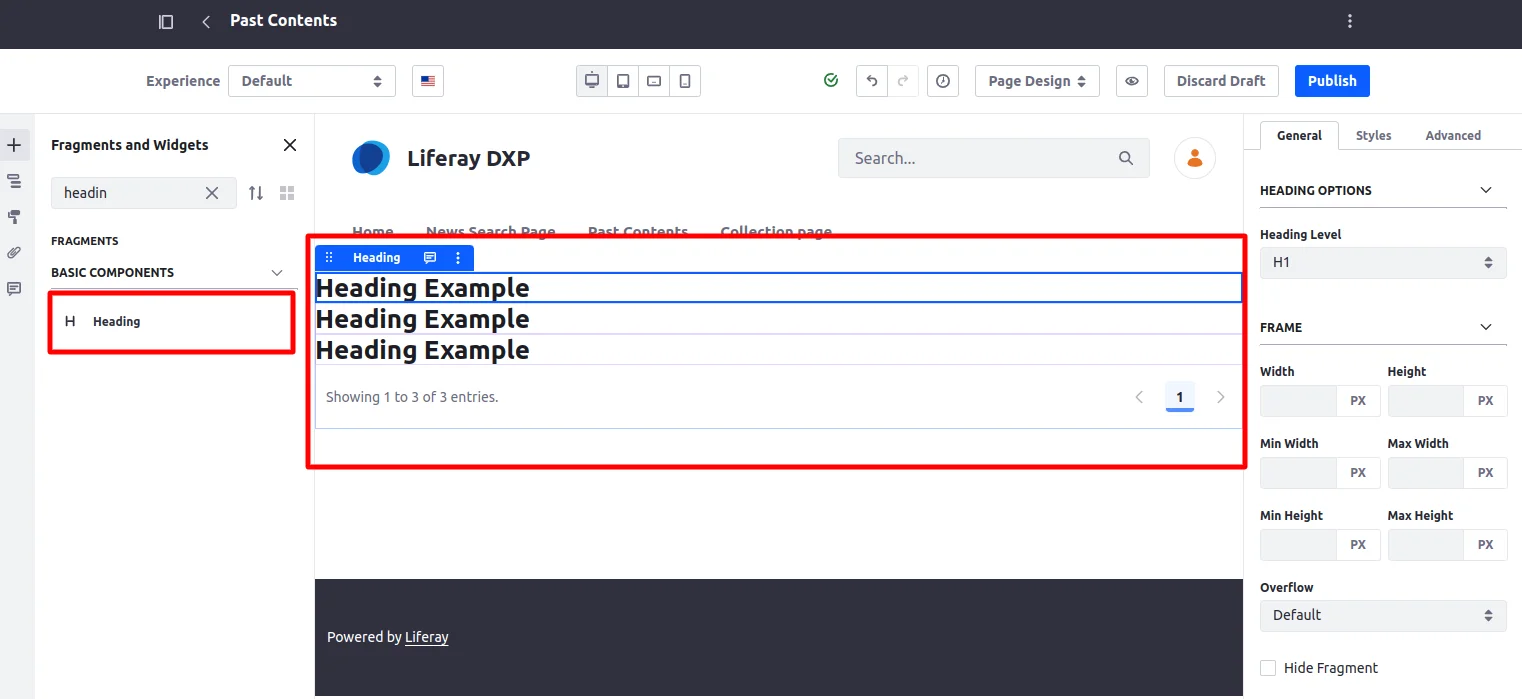
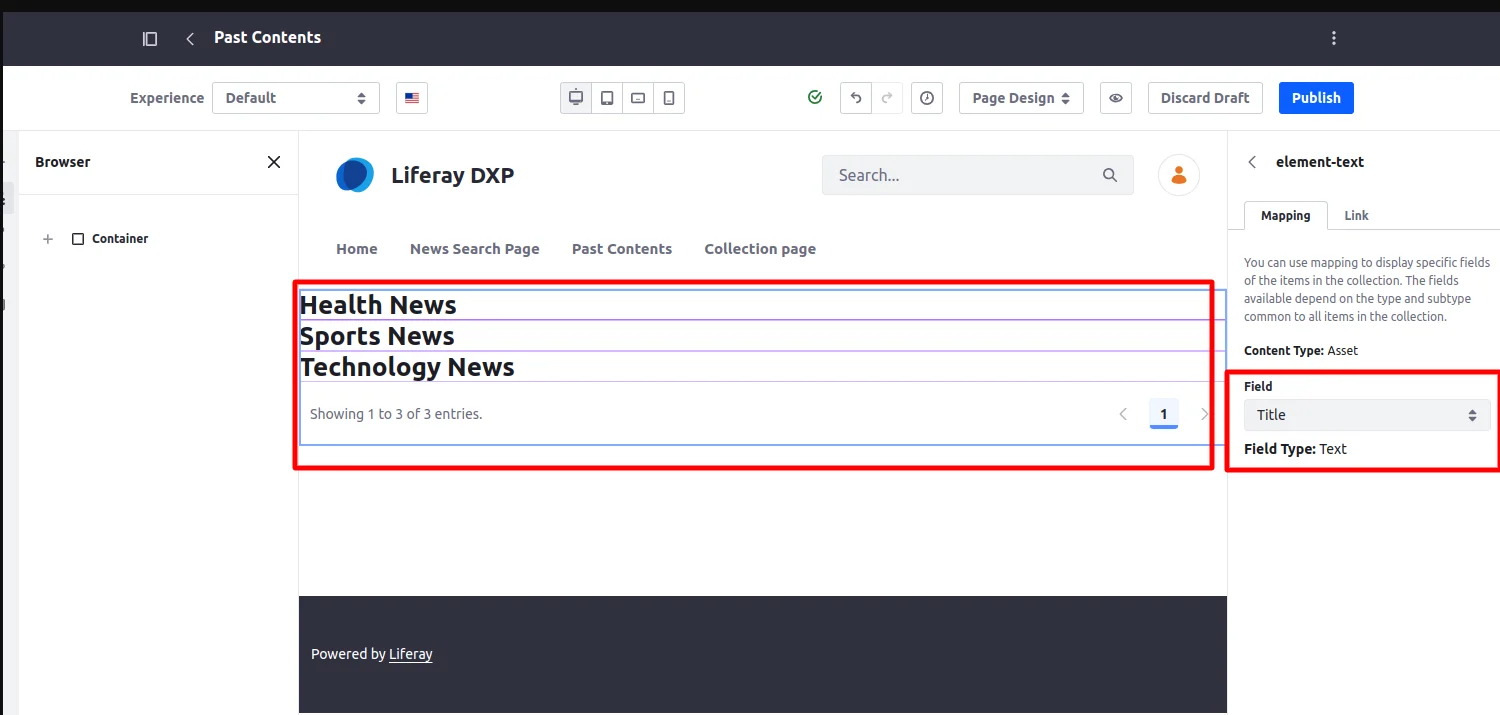
You will able to see configurations on the right side when you click on the heading, select the title, and publish the page (you can also style the heading from the style section)
Note : The heading is mapped here, but you can also create an editable fragment to map the fields.
Filtered web content records with a creation date in the past are visible on the page.
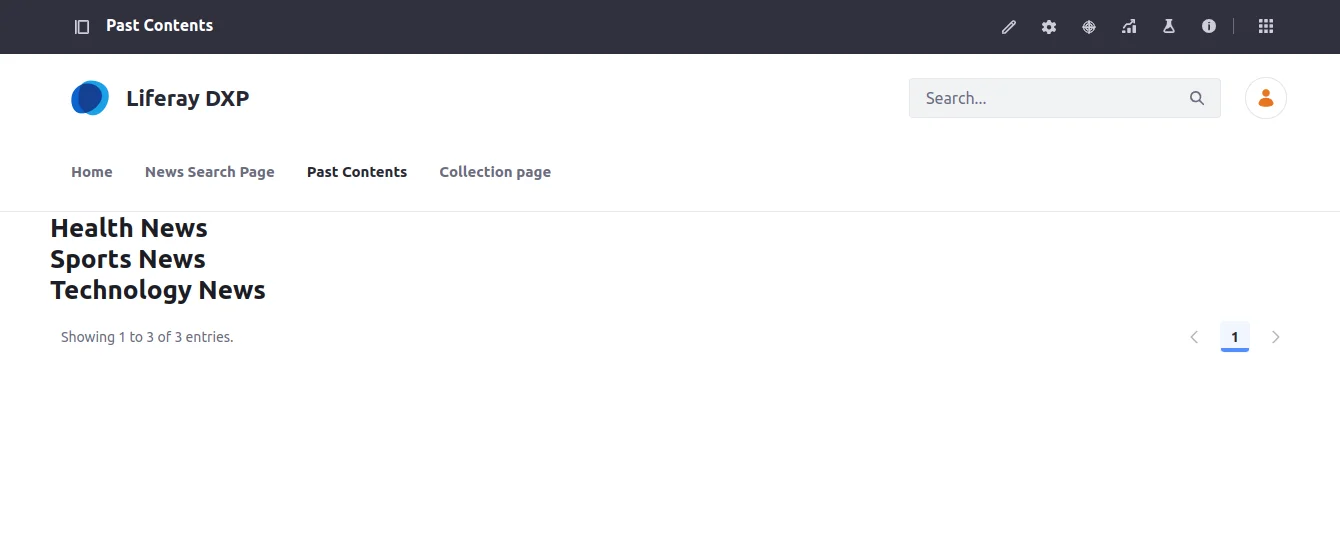
This way, you can customize the search using the blueprint and display records using a collection provider.
Conclusion
Incorporating blueprints with collections in Liferay allows for enhanced customization of search results. By utilizing blueprints, you can tailor search queries to prioritize specific content, while collections provide a structured way to display these results on your site. This combination offers a powerful tool for delivering a more targeted and relevant user experience.


