Creating a Mini Survey or Poll in Liferay Using Forms Widget

Introduction
Liferay provides a powerful form widget that helps to gather data from users. We can create forms with customized fields and get responses from users using Liferay’s out-of-the-box forms widget.
Creating a mini survey or poll is a great way to collect feedback or opinions from users. In this blog, you’ll learn how to create a simple poll using the Liferay Forms widget, configure it, and publish it on your site.
Prerequisites
- Liferay DXP/Portal
Environment Requirements
- Java
- Liferay
Creating a Mini Survey or Poll in Liferay Using Forms Widget
Step 1 : Understanding Form Widget in Liferay
Liferay provides powerful widget forms that allow you to design and publish forms without writing a single line of code. You can create a form very easily using a simple drag and drop interface and add multiple fields with different types like text fields, radio buttons, checkboxes, drop-downs, dates, and more.
You can also use other features like input validations, multi-language labels, and CAPTCHA for security.
After creating the form, you can publish it on your page and get responses from users.
Step 2 : Creating a form for Customer Satisfaction Survey
To create a form, follow these steps :
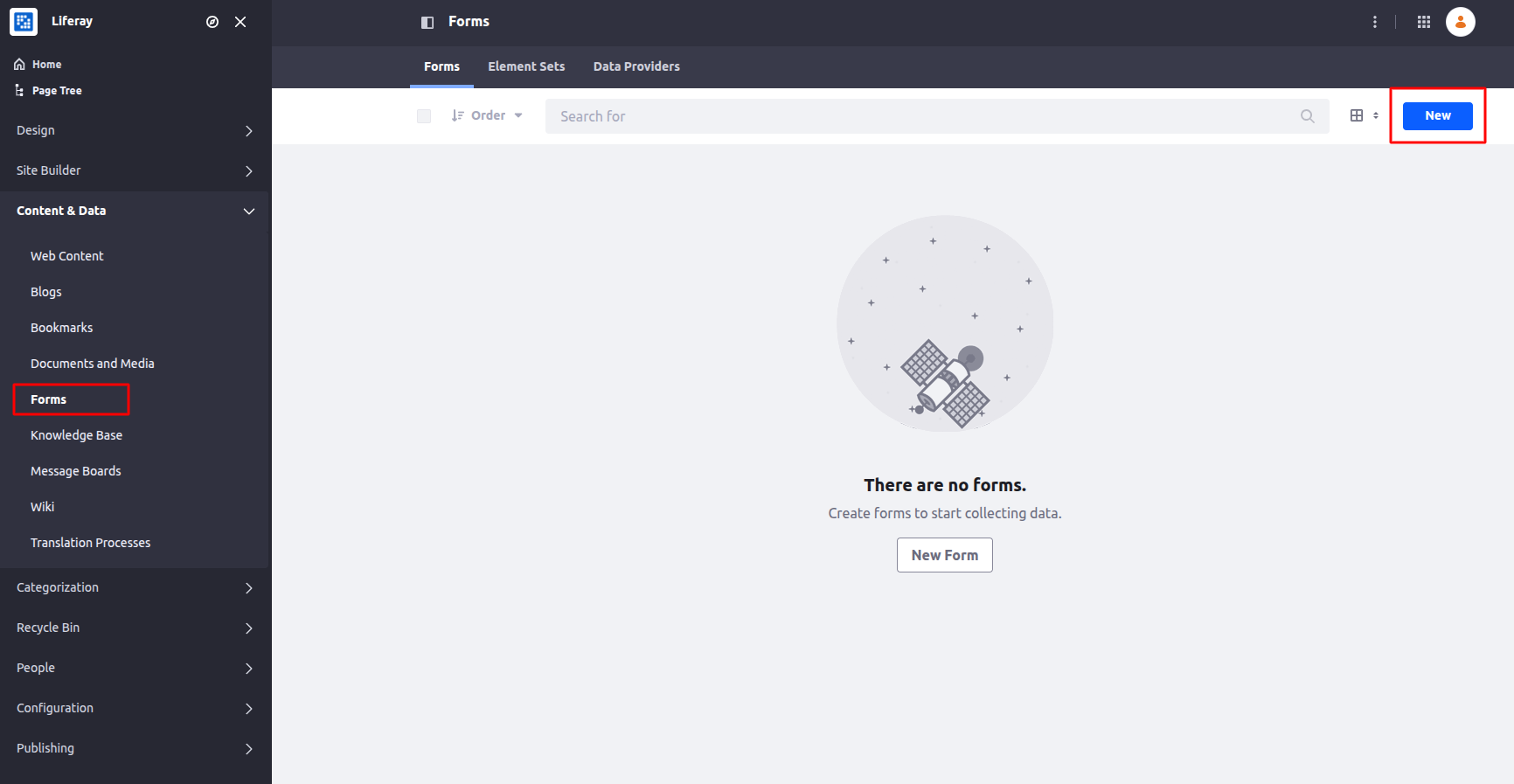
- Navigate to the Product Menu > Content & Data > Forms
- Click on the New button to create the form.
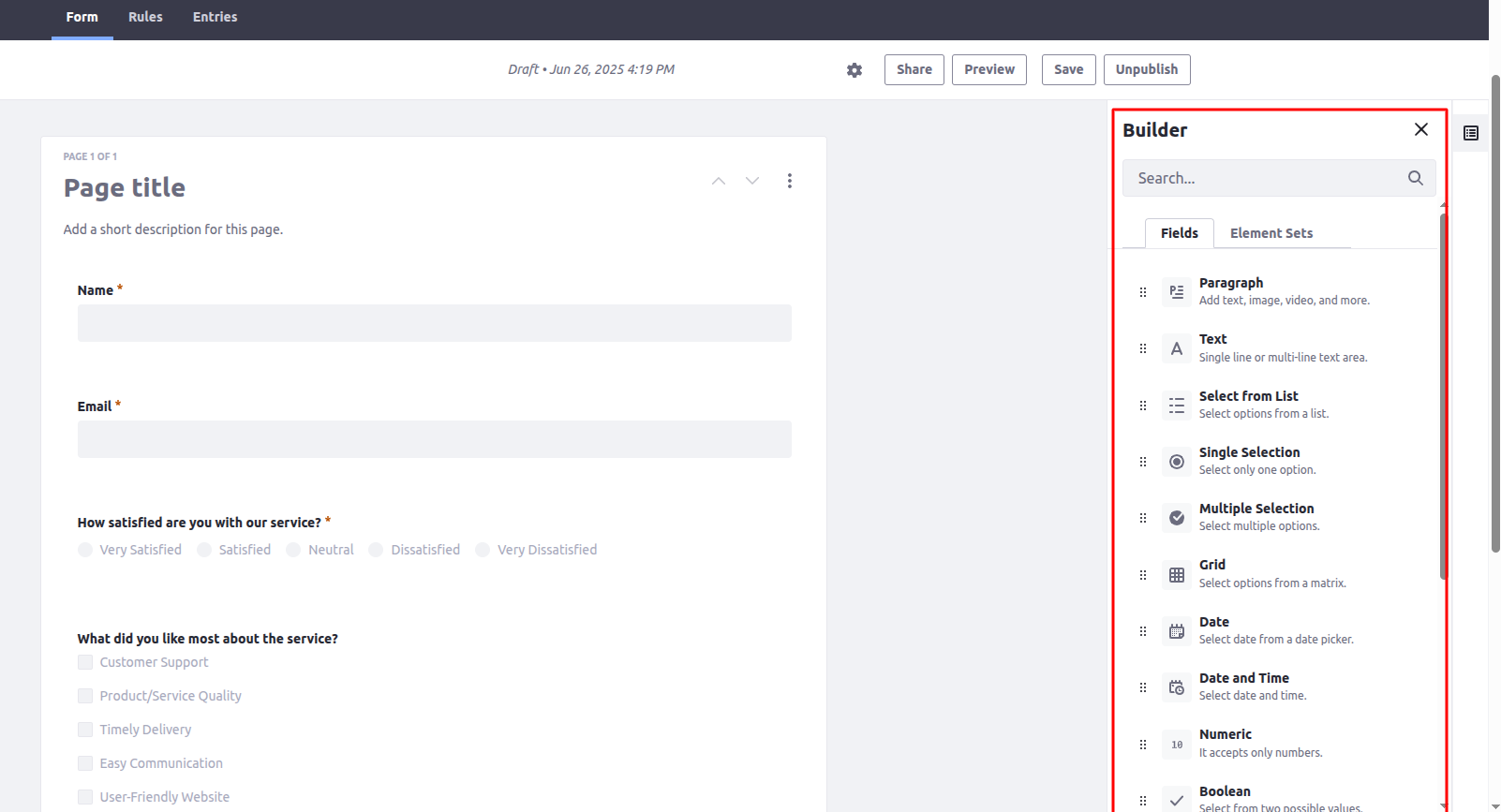
- After clicking on the New button, it will open the interface to create a form, and on the right side of the page, it provides multiple field types which you can use by drag and drop to add to your form.
- Now add a title and description of your form, and drag and drop the field.
- After adding a field, you can configure that field by clicking on it, like setting a label, placeholder, making it required, and more.
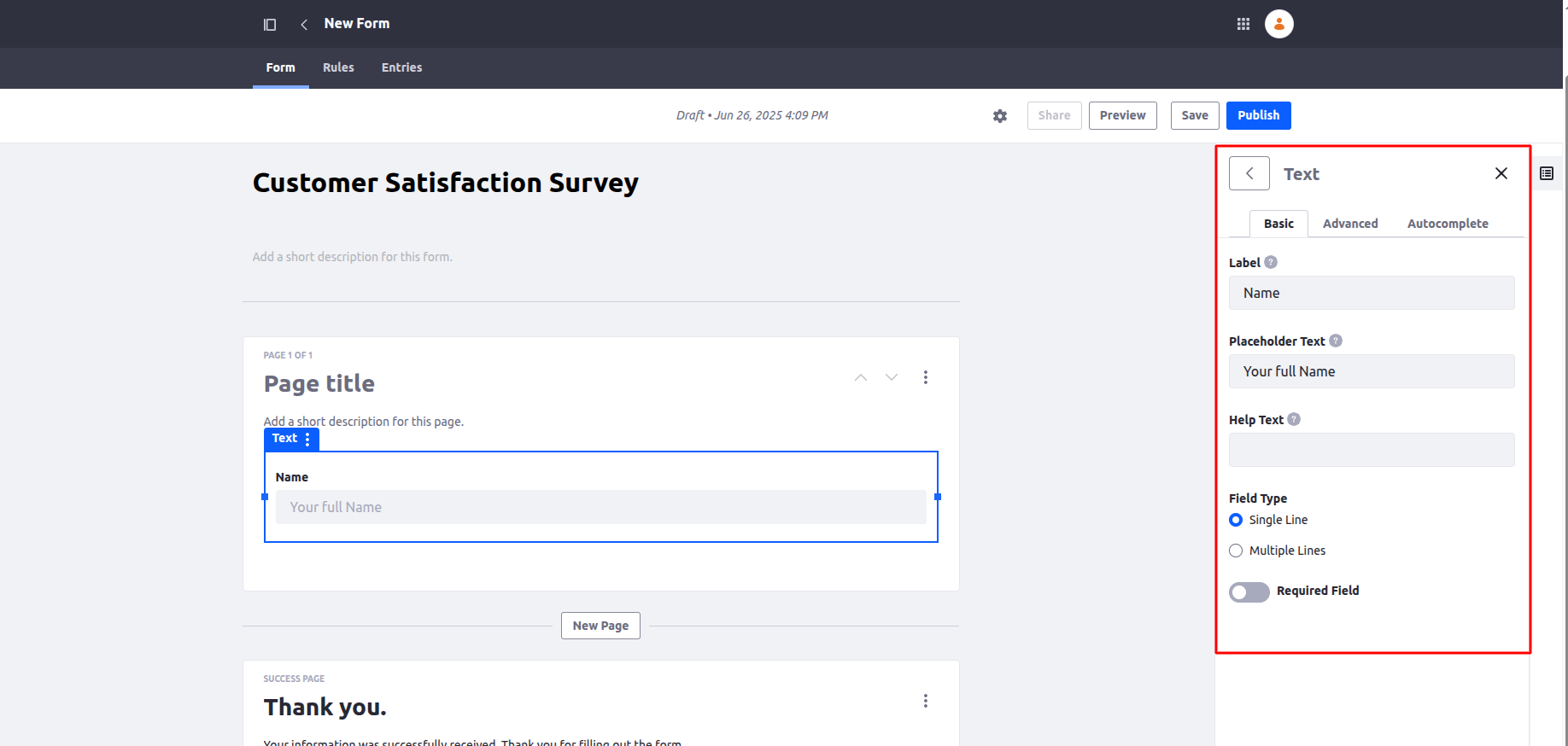
- Add below fields for creating a survey form
- Name : Text Field
- Email: Text Field
- How satisfied are you with our service? : Boolean
- What did you like most about the service? : Multiple Selection
- What can we improve? : Text
- Add the above field with the given types
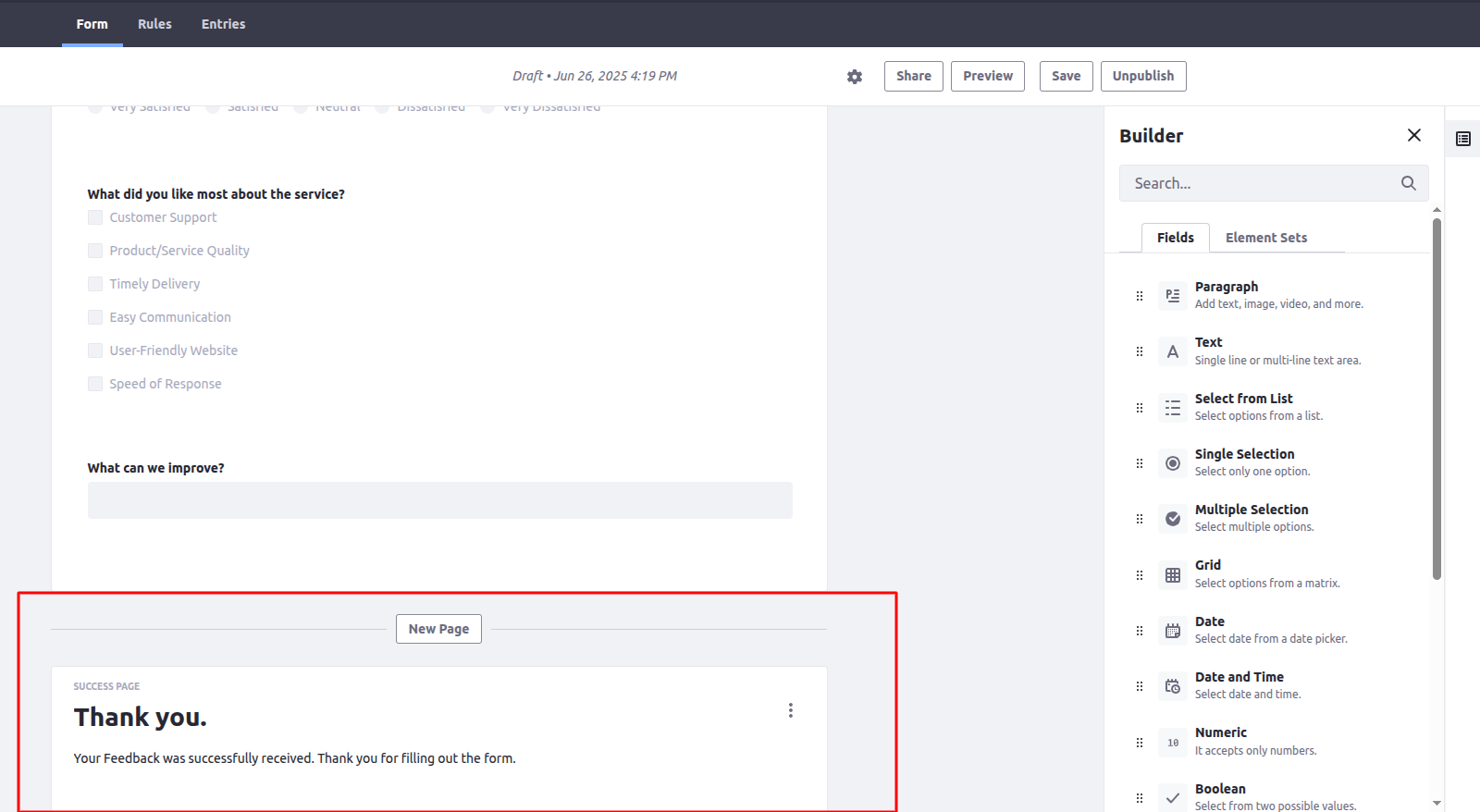
- By clicking on New Page, you can add more pages to the form.
- On the success page, you can define the success message that displays after the form submission.
- By clicking on the preview button, you can see the preview of the form.
- Click on the publish button to publish the form.
Step 3 : Add form on the Page
- Open the page where you want to add the form.
- Add the form widget from the widgets.
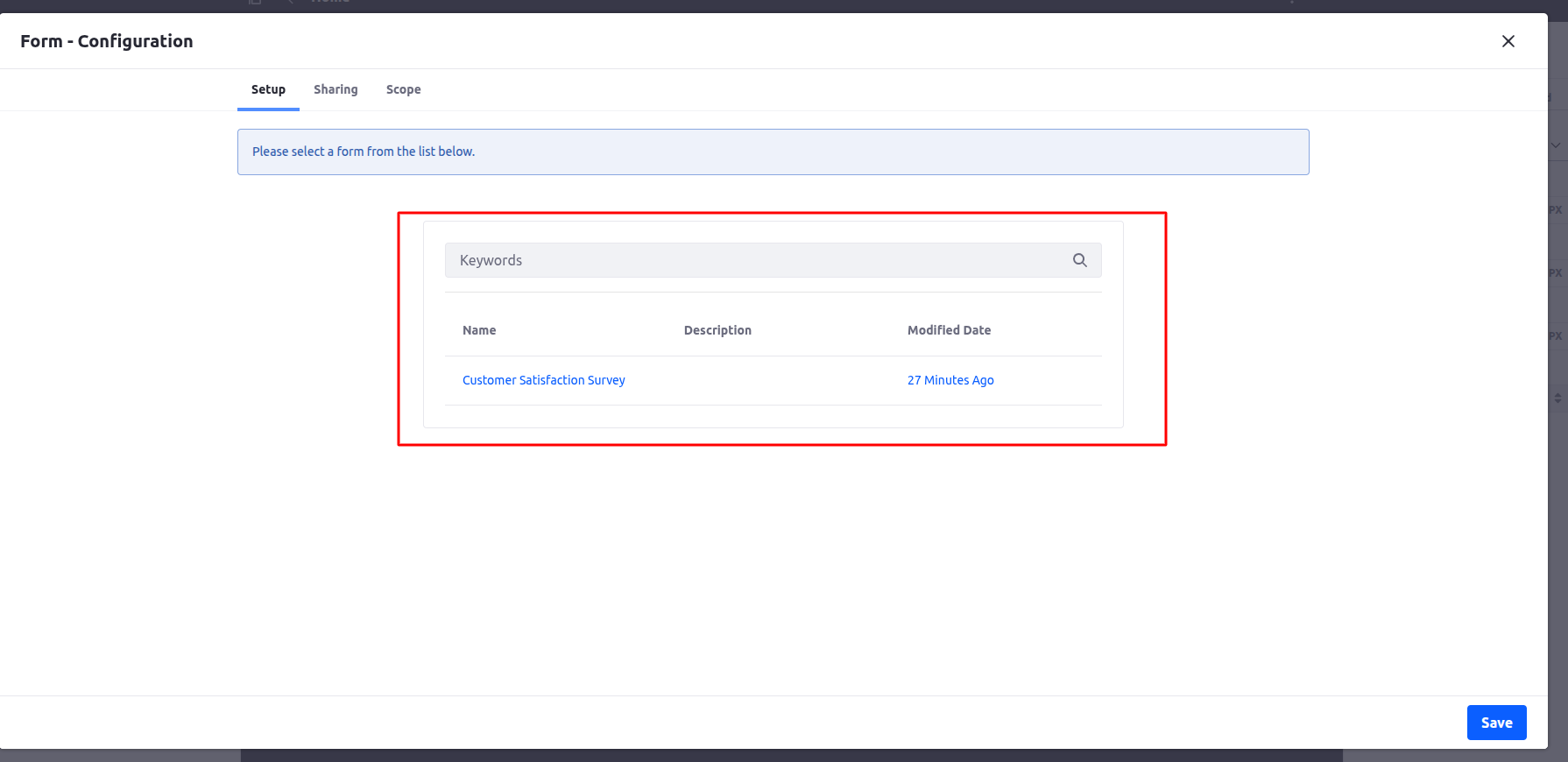
- Open the configuration and select your form, and click on the Save button.
Step 4 : View Form Entry
To view the form entries, follow these steps :
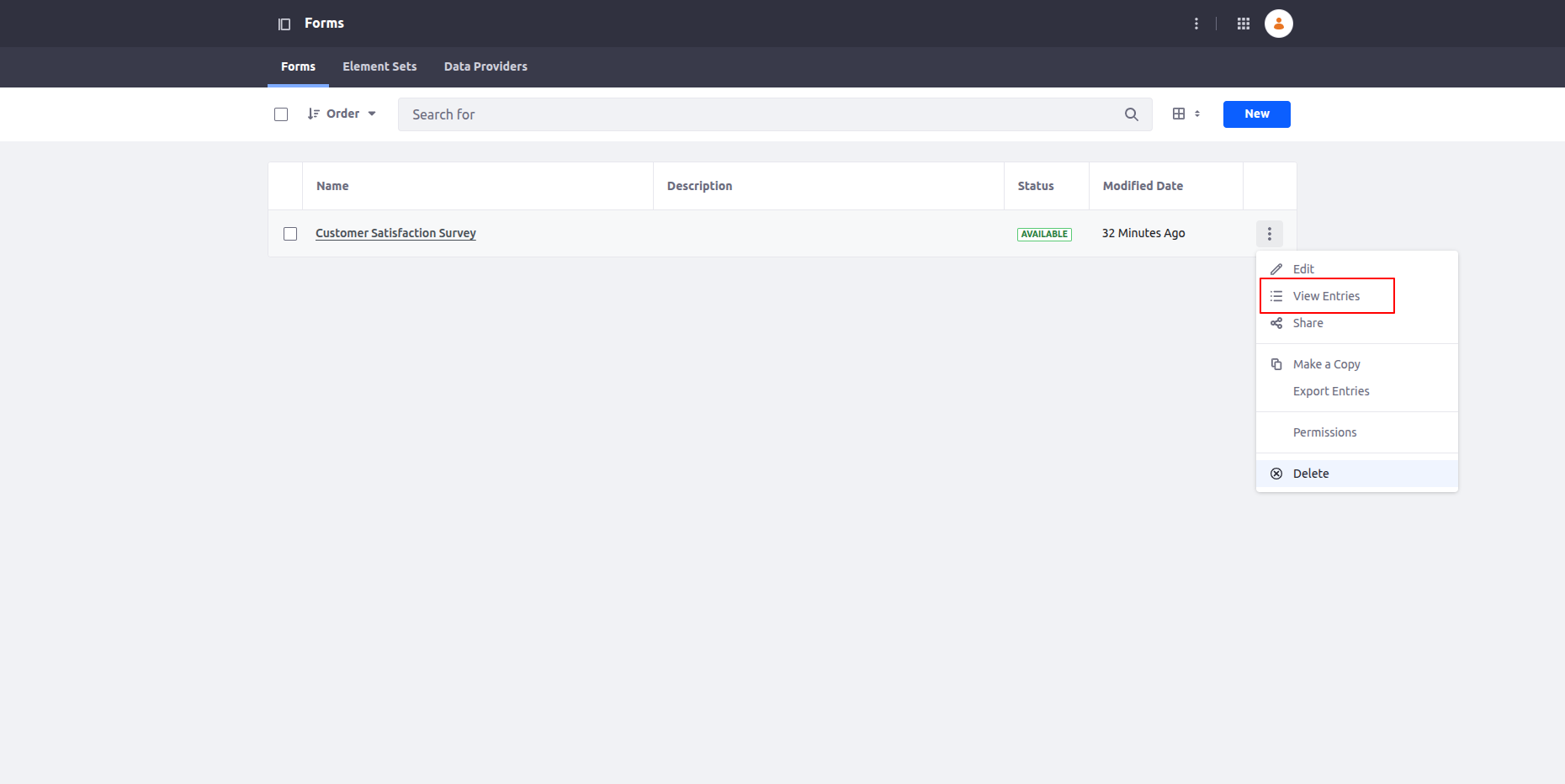
- Navigate to the Product Menu > Content & Data> Forms
- Click on the View Entries button.
- After clicking the View Entries button, it displays the form entries.
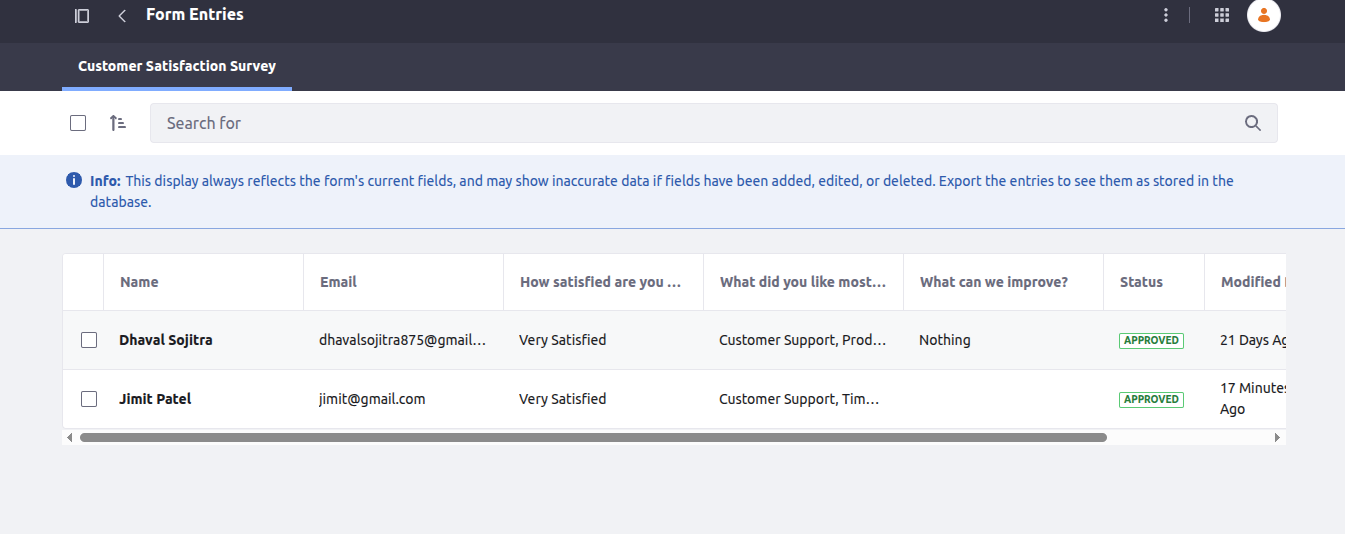
Also, you can export the form entities by clicking on the Export Entries button in XML, JSON, CSV, and XLS formats.
Conclusion
Liferay’s out-of-the-box Forms Widget provides a simple way to create mini surveys or polls without custom coding. It allows you to gather user inputs and analyze responses. Also, you can export the form entries in different formats.
For extended functionality, you can also integrate workflow, email notifications, or external data providers.


