Gogo shell in Liferay 7.2

Introduction
Gogo Shell provides the command line interface to manage bundles in the OSGi container. We can use the Gogo shell to connect with OSGi bundles. Also, we manage change lifecycle like install bundles, start bundles, stop bundles and uninstall bundles.
There are following ways to connect with Gogo Shell in Liferay 7.X as below :-
- Telnet
- PuTTY
- User interface in Liferay Portal
- Blade CLI
1Note: If you want to connect gogo shell, You must have enabled developer mode in your Liferay server.
2
3To enable developer mode, add below property in portal-ext.properties and restart your Liferay server.
4
5include-and-override=portal-developer.properties- Telnet :- We can use Gogo Shell to connect with Liferay’s module framework by using client telnet. Follow the below step for the telnet client
- For Windows:-
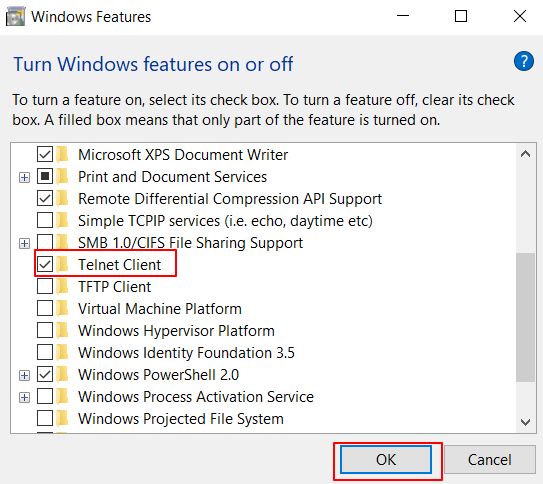
- Go to the Control panel >> Programs and click on Programs and Features.
- Click on Turn Windows features on or off and search Telnet Client
- Select Telnet Client and click on OK button
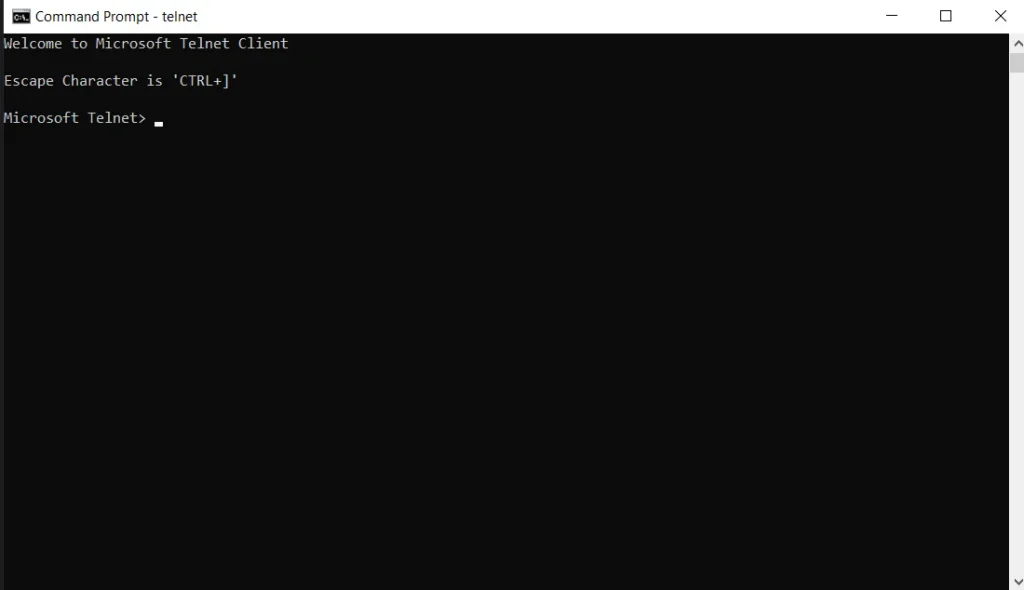
- Open your command prompt and Hit the “telnet localhost 11311” command.
2. PuTTY
PuTTY is an open-source terminal that supports different protocols like SSH and Telnet. The following are the steps to connect Felix Gogo shell from PuTTY in Liferay 7.x
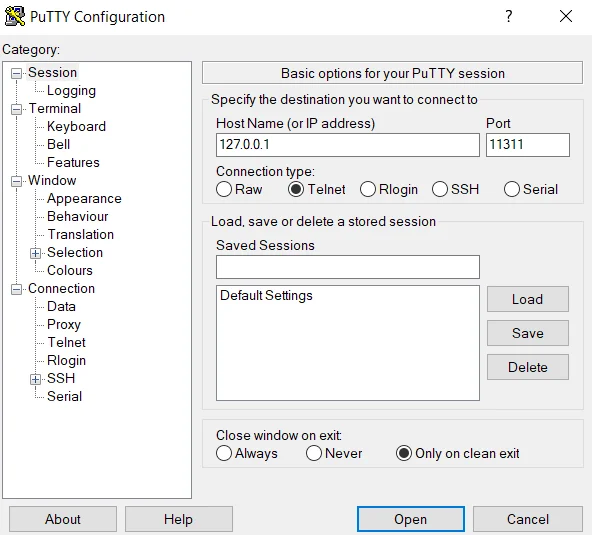
- Open the PuTTY application.
- Enter your Host Name and Port.
- Select Connection type is “Telnet” and clicks on Open button.
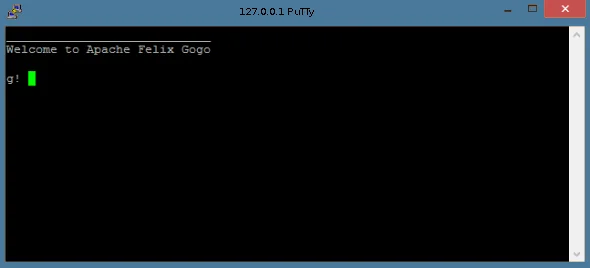
- If you are connected to the Gogo shell, it will look like below.
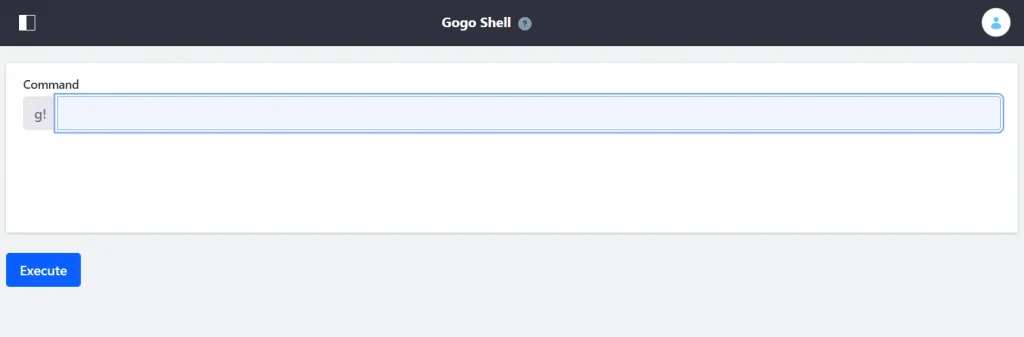
- User interface in Liferay 7.2
You can use gogo shell user interface from Control Panel >>Configuration >> Gogo Shell.
- Blade CLI
You can also execute Gogo shell commands from Blade CLI.
1blade sh <gogo Shell Command>Gogo shell commands example :-
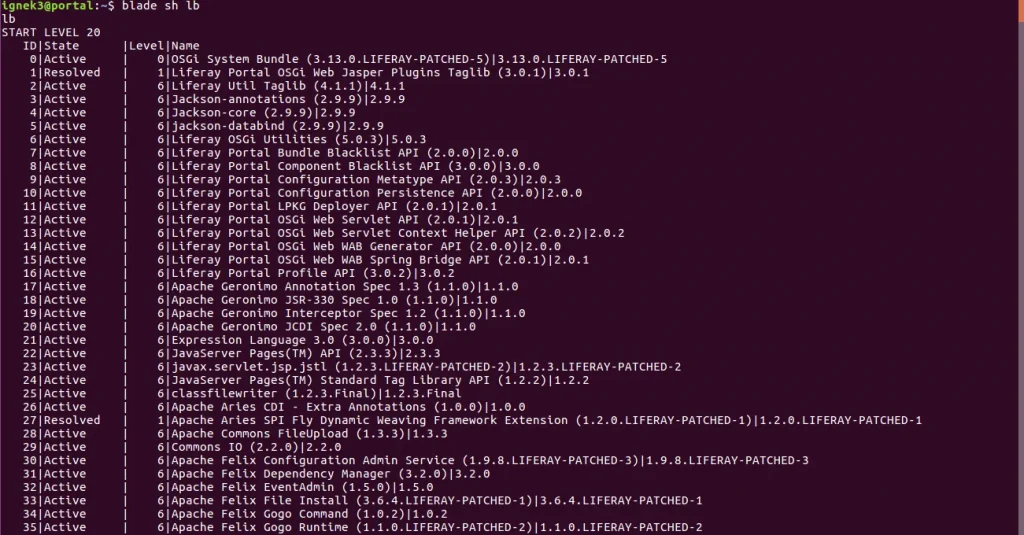
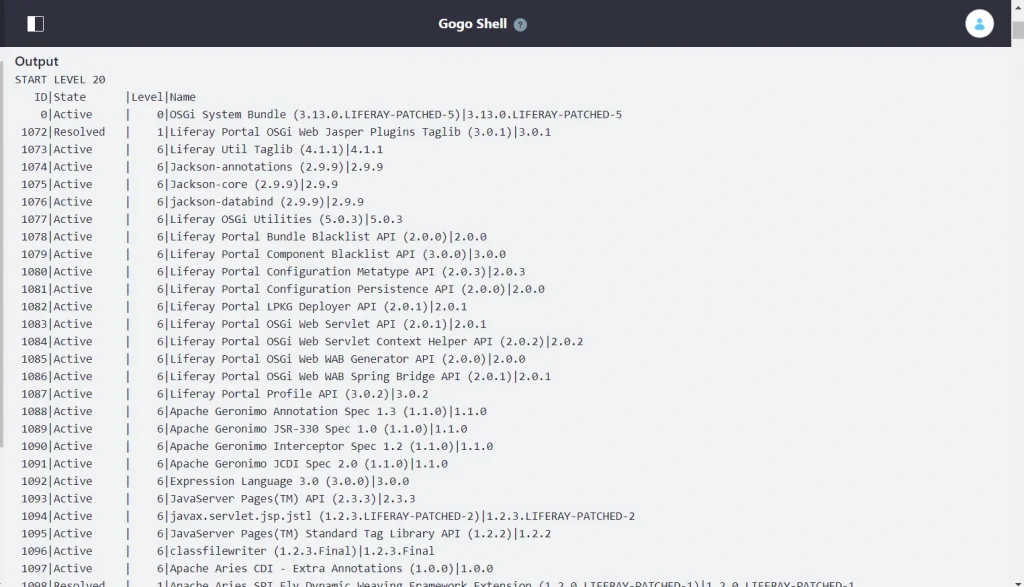
- lb
It lists out all the installed bundles.
Terminal :
User interface in Liferay :
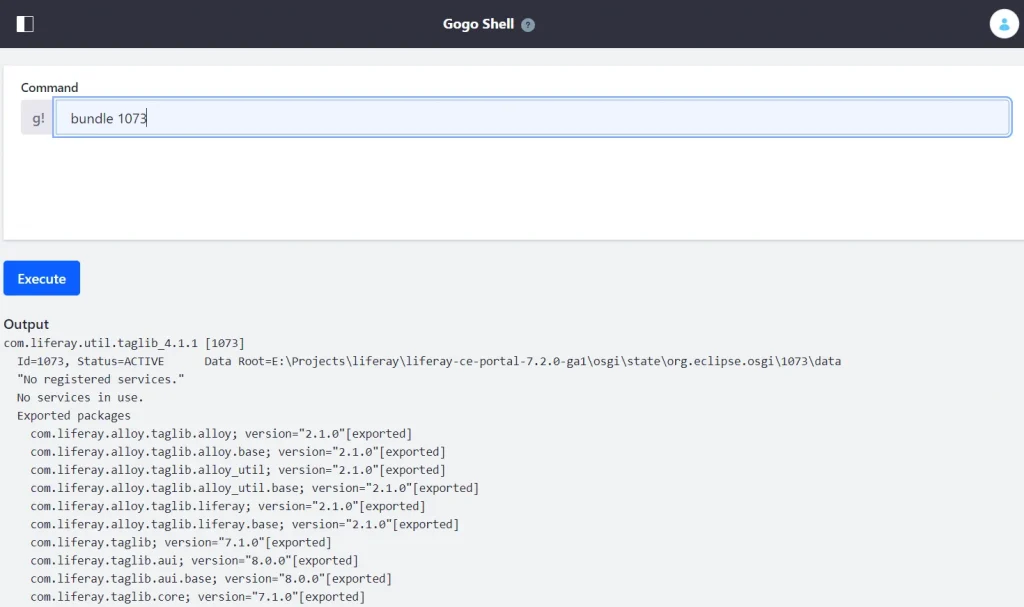
- bundle [BUNDLE_ID]
Lists information about a specific bundle including the bundle’s symbolic name, bundle ID, data root, registered and used services, imported and exported packages, and more
Terminal :

User interface in Liferay :
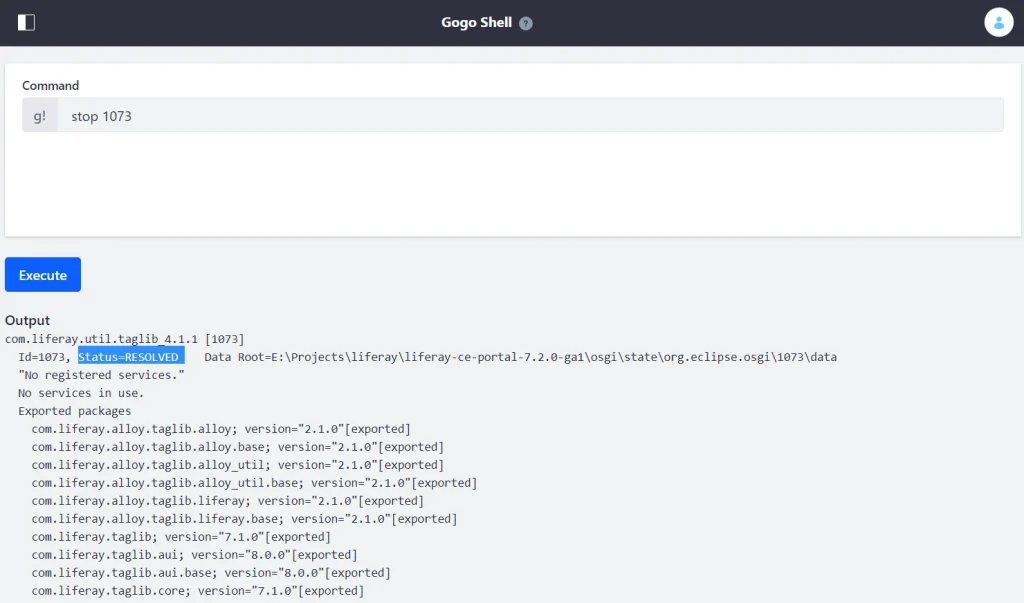
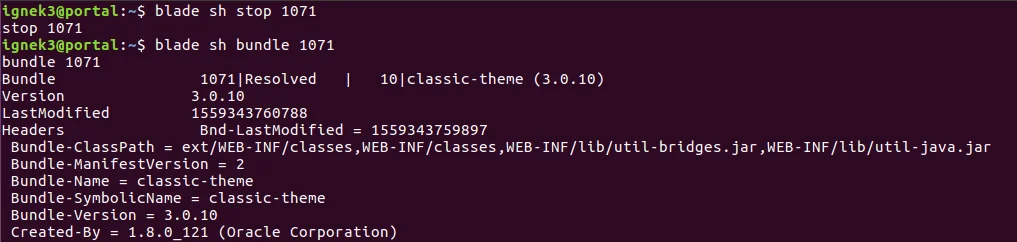
- stop [BUNDLE_ID]
Stops the specified bundle
Terminal :
User interface in Liferay :
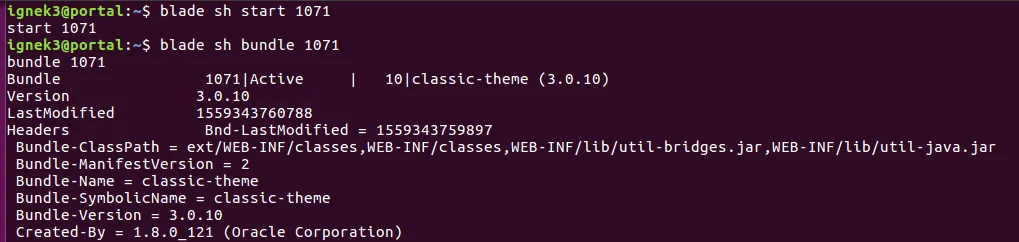
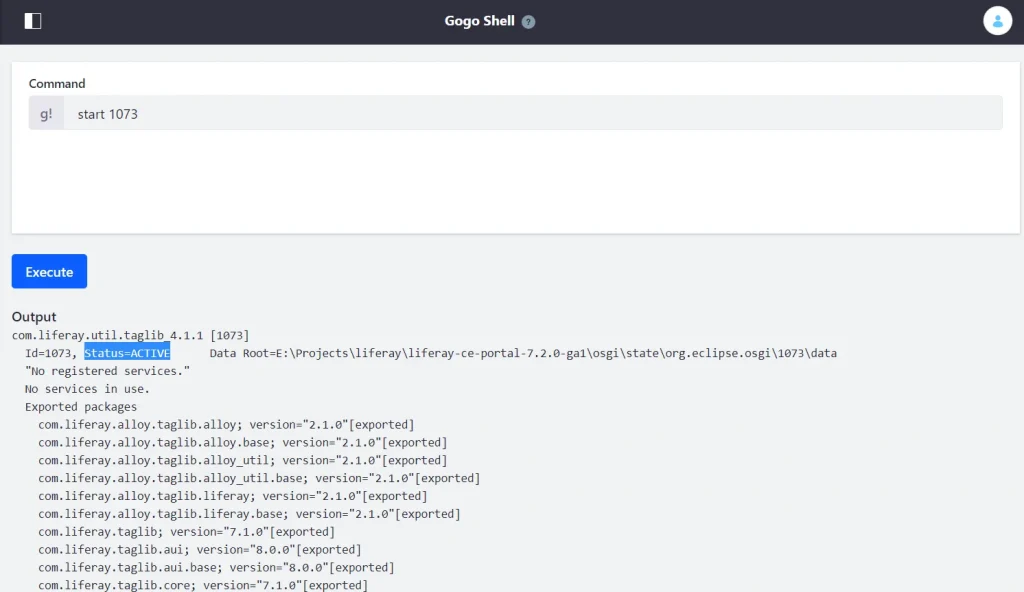
- start [BUNDLE_ID]
Starts the specified bundle.
Terminal :
User interface in Liferay :
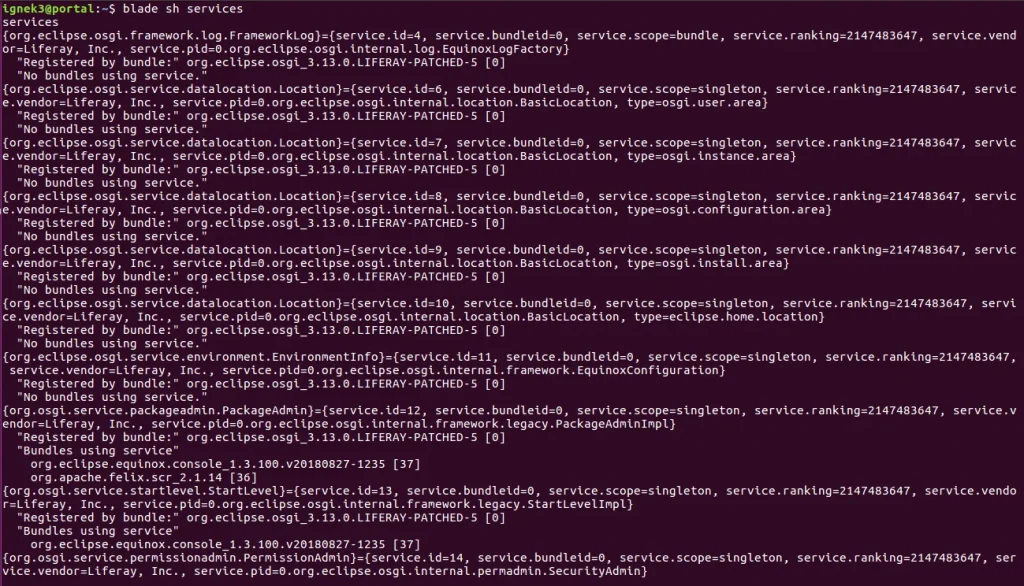
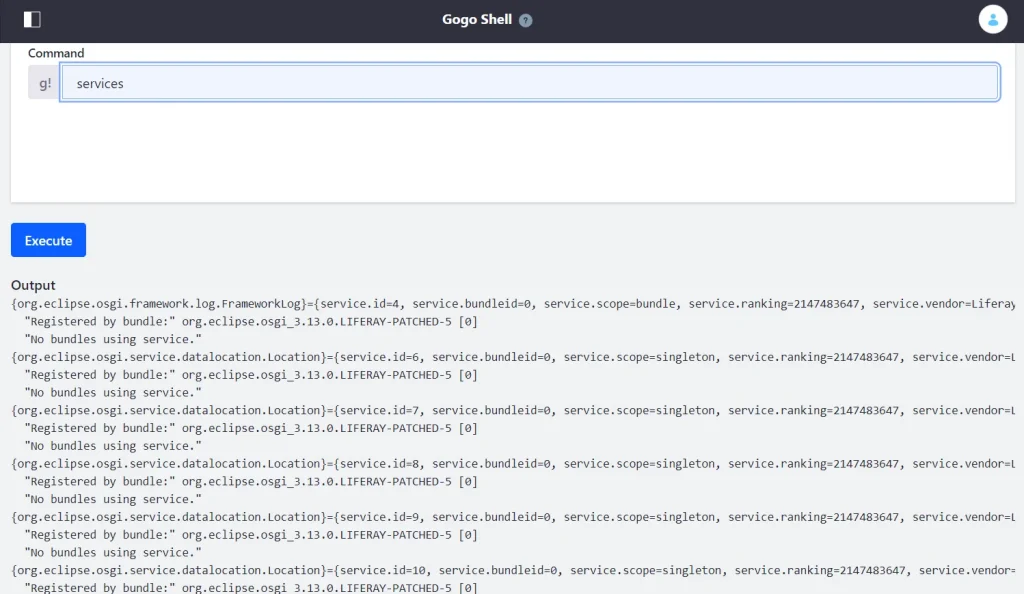
- services
Lists all of the services that have been registered in Liferay’s module framework.
Terminal :
User interface in Liferay :
Visit Gogo shell commands to learn more about other useful commands.


