Liferay
Debugging React.js and GraphQL in Liferay

Rajdip Gediya•Nov 10, 2023
Introduction:
Debugging refers to the process of identifying and resolving errors or bugs in a computer program. This typically involves locating a code error, reproducing it if necessary, and then using debugging tools and techniques to investigate and identify the root cause of the problem. Once the issue is understood, developers can take action to fix it.
The Significance of Debugging:
- Debugging is important because it helps us identify errors in the source code of React.
- When we implement GraphQL API in React, you can’t find any errors in the source code.
- Debugging tools help you to find logical errors or syntax issues, manage asynchronous code, ensure that data is fetched and updated correctly, construct queries correctly, and return the data you expect.
- React is a component-based approach, so you may need to debug GraphQL queries and mutations in each component where they are used.
- Sometimes, GraphQL queries are called multiple times. Debugging tools can help identify the issue and improve the application's performance.
An overview of some key debugging tools
- Click on the following link, http://localhost:8080/o/api, to redirect to the Liferay O API page.
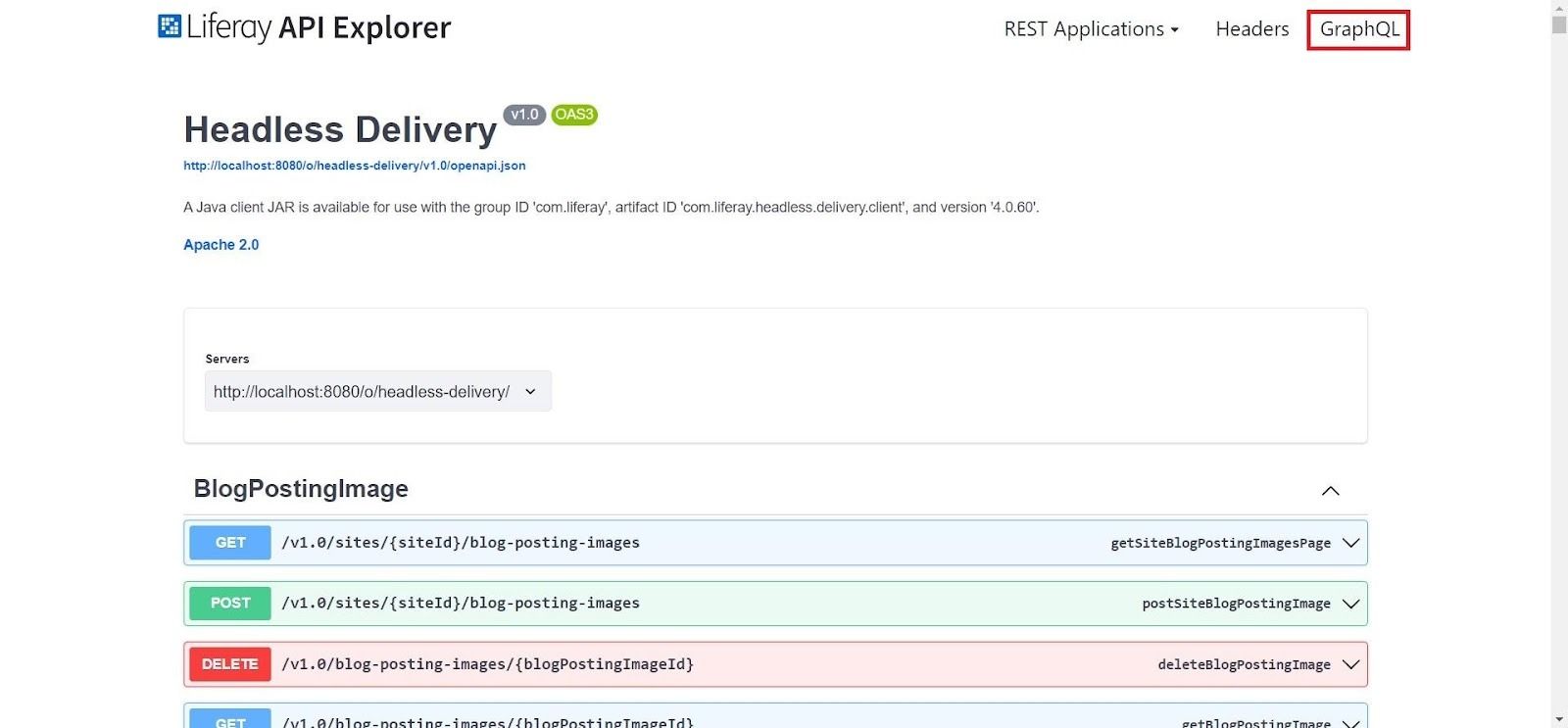
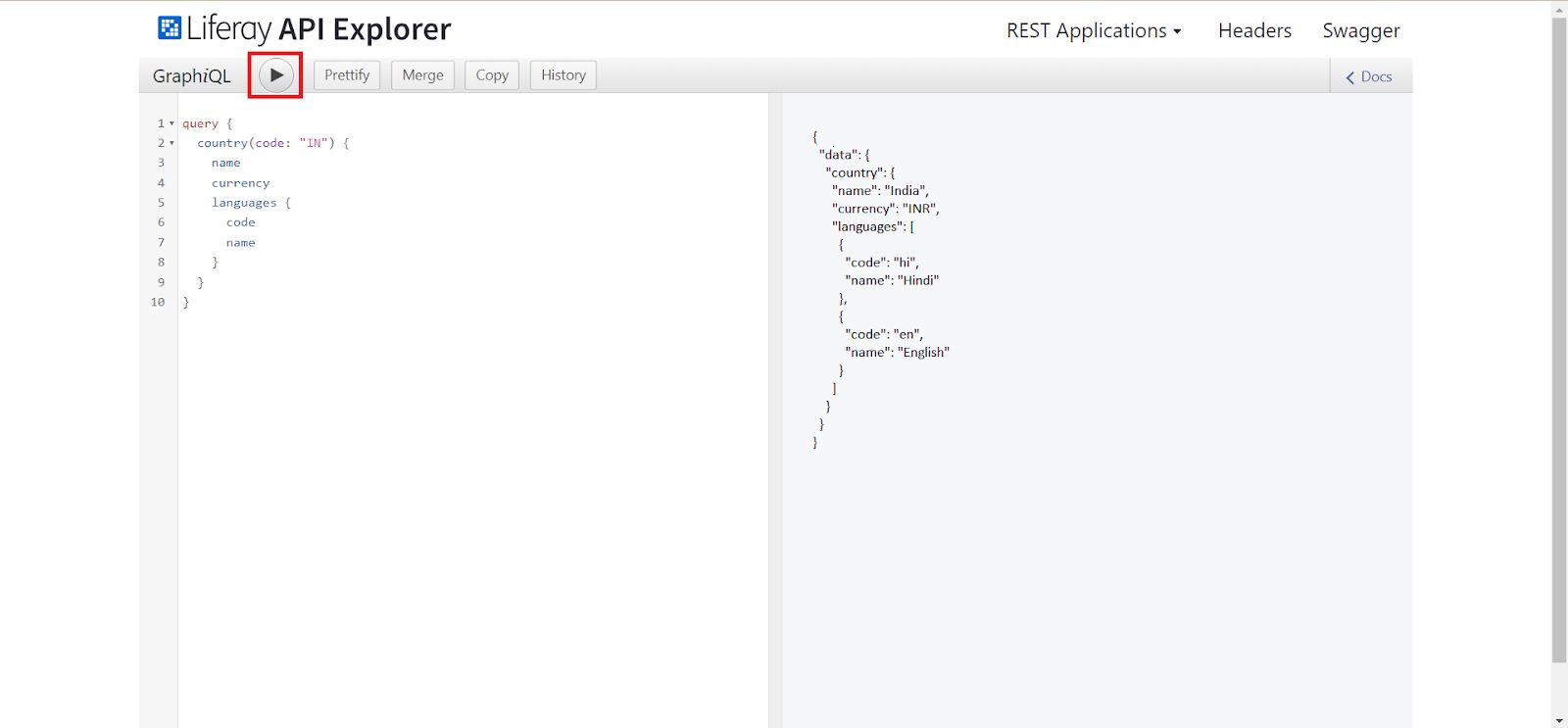
- When you click on the GraphQL tab, it will redirect you to the GraphQL playground and run the API.
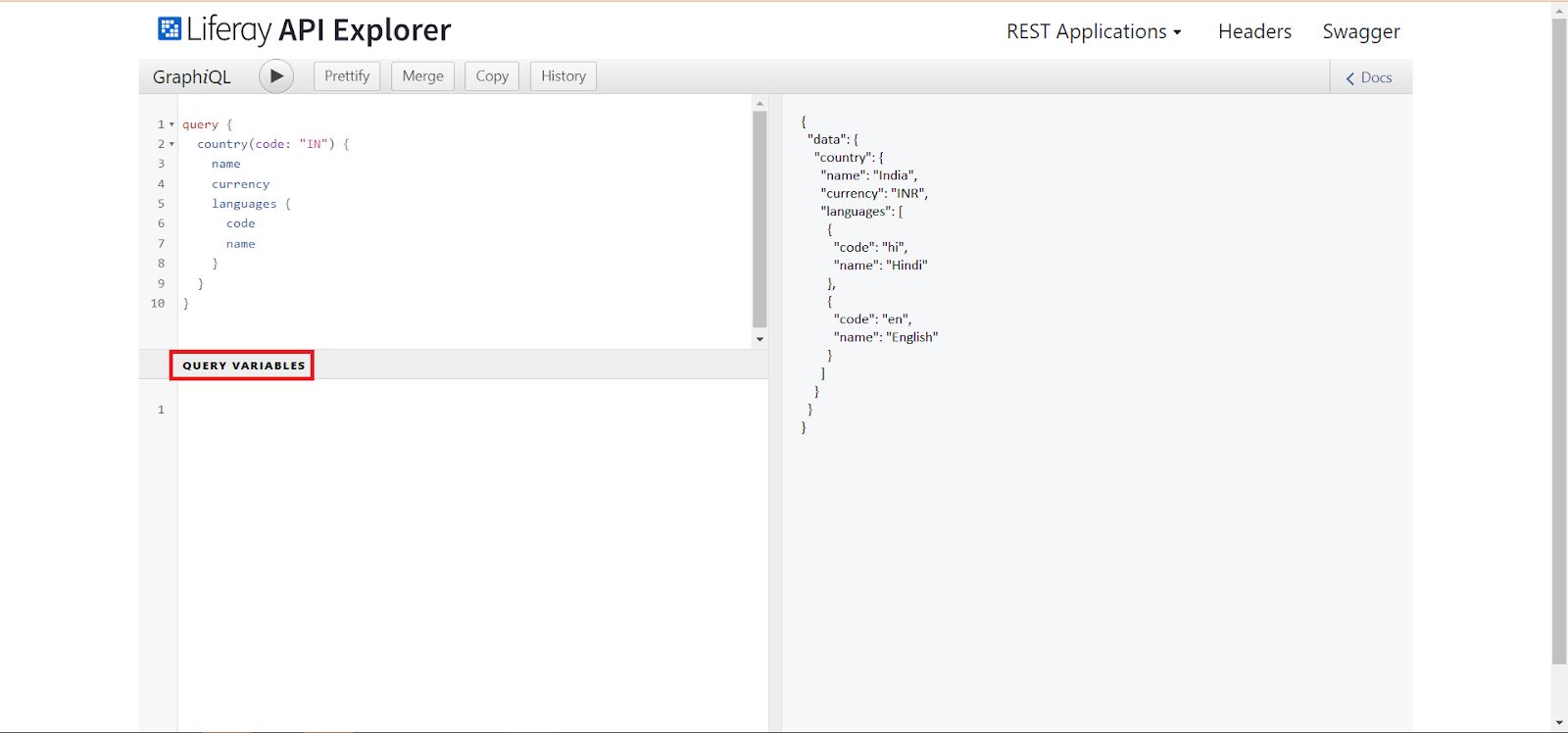
- If you want to perform a mutation, please add the necessary variables for the mutation.
- Developer tools
- Developer tools, such as the Network and Console tabs, are commonly used to debug and monitor GraphQL queries and mutations in a web application built with React or any other technology. These tools provide valuable insights into network requests, response data, and JavaScript console logs, helping developers identify and resolve issues related to GraphQL queries and mutations.
- If you wish to use the console for debugging during API integration, use console.log for regular messages and console. error for handling errors.
- Press the F12 button to open the console then go to the Network tab and find the filter field and write graphql.
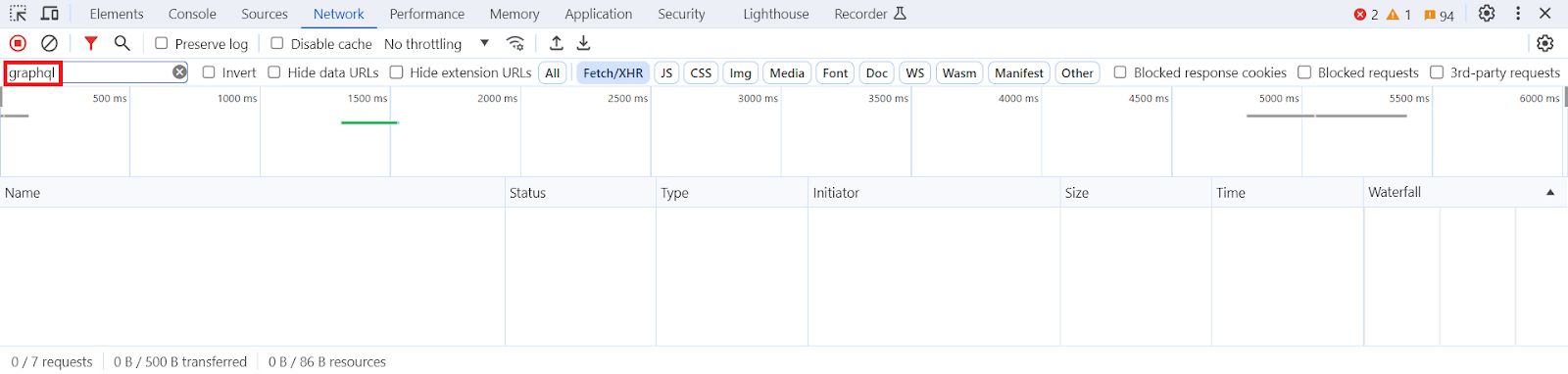
- Now, refresh the console, and you will be able to see all GraphQL queries and mutations.
- Here, you can view the payload, preview, and data response hierarchy.
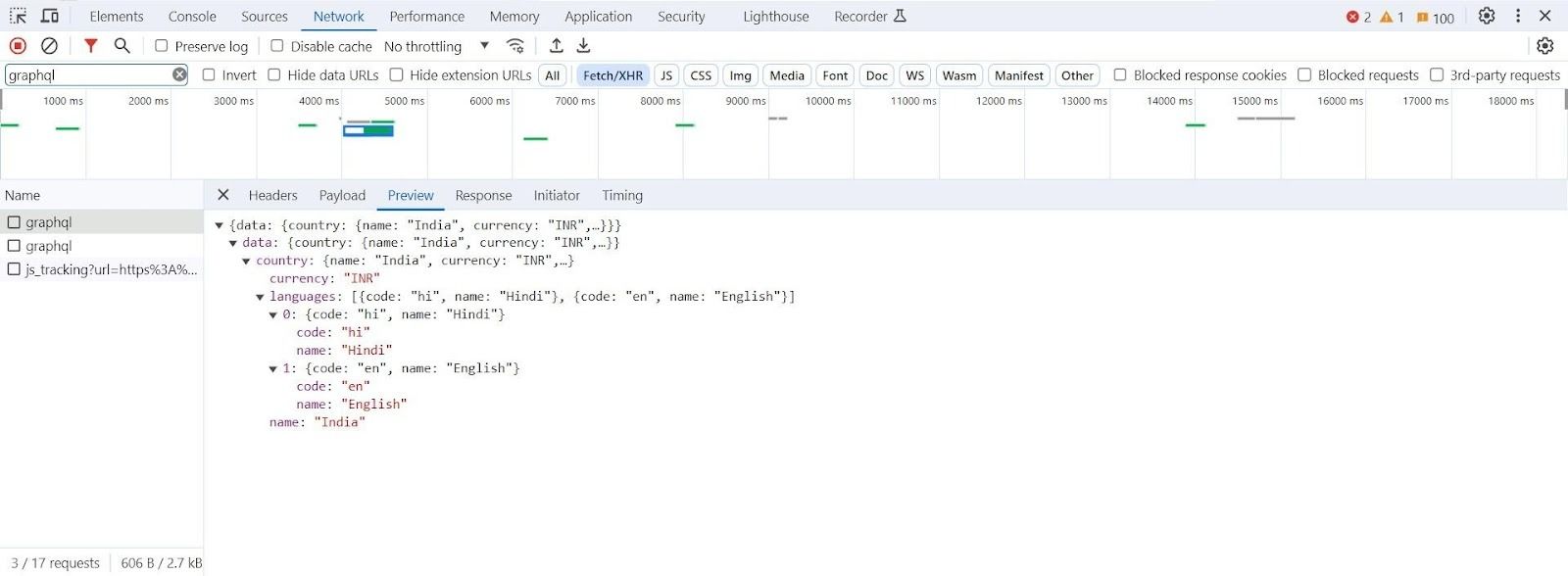
- GraphiQL - developer tool
- Graphiql is an open-source developer tool for graphql API debugging and NPM package for react application.
- Npm command for GraphiQL:
1[npm i graphiql]- First search GraphiQL chrome extension and download that.
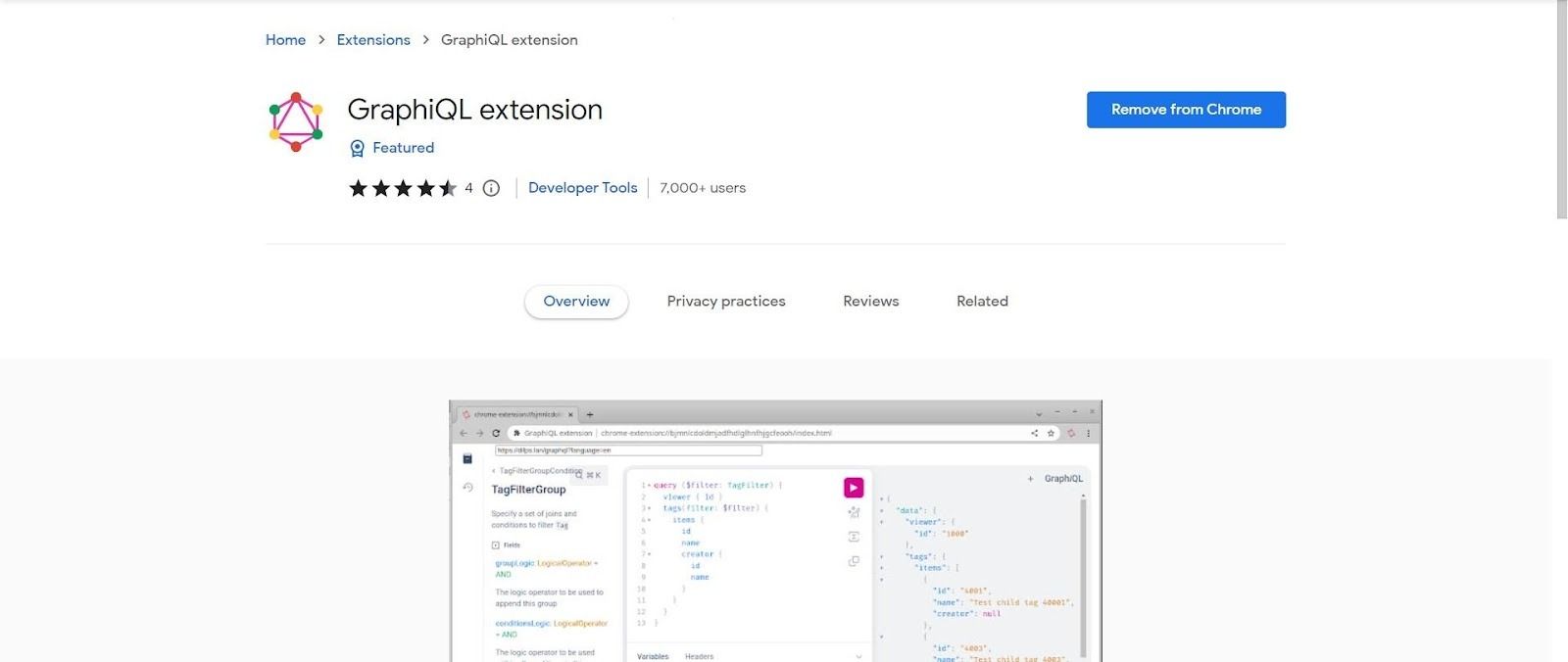
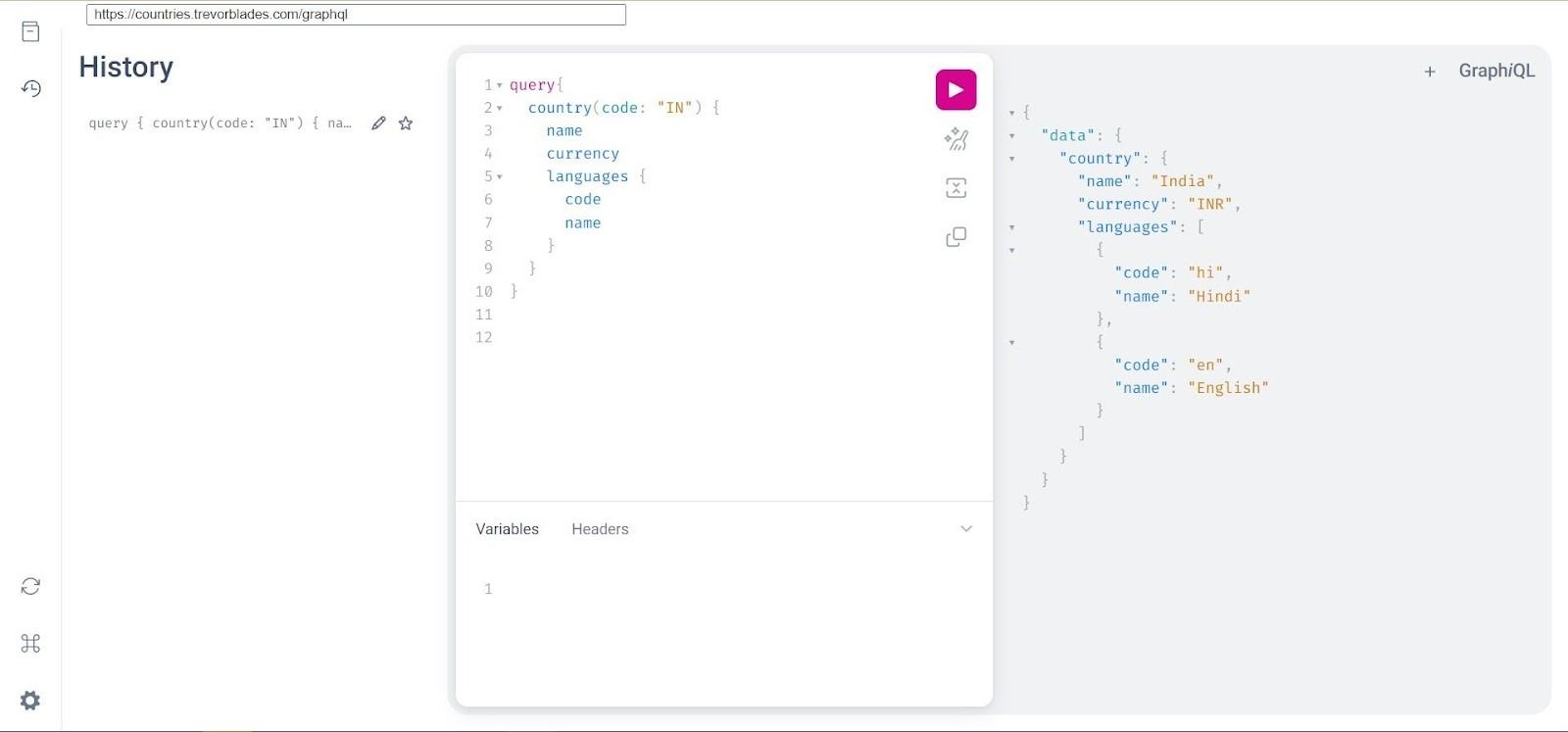
- Next, open GraphiQL in Chrome and click the icon. It will prompt you to enter the URL of the API; please insert it and run a query.
- Apollo studio
- Apollo Studio is a platform and suite of tools offered by Apollo GraphQL, a company that specializes in GraphQL solutions. Apollo Studio is specifically designed to assist developers, teams, and organizations in building, managing, and monitoring GraphQL APIs more efficiently. It provides various features and services to improve the overall GraphQL development experience.
- Apollo Studio provides a schema for queries and a free API explorer for query validation.
- Open Apollo Studio Explorer paste the endpoint URL and click the run button to show the response of the API.
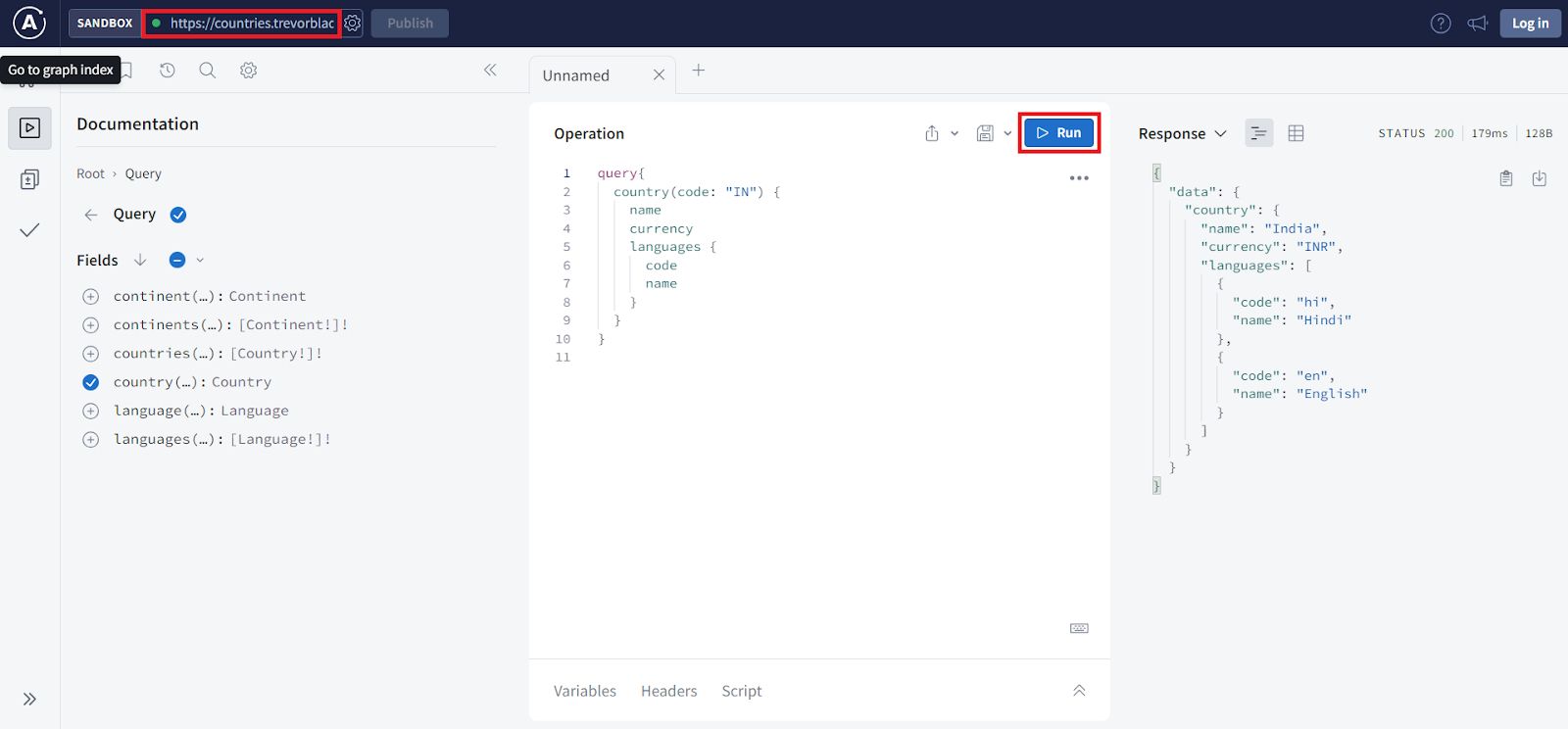
- Click the schema button and you will see the schema of the API.
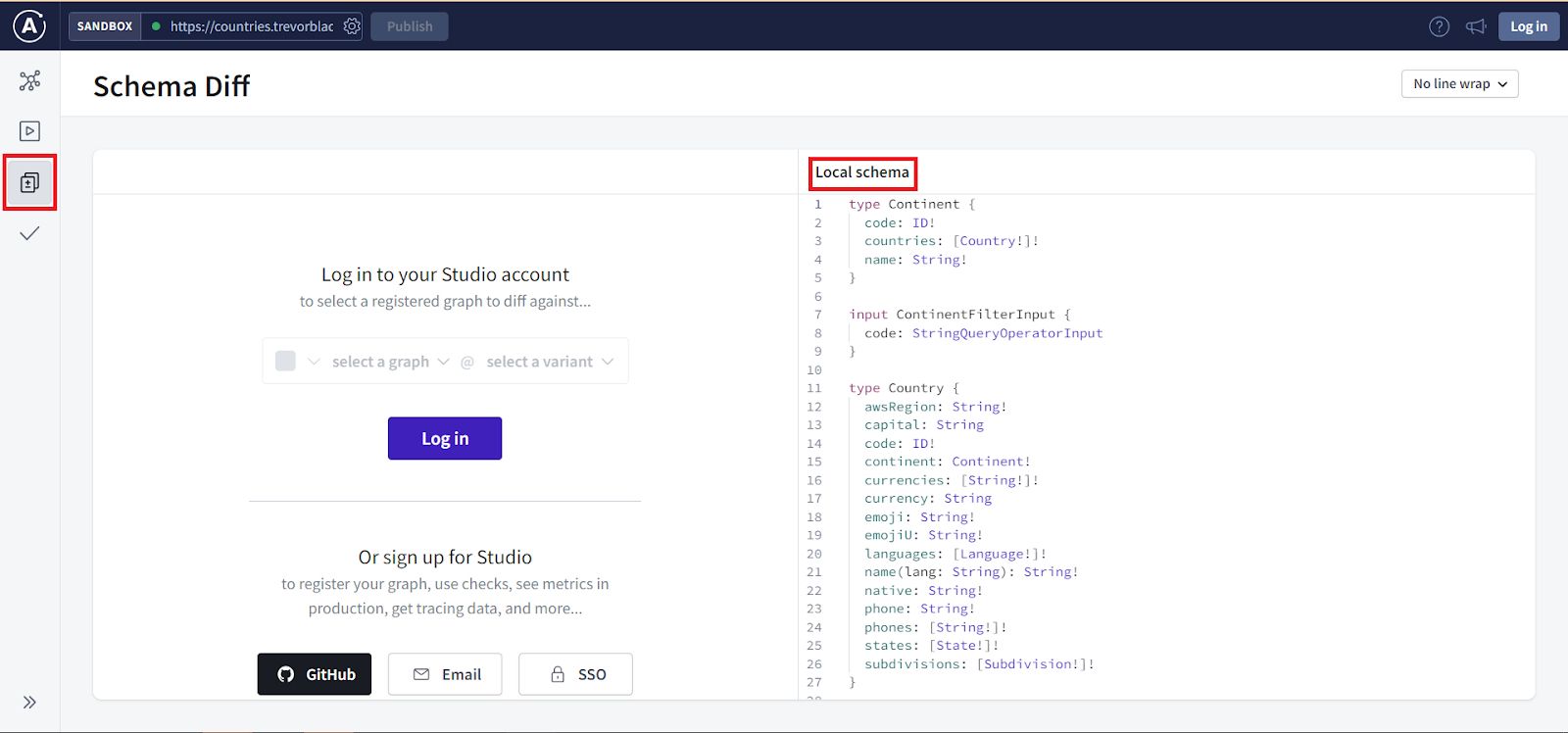
1Schema :
2
3type Continent {
4  code: ID!
5  countries: [Country!]!
6  name: String!
7}
8
9
10input ContinentFilterInput {
11  code: StringQueryOperatorInput
12}
13
14
15type Country {
16  awsRegion: String!
17  capital: String
18  code: ID!
19  continent: Continent!
20  currencies: [String!]!
21  currency: String
22  emoji: String!
23  emojiU: String!
24  languages: [Language!]!
25  name(lang: String): String!
26  native: String!
27  phone: String!
28  phones: [String!]!
29  states: [State!]!
30  subdivisions: [Subdivision!]!
31}
32
33
34input CountryFilterInput {
35  code: StringQueryOperatorInput
36  continent: StringQueryOperatorInput
37  currency: StringQueryOperatorInput
38  name: StringQueryOperatorInput
39}
40
41
42type Language {
43  code: ID!
44  name: String!
45  native: String!
46  rtl: Boolean!
47}
48
49
50input LanguageFilterInput {
51  code: StringQueryOperatorInput
52}
53
54
55type Query {
56  continent(code: ID!): Continent
57  continents(filter: ContinentFilterInput = {}): [Continent!]!
58  countries(filter: CountryFilterInput = {}): [Country!]!
59  country(code: ID!): Country
60  language(code: ID!): Language
61  languages(filter: LanguageFilterInput = {}): [Language!]!
62}
63
64
65type State {
66  code: String
67  country: Country!
68  name: String!
69}
70
71
72input StringQueryOperatorInput {
73  eq: String
74  in: [String!]
75  ne: String
76  nin: [String!]
77  regex: String
78}
79
80
81type Subdivision {
82  code: ID!
83  emoji: String
84  name: String!
85}


